

Homepage overview
Your homepage is the first thing you see after signing in — search, notifications, the Ask AI agent, and a widget dashboard you can make your own.
Homepage overview
Your homepage is your starting point after signing in to Kissflow. It gives you an at-a-glance summary of your items, your workflows, and other key information, so you can pick up where you left off without digging through menus.
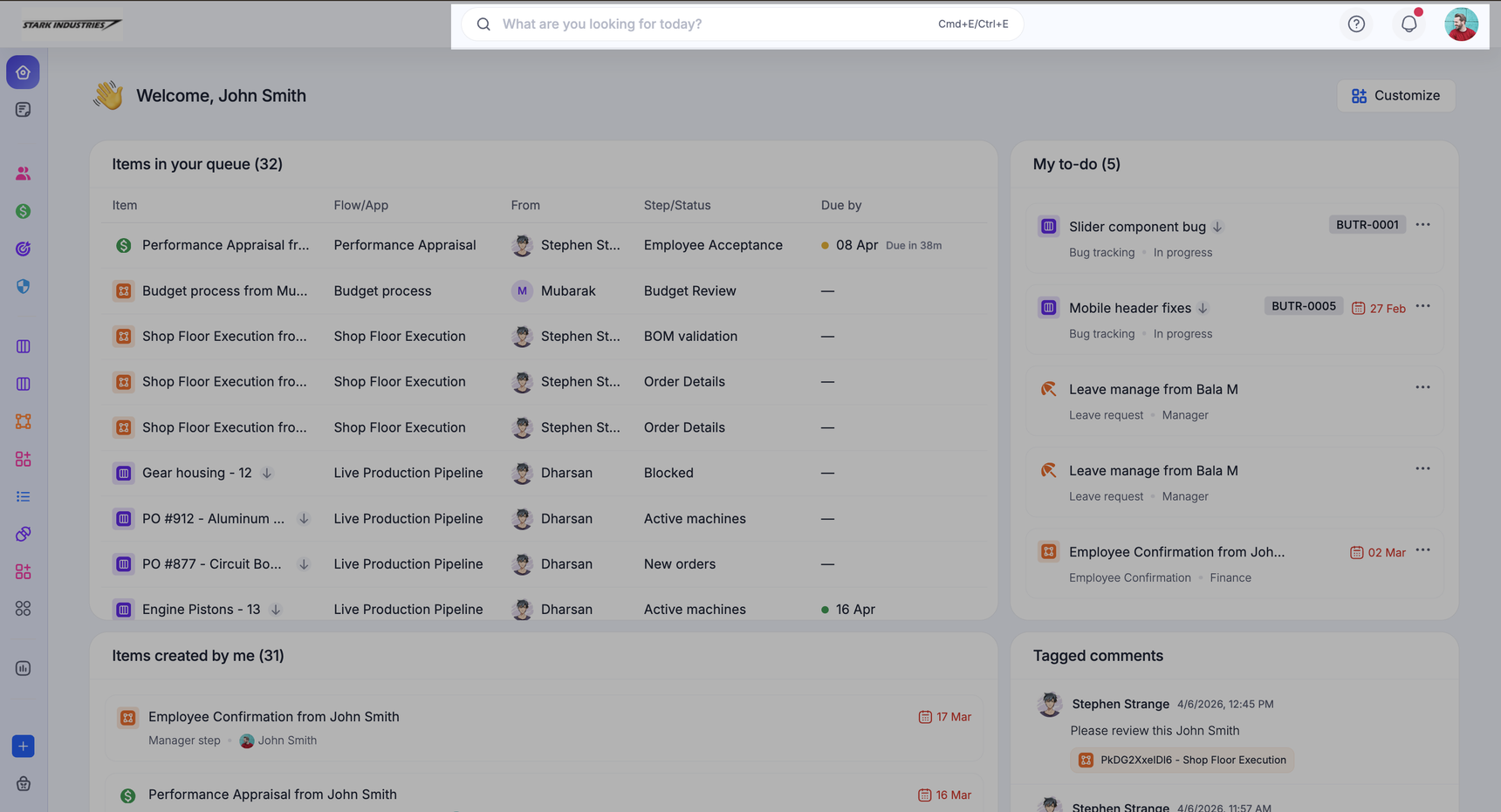
The top bar
Across the top of every page, you have quick access to:
- Global search — search across items, workflows, and apps by name or keyword.
- Help — click the help icon to open the help documentation or reach the Kissflow community.
- Notifications — the bell icon shows updates on items assigned to you and other account activity.
- Your profile — click your profile picture to get to My settings, Themes, or to sign out.
Ask: Kissflow's AI agent
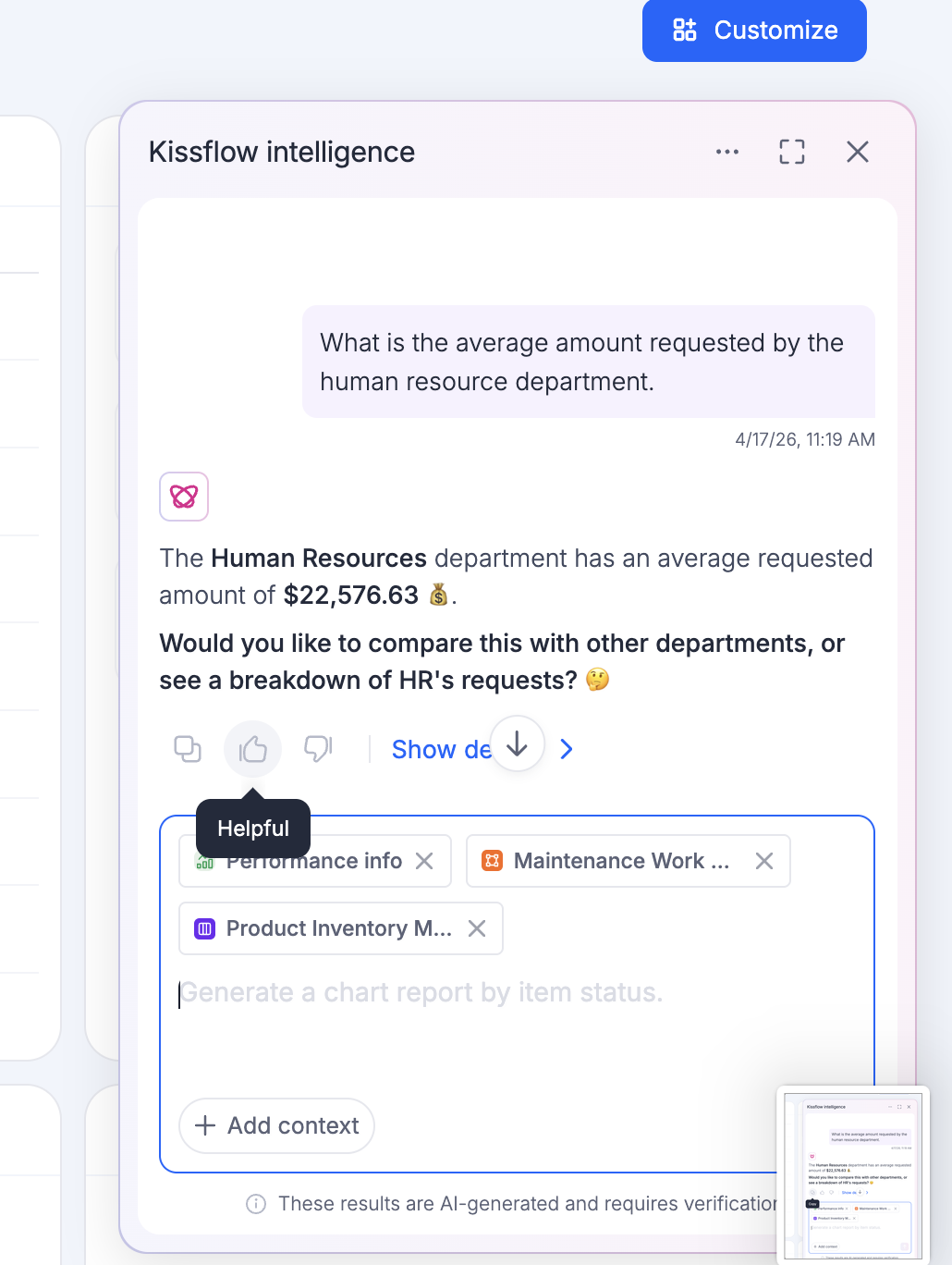
Ask lets you query your workflow data using natural language and get reports and insights back instantly, without building a report by hand. Click Ask on your homepage to start a conversation.
Before you can ask a question, add context: click + Add context and select the processes, boards, apps, or datasets you want the AI to draw on. You can select up to 3 workflows at a time.
Note
Only workflows you have sufficient access to are available to add as context. If a workflow you expect to see is missing, check your permissions on it.
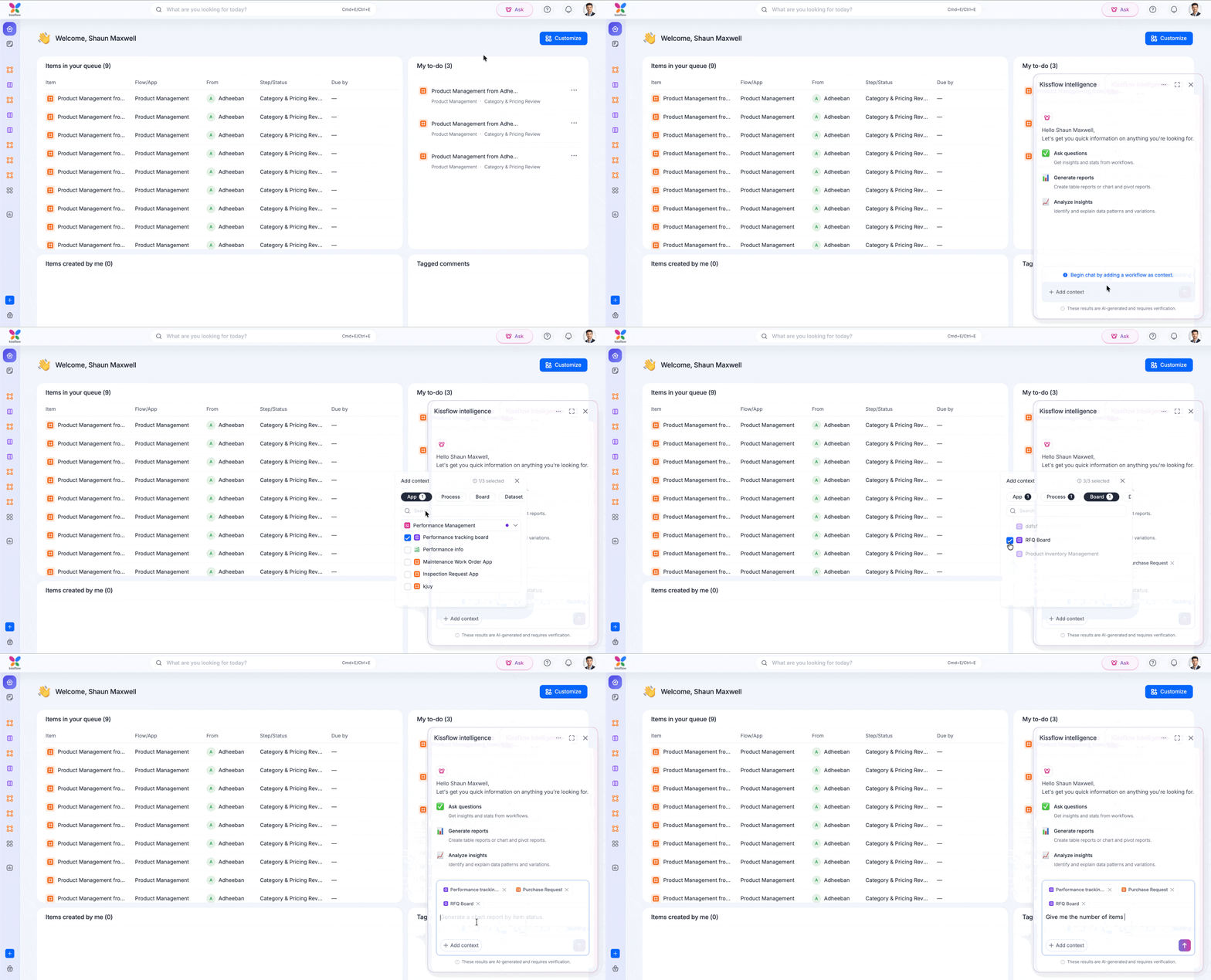
Once you've added context, type your question in plain language. Ask interprets your intent, identifies the relevant fields in the selected workflows, queries the data, and returns a response.
The conversation doesn't reset after each question — Ask keeps up to 40 previous messages as context, so you can ask follow-up questions without repeating yourself.
Generating a report
You can also use Ask to create reports with a simple prompt. When Ask generates a report, click Edit and save to send it to the Analytics report builder, where you can refine it further. Saved reports show up under Analytics > Reports.
Checking a response
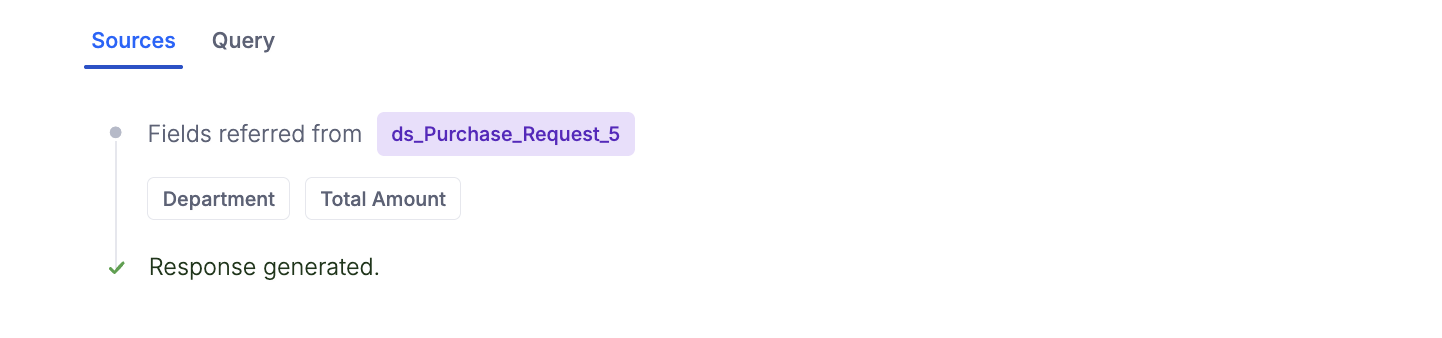
Every response comes with a plain-language explanation of the result. Click Show details to see exactly how Ask got there:
- Sources — the workflows used and the fields referenced.
- Query — the exact query run against the data.
You can rate any response with a thumbs up or thumbs down, and optionally add more detail — whether the response was accurate, how fast it was, and any other comments. This feedback helps improve Ask over time.
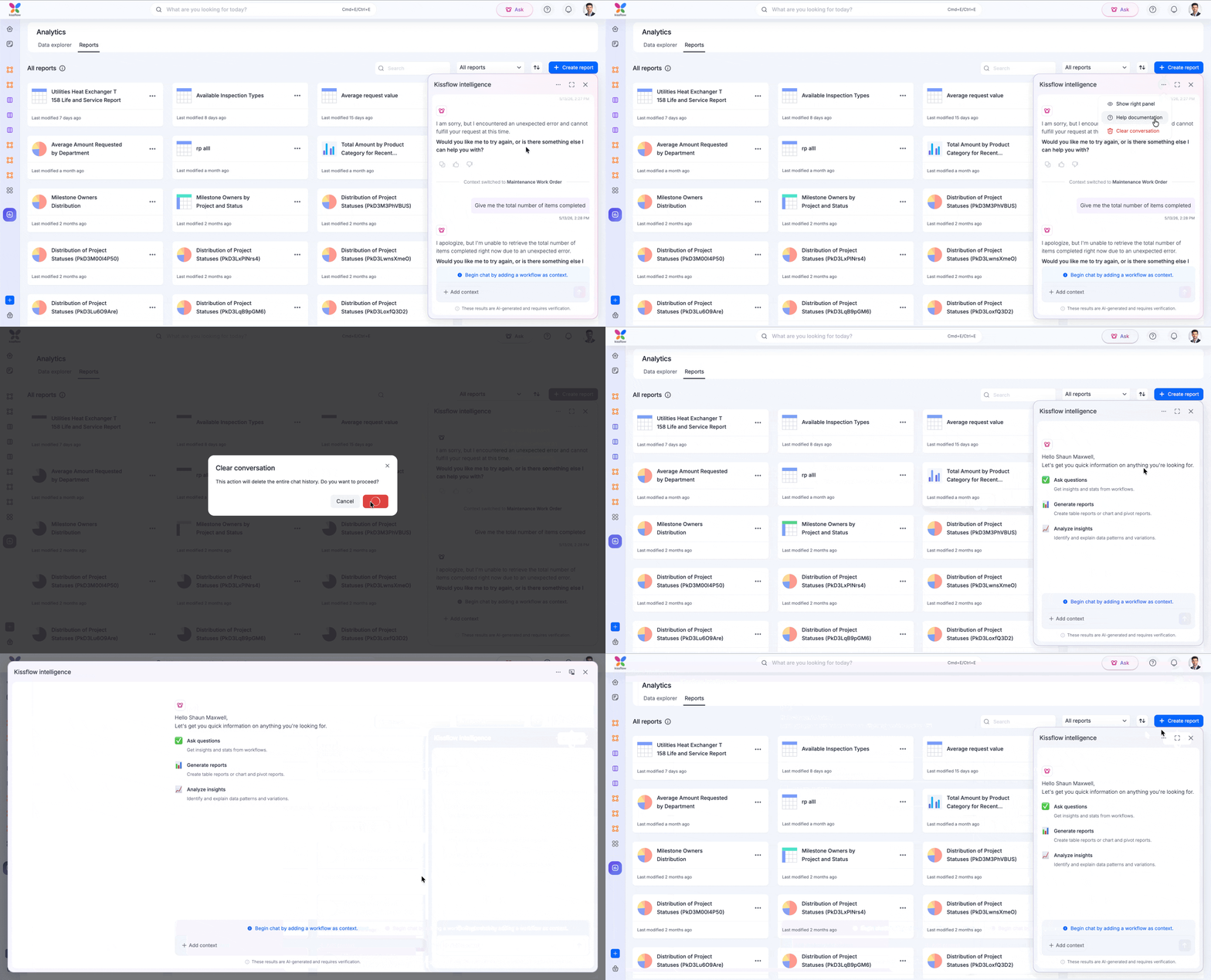
Use More options to open the help documentation or clear the current conversation. You can also expand the Ask interface for a more focused, full-screen view.
Default widgets
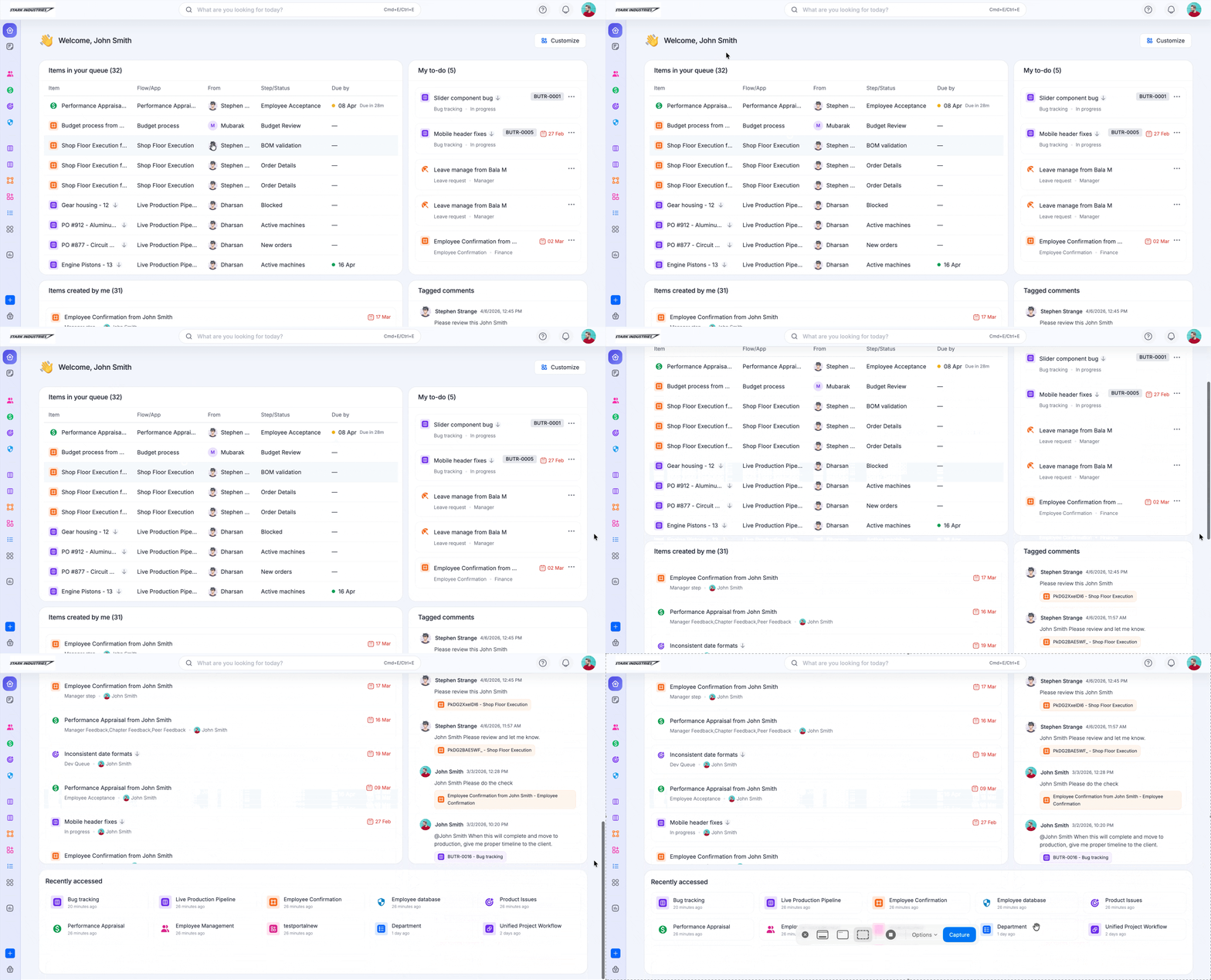
By default, your homepage shows five widgets, each using fixed system fields as columns:
- Items in your queue — items assigned to you.
- Items created by you — items you've initiated.
- Recently accessed — items you opened most recently.
- Tagged comments — comments where you've been mentioned.
- My to-do — items you've marked as to-do.
Marking items as to-do
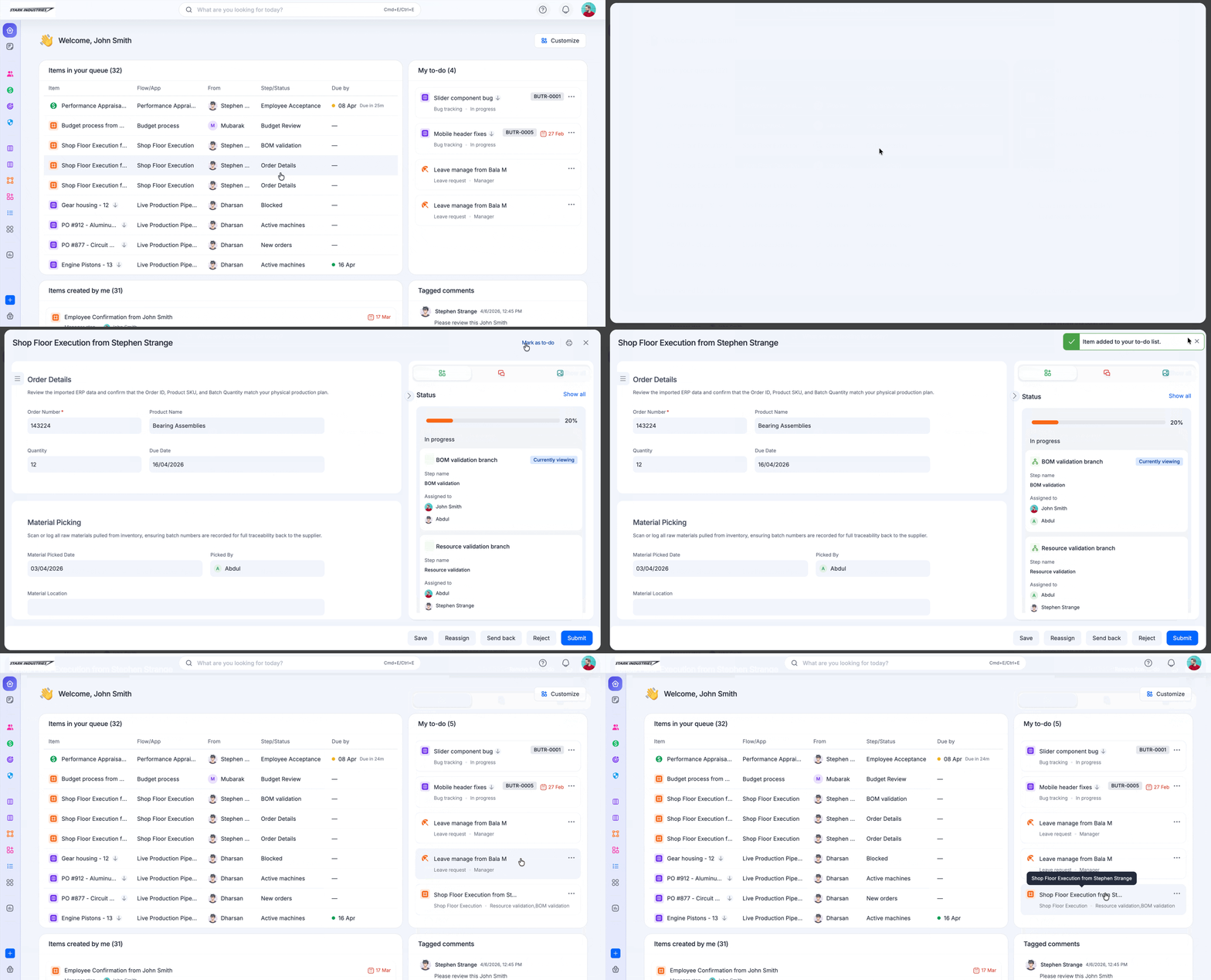
Open any process or board item assigned to you and use Mark as to-do (or Remove from to-do) at the top of the item. You can do this directly from the Items in your queue widget. Items you've marked appear in the My to-do widget for easier tracking.
Customizing your homepage with widgets
Note
Widget customization is an Enterprise feature. On the Basic plan, your homepage always shows the five default widgets.
If your account has customization enabled, you can add, remove, and rearrange widgets to build a dashboard that matches how you work. Click Customize at the top right of the homepage to open the widget picker, drag the widgets you want into your dashboard, arrange them, and click Save.
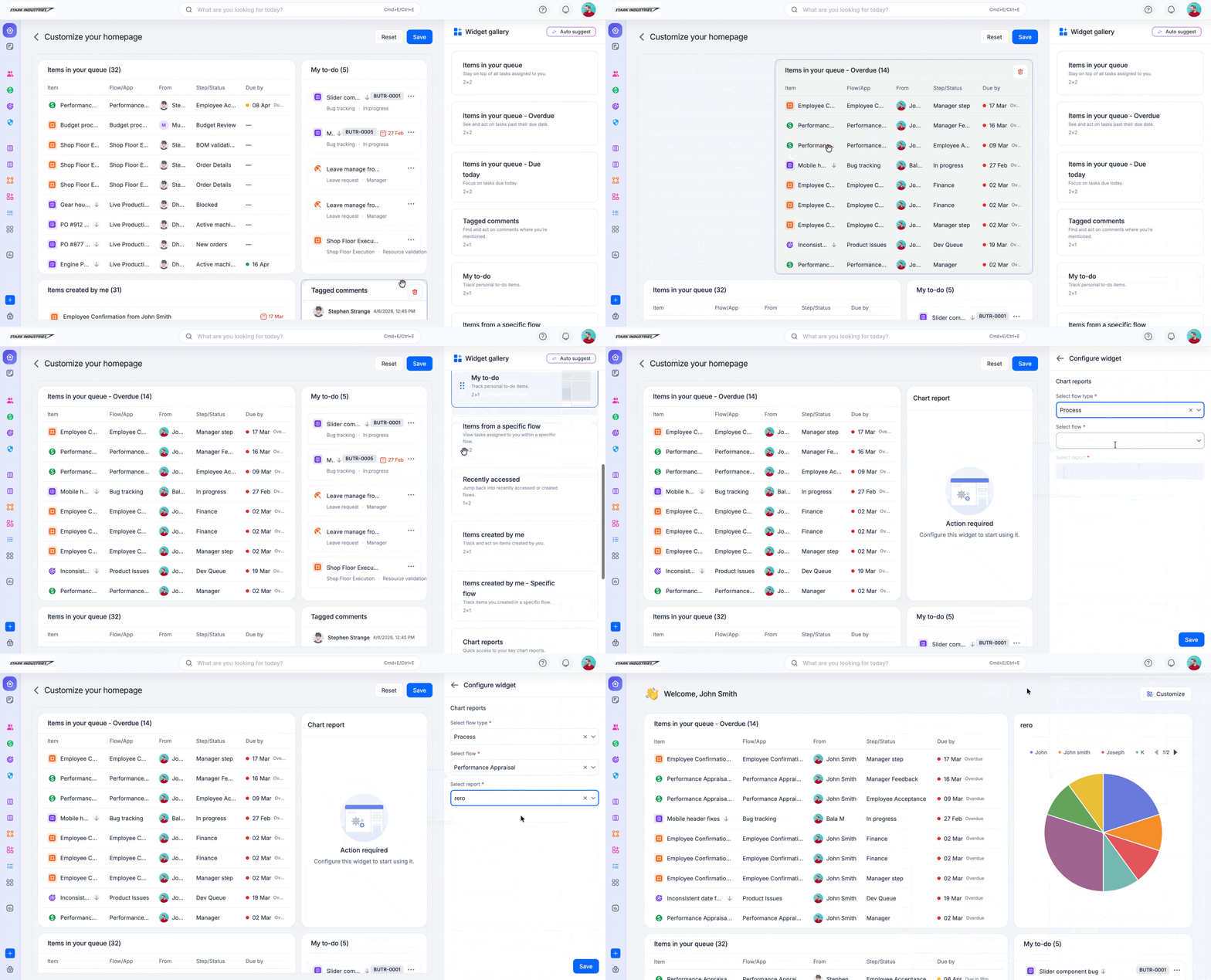
There are 13 widgets to choose from — most are standard and work out of the box, while a few are flow-specific and need to be configured before they'll show data.
Standard widgets
| Widget | Description |
|---|---|
| Items in your queue | Shows all items currently assigned to you. |
| Items in your queue – overdue | Shows items in your queue that have passed their due date. |
| Items in your queue – due today | Shows items in your queue that are due today. |
| Tagged comments | Displays comments where you've been tagged. |
| My to-do | Shows items you've marked as to-do from processes or boards assigned to you. |
| Recently accessed | Quick access to the items you opened most recently. |
| Access requests | Lists access requests awaiting your action. |
| Flow creation requests | Displays requests for creating new flows. |
Note
Items created by you is also on the widget picker, but unlike the widgets above it needs a quick one-time configuration (setting a status filter) before it can be saved to your dashboard.
Flow-specific widgets
These widgets need to be configured with a specific flow (and, for reports, a specific report) before they show data:
| Widget | Description |
|---|---|
| Items in your queue – specific flow | Shows items assigned to you from a chosen flow. |
| Items created by me – specific flow | Lists items you created in a specific flow. |
| Chart reports | Visual representation of a report from one of your flows. |
| Tabular reports | Tabular view of a report from one of your flows. |
Important
You can add up to 3 report widgets (chart or tabular), and up to 15 widgets in total, on your homepage.
Use Reset to discard unsaved changes and go back to your last saved dashboard. If you remove every widget and save, your dashboard reverts to the five default widgets rather than staying empty.
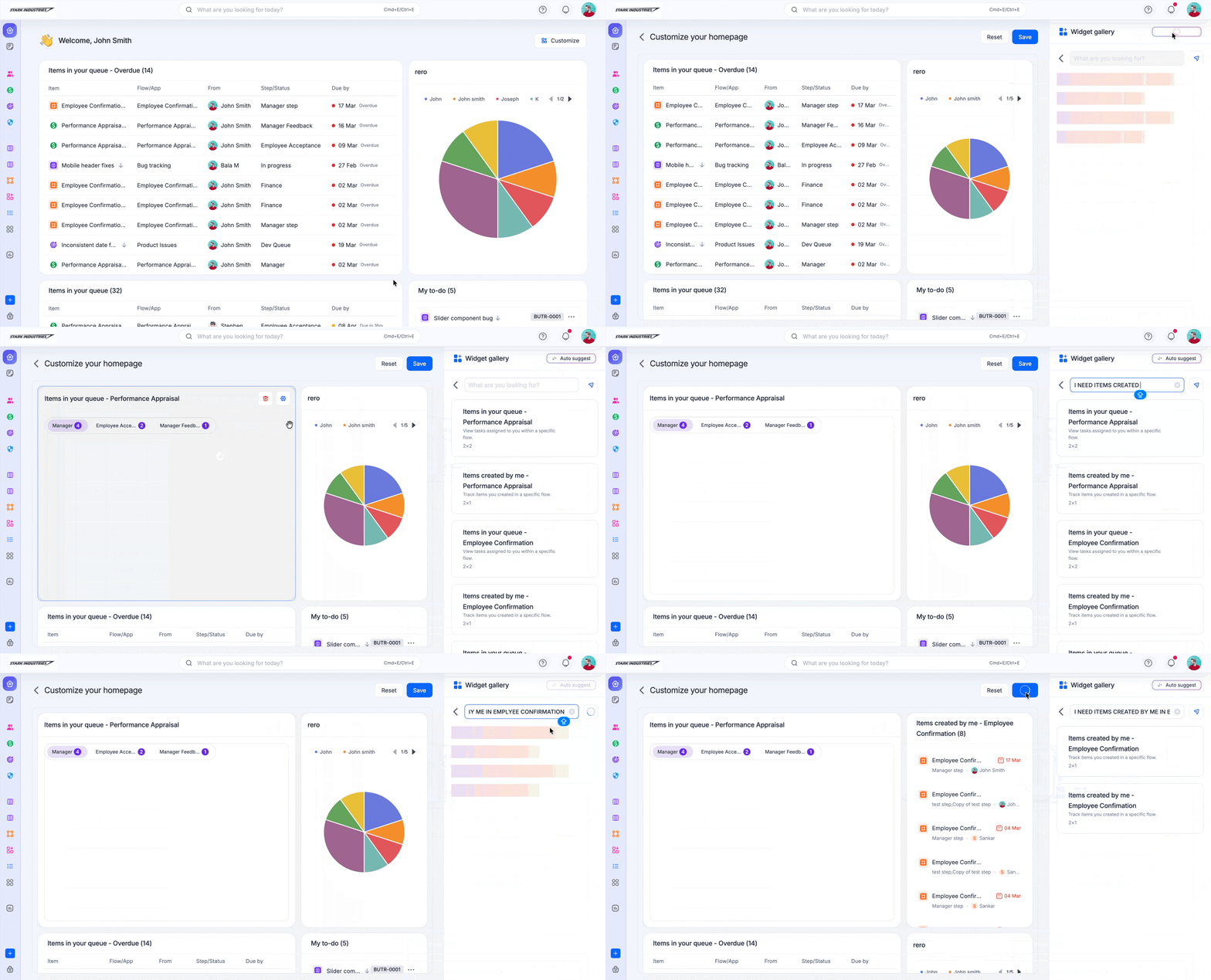
Using AI auto suggest
Instead of building your dashboard widget by widget, use AI auto suggest from the widget picker:
- Get suggestions — AI surfaces widgets likely to be useful based on your activity and usage patterns. You just review the suggestions and place the ones you want.
- Ask for widgets — type what you're looking for, for example items created by me in employee confirmation, and AI configures the matching flow-specific widget for you to drag into place.
Tip
AI auto suggest only recommends widgets from the standard 13-widget catalog — it doesn't create new widget types. For flow-specific widgets, it can go one step further and hand you a fully configured widget based on your request.