

Quickstart for admins
Set up your Kissflow account: add users, secure sign-in, and govern what your teams build.
This tutorial takes you through the five things a new admin sets up first: the account itself, the people in it, how they sign in, what they build, and where they build it. Almost everything here starts from your profile picture in the upper-right corner. Each step is the short version; the Go deeper links carry the full detail when you want it.
Before you begin
You need an admin role to open Account administration. This tutorial follows what a Super Admin sees, which is every tab. IAM Admins, User Admins, Billing Admins, and App Store Admins each see the tabs their role covers, so check the permissions table if a tab named here is missing for you.
1. Open Account administration
- Click your profile picture in the upper-right corner and select Account administration.
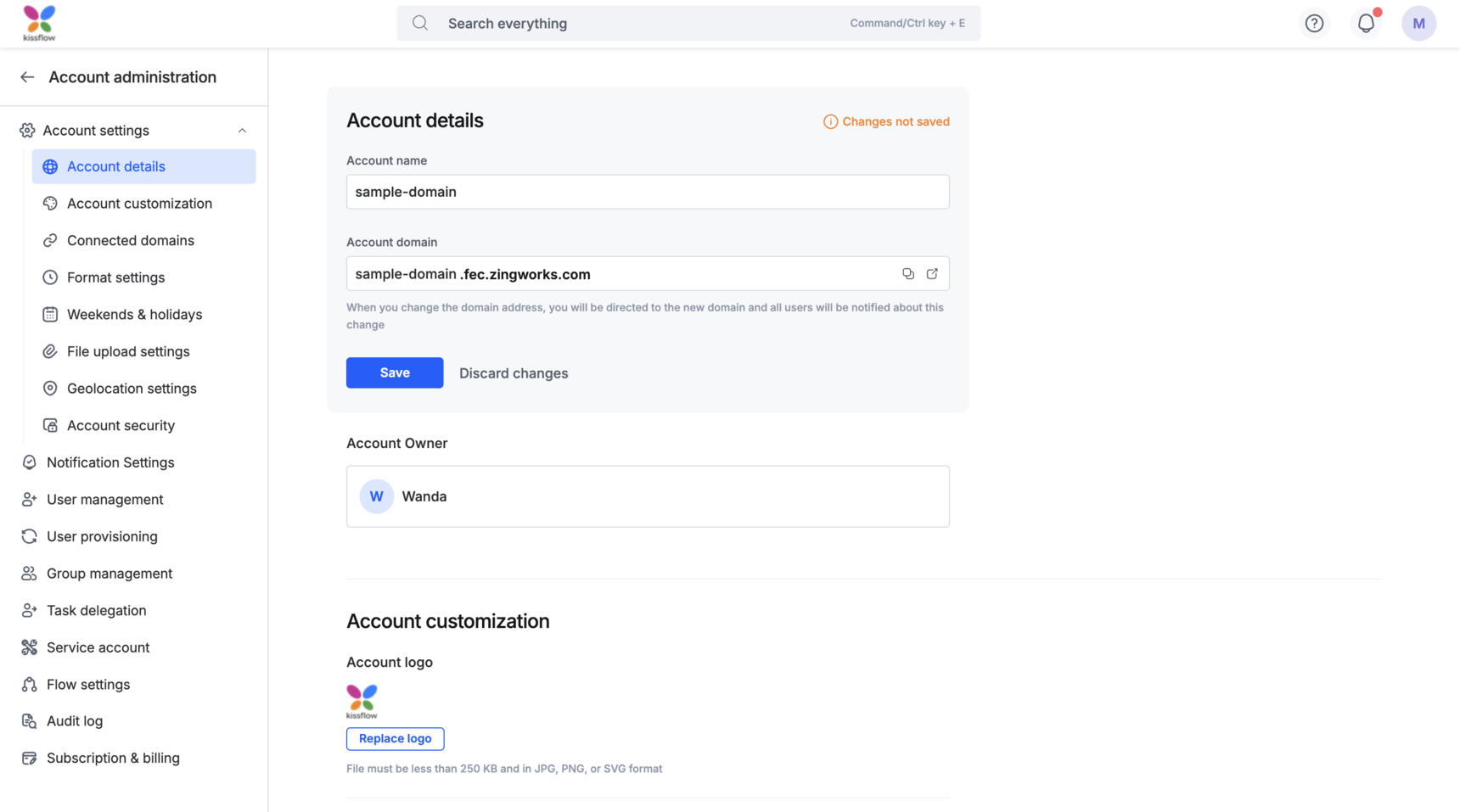
- Select Account details to see your account name, your account domain, and the Account Owner.
- Scan the left panel. Each tab holds one slice of the account: users, groups, provisioning, security, flow settings, the audit log, and billing.
Note
Only the current Account Owner can transfer ownership, and only to a Super Admin. Everything else on this page is open to any Super Admin.
Go deeper: Account details, customization, and connected domains and User roles and permissions.
2. Add users and groups
- Go to Account administration > User management and click Add a user.
- Enter the user's first name and email address, which are mandatory. You can also assign a user role, tag the user with a group and a manager, and decide whether to send an email invite.
- Click Add.
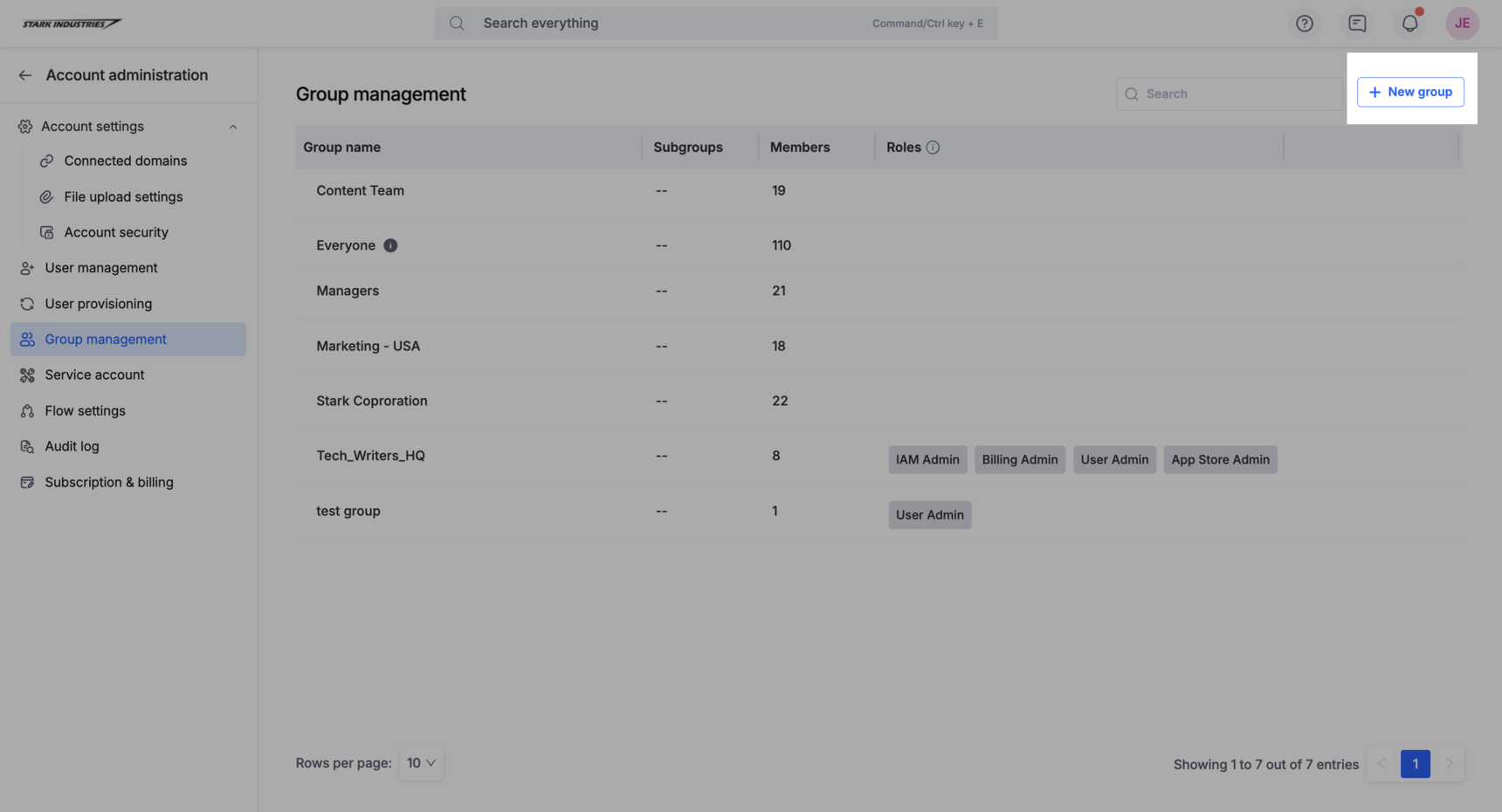
- Go to Group management and click New group to gather the users who need the same access. Name the group, select its members, add any roles the group should carry, and click Create.
Note
Every account comes with a system-generated Everyone group that holds all current users and picks up new ones automatically. Share a flow with Everyone to reach the whole organization.
Go deeper: Adding and managing users and Group management.
3. Secure how people sign in
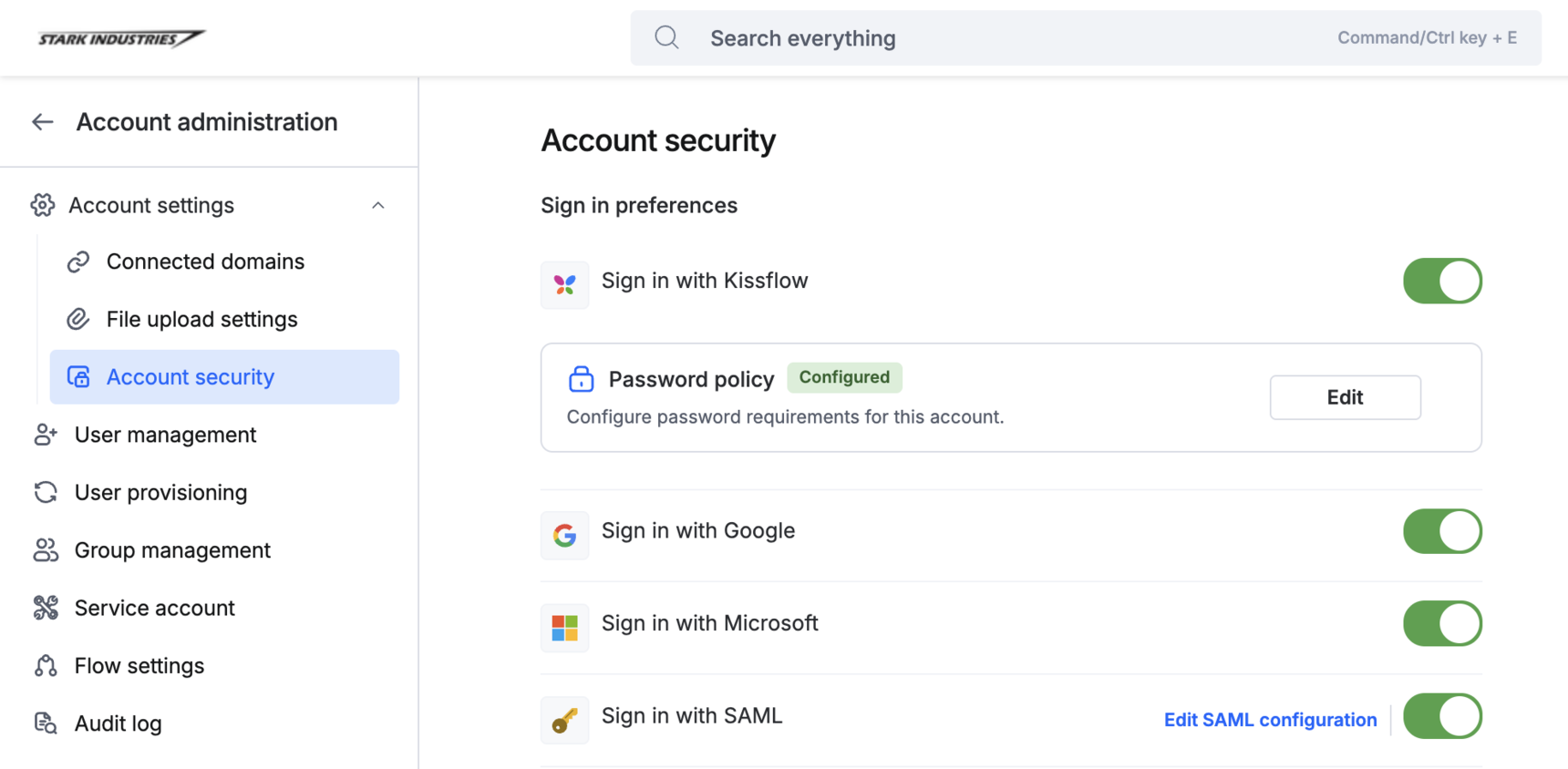
- Go to Account administration > Account security > Sign in preferences and turn on the sign-in options your organization allows: email and password, Google, Microsoft, or SAML.
- Select Configure next to Password policy to set a minimum length, the complexity you require, how many past passwords to remember, and how often passwords expire.
- Set Inactive session timeout separately for web, from one hour up to 24 hours, and for mobile, from one day up to one month.
- Select Sign-up preferences to decide whether people can request access through your account's sign-up URL.
Go deeper: Account security and Setting up SAML-based single sign-on for Microsoft Entra ID.
4. Govern what gets built
Account governance is the Enterprise dashboard where Super Admins and IAM Admins audit an account in one place, rather than opening each flow to find out who owns what.
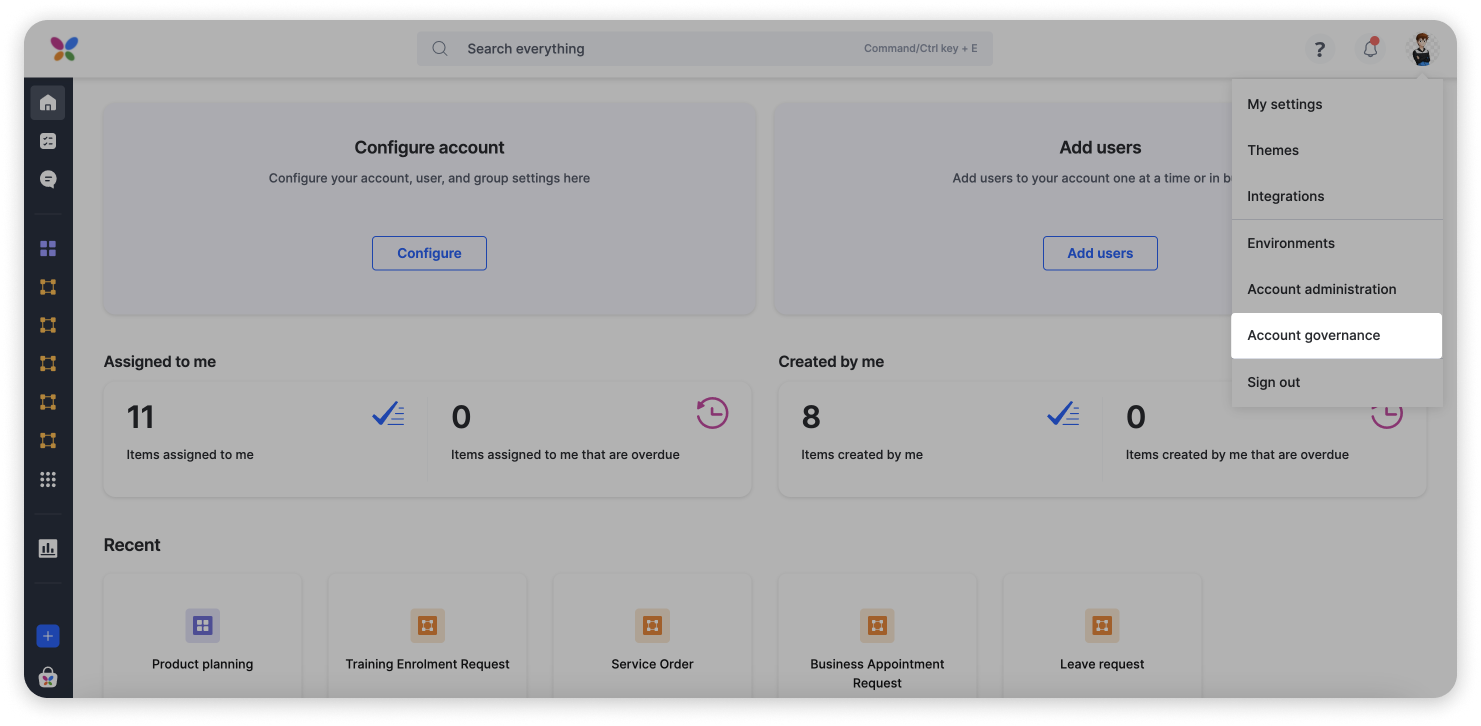
- Click your profile picture and select Account governance.
- Select a resource type to review everything of that kind in your account: users, groups, processes, boards, datasets, lists, authentication keys, and connections.
Go deeper: Account governance overview.
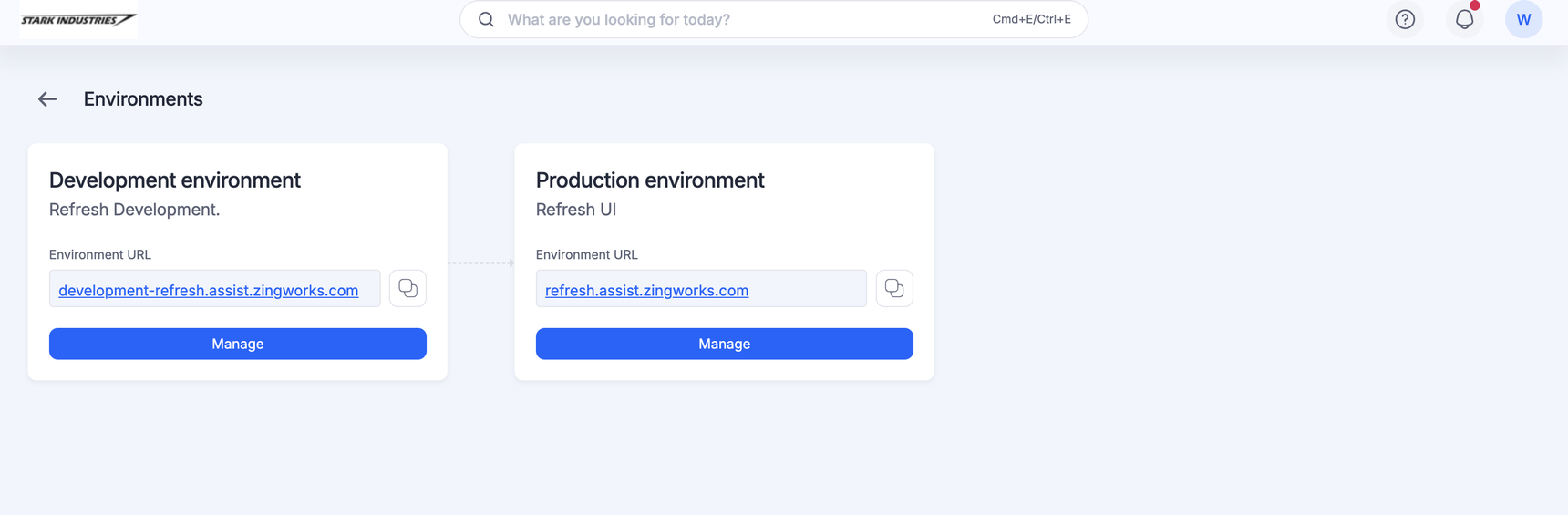
5. Manage your environments
Enterprise accounts build in a development environment and release to production, so the two need managing separately.
- Click your profile picture and select Environments.
- Copy the URL of the environment you need, or click Manage to open that environment's own Account administration page.
- Click Manage under the development environment, go to User management, and click Add users to map the people who build apps.
Important
Users added to production sync to the sub-environments, but they still need mapping before they can get in. A user who holds an admin role only through a group cannot be mapped at all: add them to the User management table directly.
Go deeper: App environments.
Where next
Keep going with these guides:
- Automate user provisioning with SCIM and directory sync.
- Track every account action in the audit log.
- Give your automations their own identity with a service account.
- Control who can create flows in flow settings.
- Check licenses and invoices under subscription and billing.