Managing boards in the PWA
Create, browse, and act on board items from the My tasks and My items dashboard widgets in the Kissflow PWA.
Managing boards in the PWA
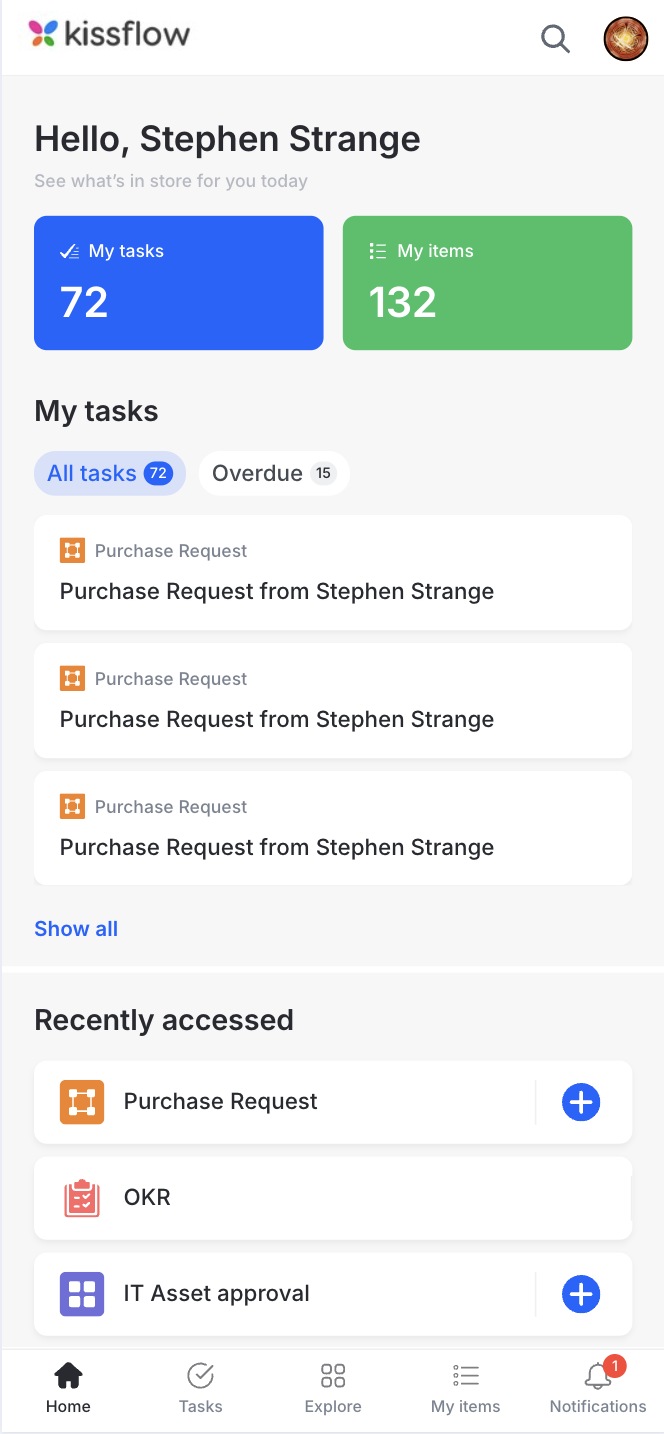
Manage your boards from anywhere using the Kissflow Progressive Web App (PWA). The Home dashboard has two widgets for working with board items:
- My tasks — lists items assigned to you.
- My items — lists items you created.
Create an item
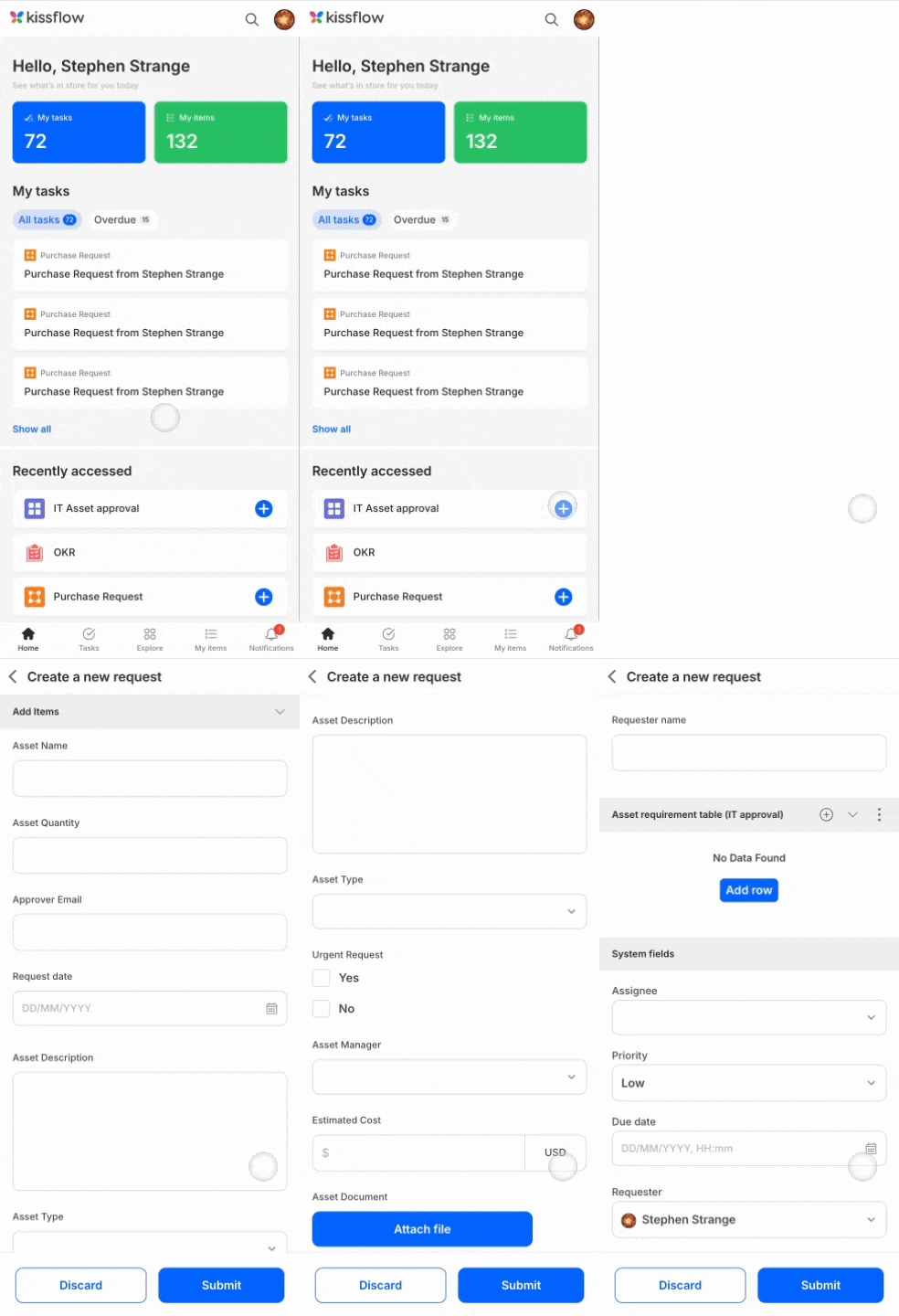
- On the dashboard, tap the New item (
 ) button next to a board.
 - In the form that opens, fill in the details — assignee, due date, status, priority, and any other fields your board captures.
- Tap Submit.
Note
You can also get to a board's new-item form by tapping Explore, opening the board, and tapping the New item button there.
Browse items in a board
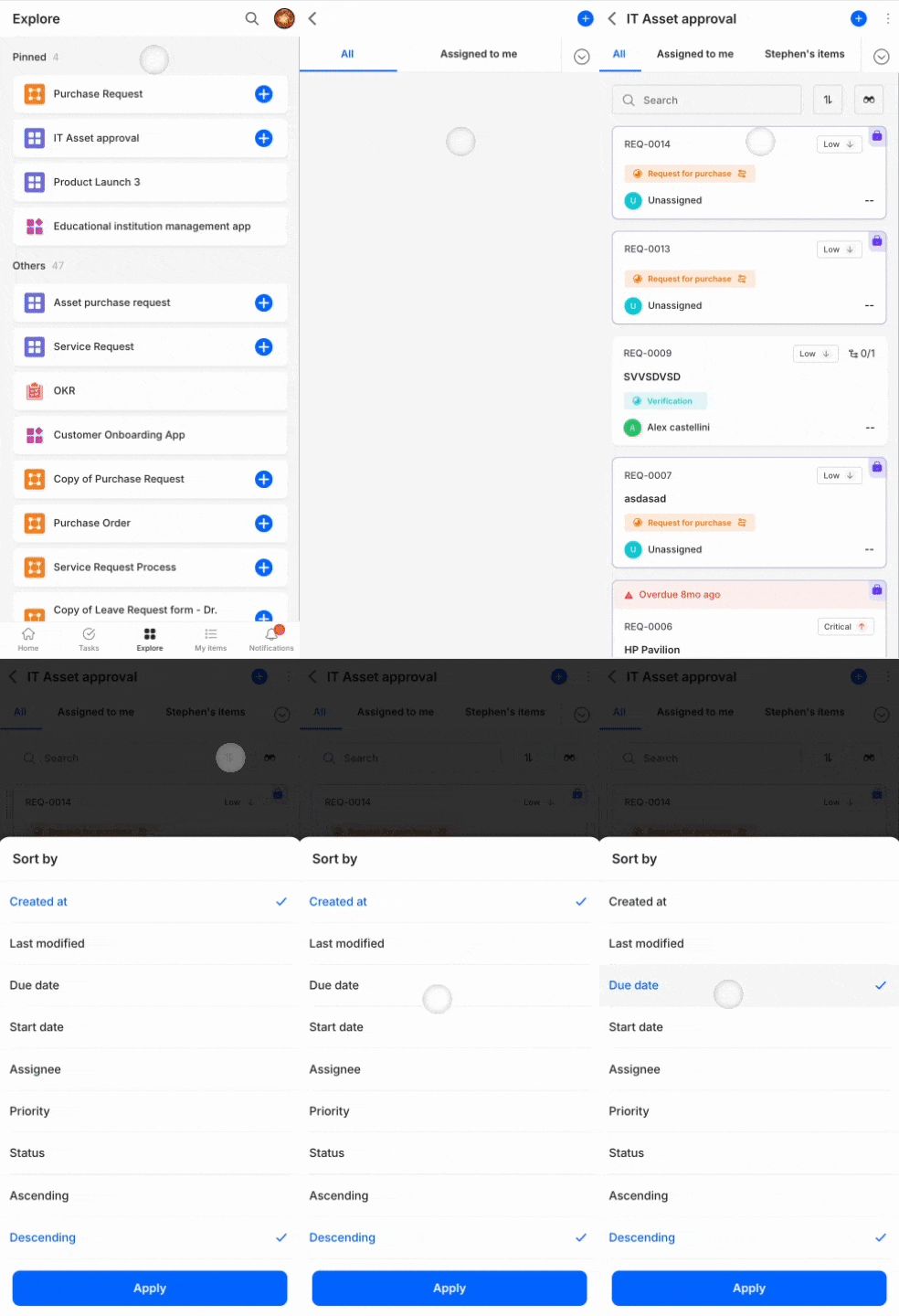
- Tap Explore.
- Tap a board to see its items.
- Switch between tabs to filter the view:
- All — every item in the board. This is the default tab.
- Assigned to me — items assigned to you for action.
Note
If you're an initiator in the board, you also get an Initiated by me tab alongside All, pinned by default.
- Tap the Sort button (
 ) to sort the items shown in a tab.
Manage an item
- Open an item from the board.
- Tap the More options button (
 ).
). - Choose an action:
- Copy link — copies a direct URL for the item that you can share with others.
- Watch — watch an item that isn't assigned to you to keep track of its progress.
- Clone — creates a duplicate of the item.
- Delete — removes the item.
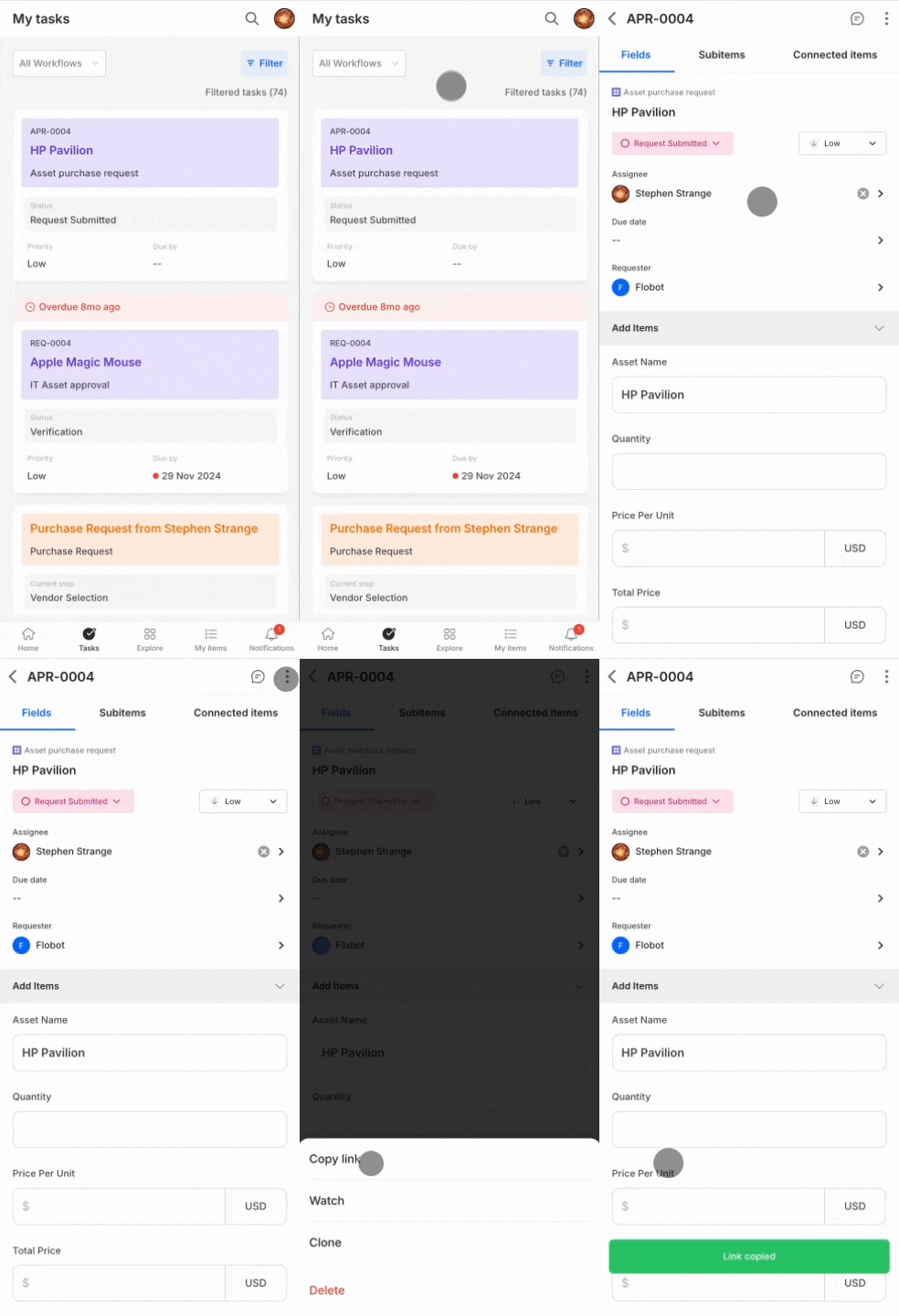
Track items from My tasks and My items
- On the dashboard, tap the My tasks widget to see items assigned to you, or the My items widget to review the progress of items you created.
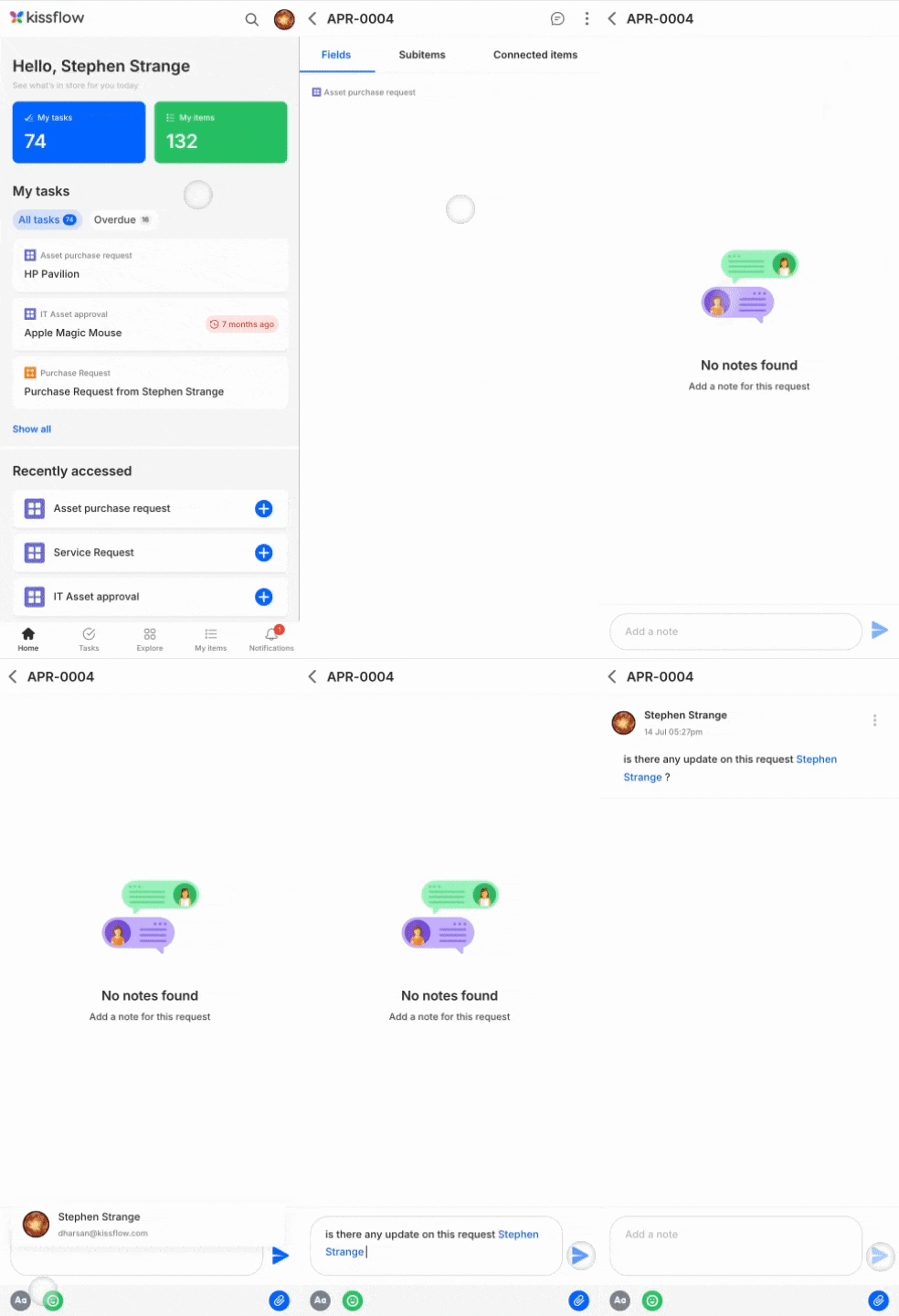
- Tap an item to open it. Any changes you make to its fields are auto-saved.
You can also add notes to collaborate with others on the item. Notes support @mentions, emojis, attachments, and other formatting options.