

Signing in to Kissflow
Reach your Kissflow account from its URL, from a notification email, or from kissflow.com, and verify your email address the first time.
Every Kissflow account has its own address, and signing in usually means going to it. There are three routes in: your account URL, a link in an email Kissflow sends you, and the sign-in button on kissflow.com. Which sign-in options you see depends on what your account's administrator has enabled.
Sign in at your account URL
- Go to
https://<your-account>.kissflow.comin your browser. - Enter your email address and password, then click Sign in.
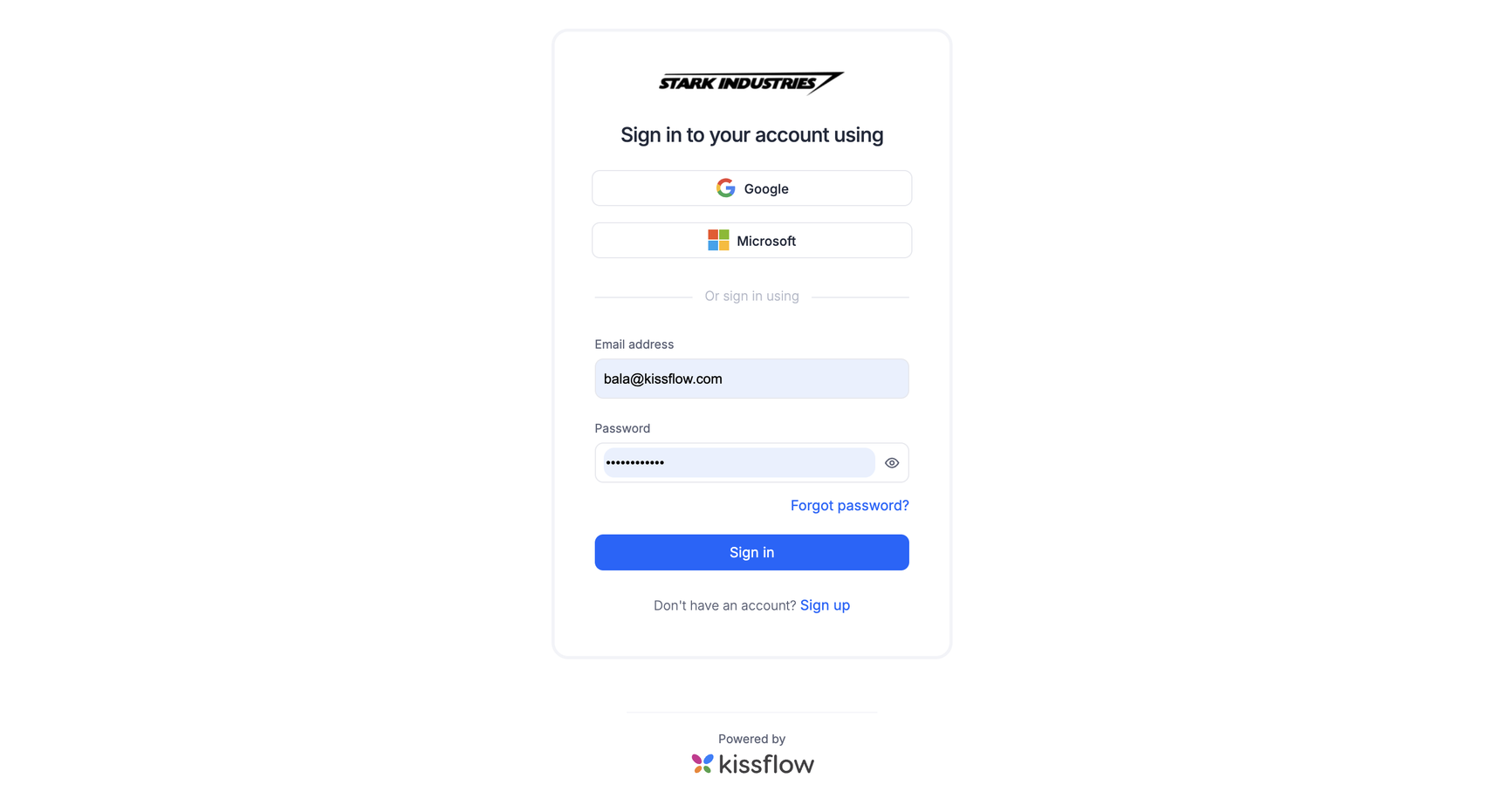
If your organization uses Google, Microsoft, or a SAML-based single sign-on provider, use that button instead and you will be sent to your identity provider to authenticate.
Note
Your administrator decides which of these are available, and sets the password requirements for the account. See account security for what can be configured.
Sign in from a Kissflow email
Depending on your notification settings, Kissflow emails you when something needs your attention. Click View on Kissflow in the email and you land on that item directly. The first time you do this on a new device, you may be asked to sign in again first.
Sign in from kissflow.com
Use this route when you don't have your account URL to hand.
- Go to kissflow.com and click Sign in at the top right.
- Under Using Kissflow Work Platform?, enter your account domain and click Submit.
- Enter your email address and password.
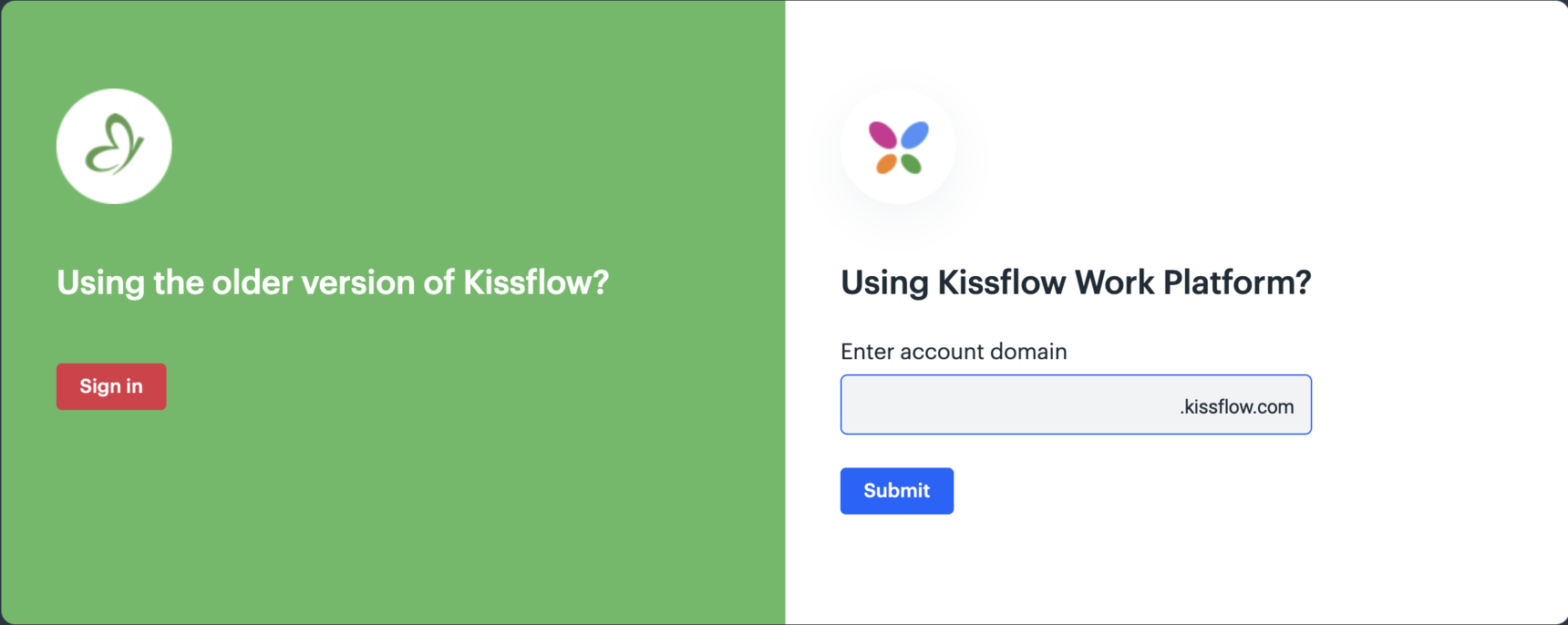
If you are already signed in, you go straight to your home page instead.
Verify your email address
When someone invites you to an account, Kissflow sends a verification email. Open it and click the verification link to confirm the address. Verifying matters for more than access: it is how Kissflow knows where to send the notifications that tell you work is waiting for you.
If the link has expired, a banner stays pinned at the top of your account until the address is verified, and you can resend the email from there.
Reset a forgotten password
Click Forgot password? on the sign-in page and follow the emailed link. The requirements your new password has to meet, such as its length and whether it needs numbers or symbols, come from your account's password policy rather than being the same everywhere.
Note
If Sign in with Kissflow has been turned off for your account, password reset emails are not sent. Sign in with the option your administrator has enabled instead.
Sign in on a phone or tablet
Open your mobile browser and go to the same account URL. You can also install Kissflow as a Progressive Web App, which behaves like an installed app and updates itself:
Supported browsers
Kissflow's web app is best viewed on Google Chrome 120 and above, Microsoft Edge 120 and above, Safari 17 and above, or Mozilla Firefox 120 and above. Other browsers usually work, but keep yours up to date.