

Quickstart for end users
Find your work in Kissflow: submit a form, track what you've sent, and act on the tasks assigned to you.
Most of your day in Kissflow comes down to four things: seeing what needs you, starting something new, following what you started, and acting on what others send you. This tutorial covers all four, beginning at the homepage you land on after you sign in. Each step is the short version; the Go deeper links carry the full detail when you want it.
Before you begin
You need a Kissflow account and at least one app, process, or board shared with you. If you can sign in and your homepage shows your name, you have everything this tutorial needs. Nothing here changes how your workflows are built, so you can follow it on real work.
1. Find your way around
- Sign in to land on your homepage, where five widgets summarize your work: Items in your queue, Items created by you, Recently accessed, Tagged comments, and My to-do.
- Use the search bar at the top to find items, workflows, and apps by name or keyword.
- Click the bell icon for notifications, and your profile picture for My settings, Themes, or to sign out.
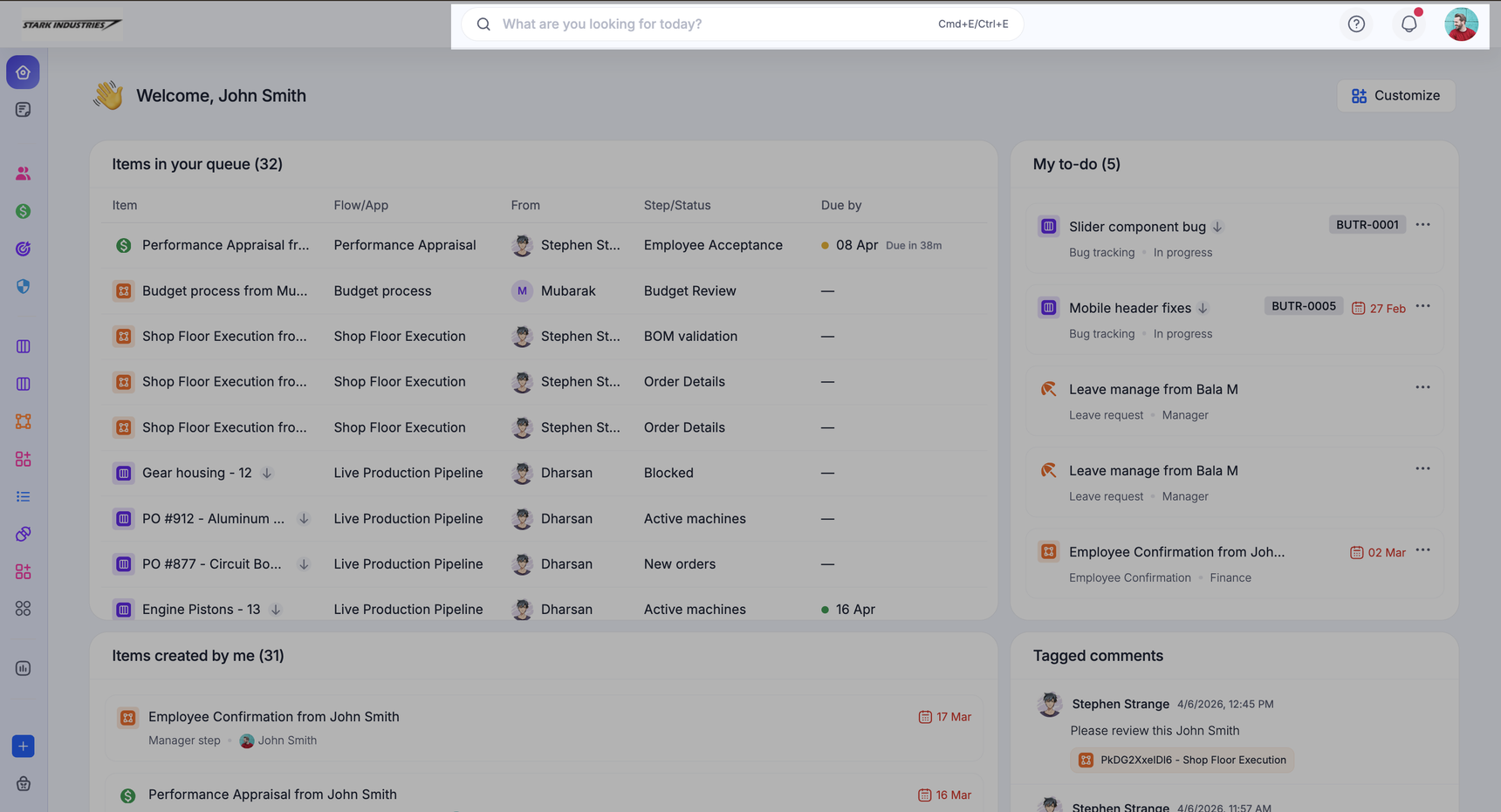
Go deeper: Homepage overview.
2. Submit a form
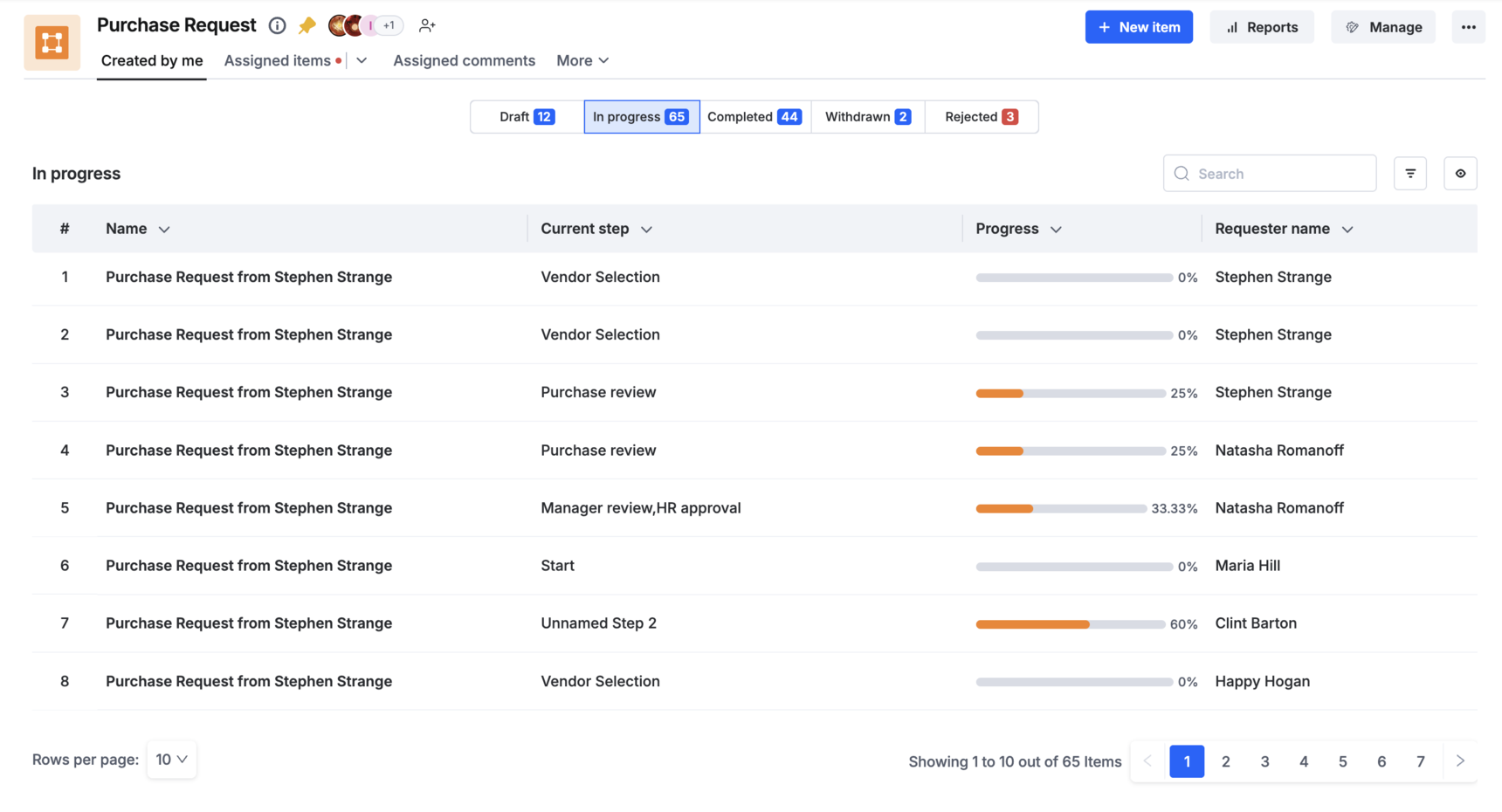
- Open the process shared with you.
- Click + New item at the top right.
- Fill in the form fields and click Submit.
Note
To finish later, click Save instead. Your item waits under Created by me > Drafts, where you can edit and submit it. Discard deletes it permanently.
Go deeper: Member actions in a process and, for boards, Creating and managing items.
3. Track what you've submitted
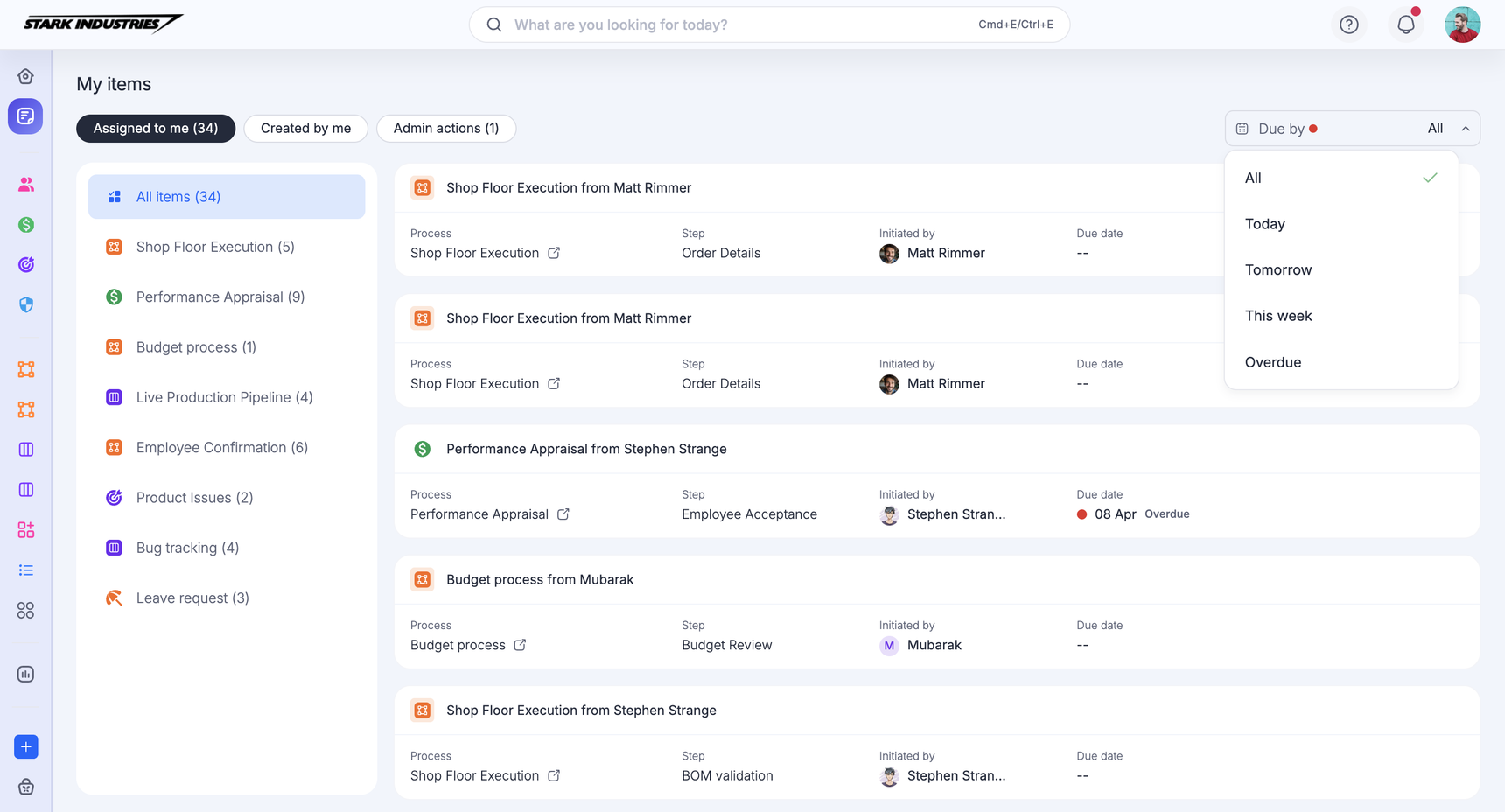
- Open My items to see your work across every process, board, and app, without opening each one.
- On Assigned to me, narrow the list with the Due by filter: All, Today, Tomorrow, This week, or Overdue.
- On Created by me, filter by status: In progress, Not started, or Completed.
- Click any item to open it and check its progress.
Note
Completed shows only the items finished in the last 90 days.
Go deeper: My items.
4. Act on a task assigned to you
- Open an item from Assigned to me, or open the process and click the Assigned items tab.
- Review the form. The status panel on the right names the current step, and Show all lists which steps are done and which are still pending.
- Click an action at the bottom of the form: Approve, Done, or Submit to move the item on, Reassign to hand your step to someone else, Send back to return it to an earlier step, or Reject to stop it.
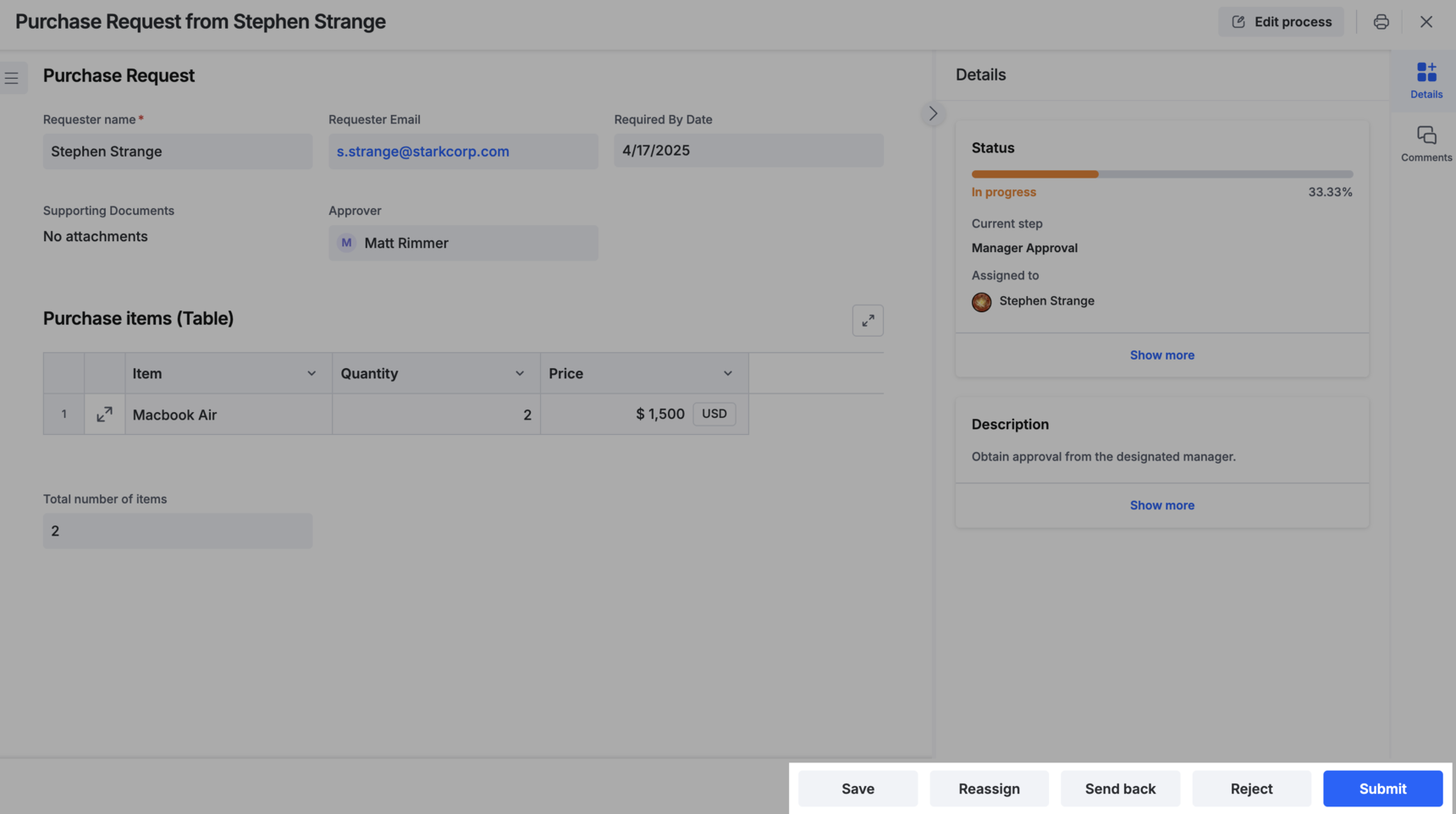
Your Process Admin configures these buttons, so their wording and which of them appear can differ from one step to the next.
Tip
To clear several at once, select them in the Assigned items tab and click Approve, Reassign, or Reject. Items still waiting on your input are skipped and flagged so you can handle them individually.
Go deeper: Member actions in a process and Filtering items in a process.
Where next
Keep going with these guides:
- Follow an item you care about by watching it.
- Discuss work in context with notes and item logs.
- Carry your tasks with you in the mobile app.
- Decide what reaches you in your notification settings.
- Search across everything with contextual global search.