
Fix
Short answer: Document templates format dates and numbers with their own Format settings, not the form's. Integrations show dates in a raw, year-first format. Set the template format, or build a text field with the exact layout you want.
Why it happens
- Number, Currency, Date and Date & time values reach the template already formatted by the template's Format settings.
- Format settings apply to every field of that type in the template. You can't set them per field.
- Integrations pass dates in a year-first format such as 1970-05-29, while forms use your display settings.
How to fix it
To fix dates in a document template:
-
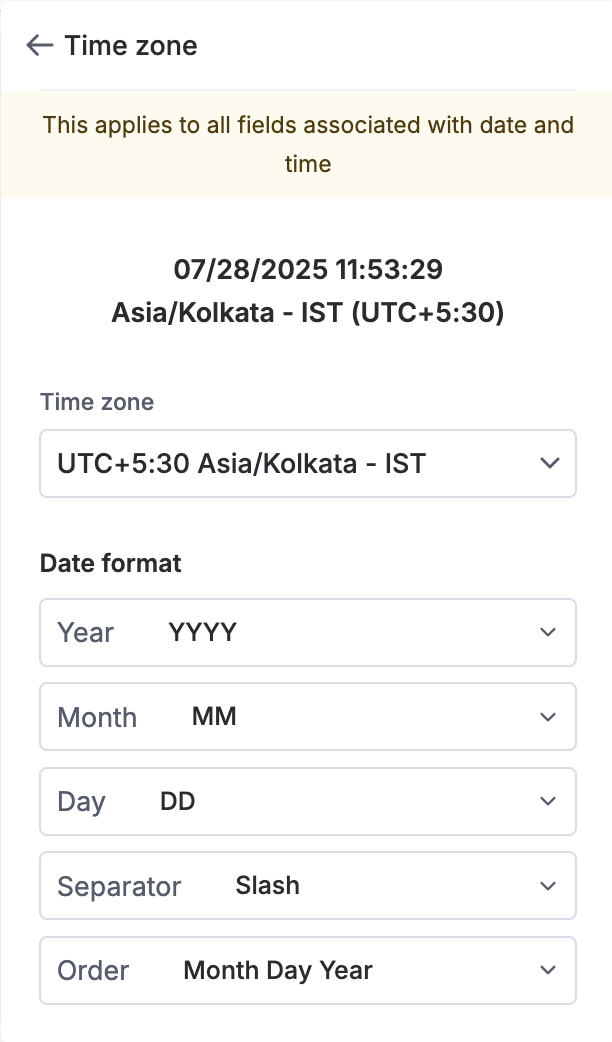
Open the document template editor and click Format.
-
Open Time zone and pick the time zone.
-
Under Date format, set Order, for example Day Month Year, and the Separator. The preview at the top shows the result.
-
Save and generate a new document.
To use a custom date layout for one field:
- Add a text field to the form and make it computed, for example
Date_Field.toText("DD/MM/YYYY"). See text expressions. - Insert that text field in the template instead of the date.
To fix numbers:
- In Format, open Number and pick one of the four separator styles. American style is the default.
- If decimals still print when Number of decimal places is 0, publish the form again after changing the setting and generate a new document.
- For computed fields, check that the inputs don't carry decimals, or round the result with
.round().
In integrations, ignore the year-first date in test output. It still maps correctly into other date fields.