
Short answer: Yes, if you're a Process Admin. From Administration you can reopen a completed or rejected item and send it back to an earlier step, or just edit its field values. Members can't undo an action themselves, but the initiator can restart a rejected or withdrawn item as a new request.
Why it happens
- Reject stops the workflow, and once an item completes, members can't edit it, send it back or withdraw it.
- Reopening, editing and reassigning finished items are admin actions, so only Process Admins see them.
How to fix it
To reopen a completed or rejected item (Process Admins only):
- Open the process and click More options > Administration.
- Open the item and click Reopen & send back at the bottom right.
- Select the step to send it back to, enter a reason, and click Reopen & send back.
The workflow resumes from that step, and any integrations on that step run again. You can only pick steps the item already completed, not skipped ones. If the item was rejected inside a parallel branch, sending it back to the rejected step resumes the other branches too.
To change field values without moving the item:
- In Administration, open the item and click Update field values.
- Make your changes and click Save changes.
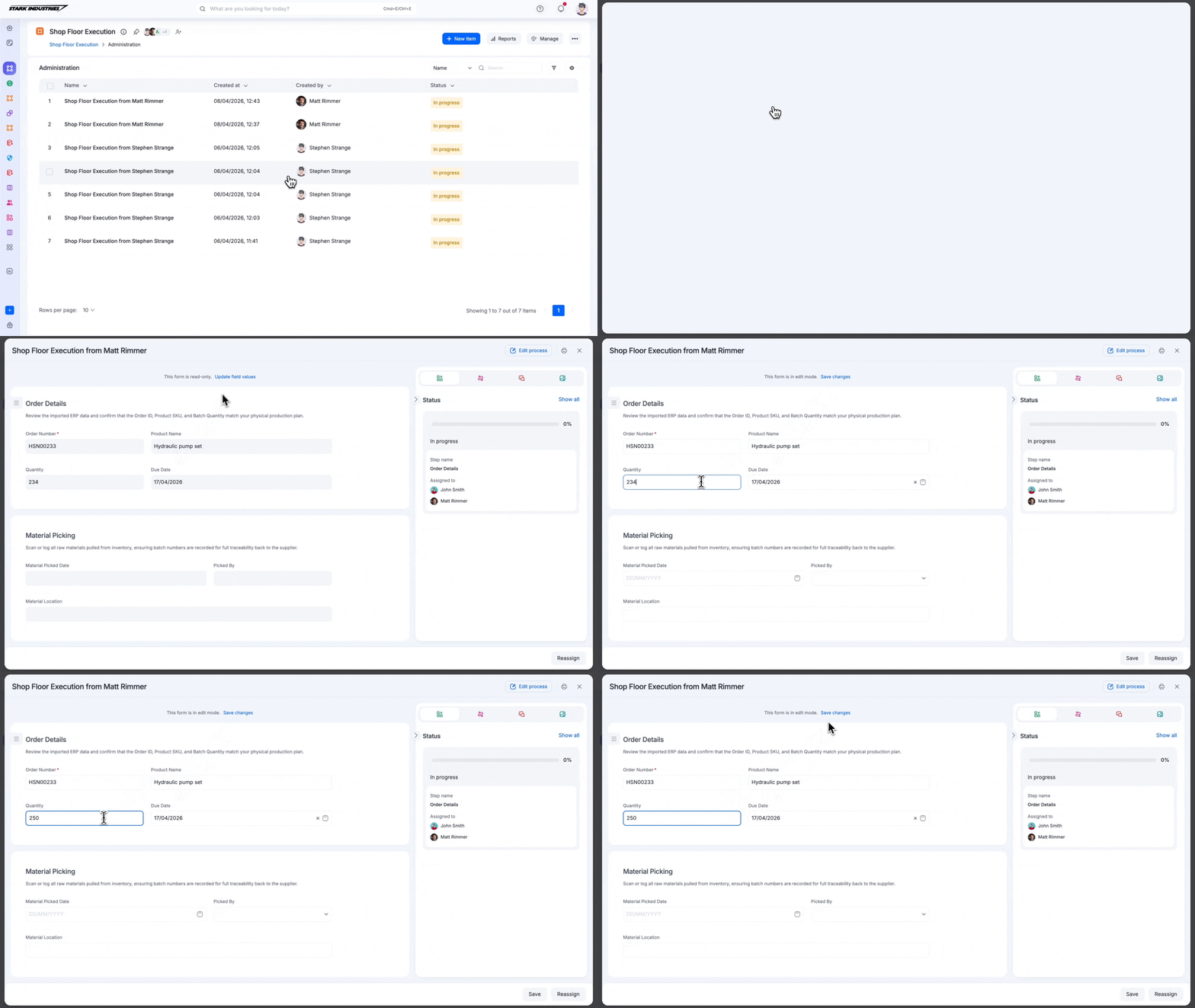
If you aren't a Process Admin, ask one, or ask to be made one if you do this often. See admin actions in a process.
To restart a rejected or withdrawn item (initiator only):
- Go to Created by me and open the Rejected or Withdrawn section.
- Open the item and click Restart.
- Review the copied data and submit it. It becomes a new item with a new number.
To avoid the problem next time:
- If the requester only needs to fix something, Send back to the Start step instead of rejecting.
- For revision cycles, add a step before completion, such as "Pending final approval", so the item stays open until the revision is approved.
Important