
Fix
Short answer: Where you hide a field decides who still sees it. A field hidden only in a step's permissions still shows to admins in Administration. Hide it at the form level to hide it from everyone.
Why it happens
- Step permissions control what assignees see at that step. Admins in Administration see all fields.
- A field hidden at the form level, or hidden for the item's current status, also doesn't appear in reports.
- Visibility conditions can hide a field even when its permission is Editable or Read-only.
How to fix it
-
Click Manage > Edit process and open the Permissions tab.
-
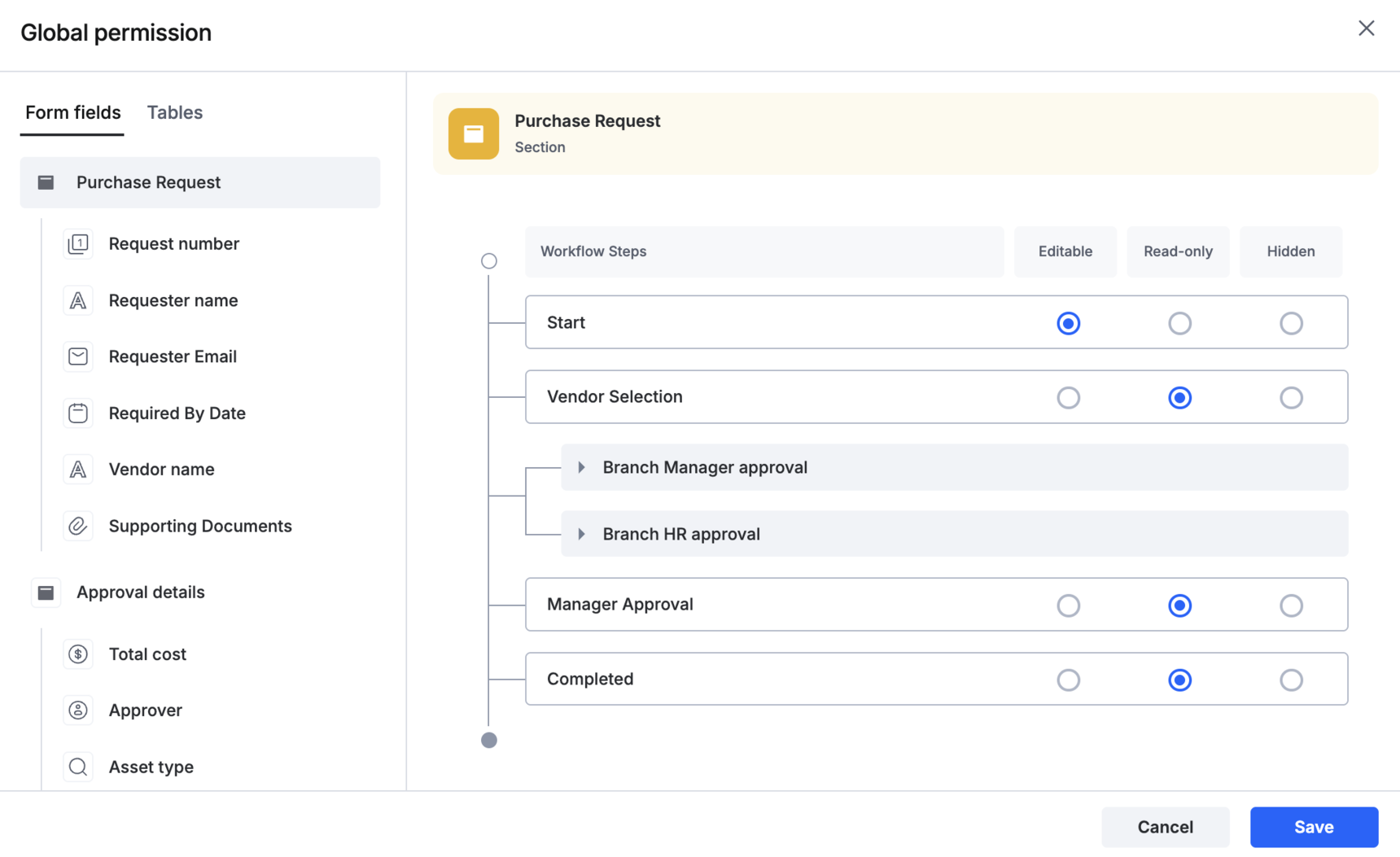
Check the field's permission on every step, including the completed step. To set it on every step at once, click Global permissions.
-
Check any visibility condition on the field.
-
For items in parallel branches, give the field the same permission in each branch.
-
To hide the field from everyone, admins included, hide it at the form level instead of in step permissions.
Remember that section permissions win over field permissions. A field marked Editable inside a hidden section stays hidden.