
Fix
Short answer: Only the item's current assignee can use Send back. If you're an admin, reassign the item to yourself first. You can't send back to steps that were skipped or that the step's settings exclude.
Why it happens
- Send back is an assignee action, so other users, including admins, don't see it.
- A step skipped because its condition wasn't met can't be a send-back target. Steps in another parallel branch also can't be targets.
- The process admin can hide Send back or limit which earlier steps it can go to.
How to fix it
- If you aren't the assignee, open More options > Administration, select the item and Reassign it to yourself.
- Open the item from Assigned items and click Send back.
- Pick the step. To let the requester fix the submission, send it back to Start. The item lands in their Assigned items.
- If the requester can't change anything after a send-back, enable Editable permission for those fields at the Start step in Edit process > Permissions.
If Send back is missing or lists too few steps, check the step's actions in configuring actions for process steps.
To control who gets the item when it returns to a step assigned to several people, click the step and set What happens when items are sent back to this step? See send back actions.
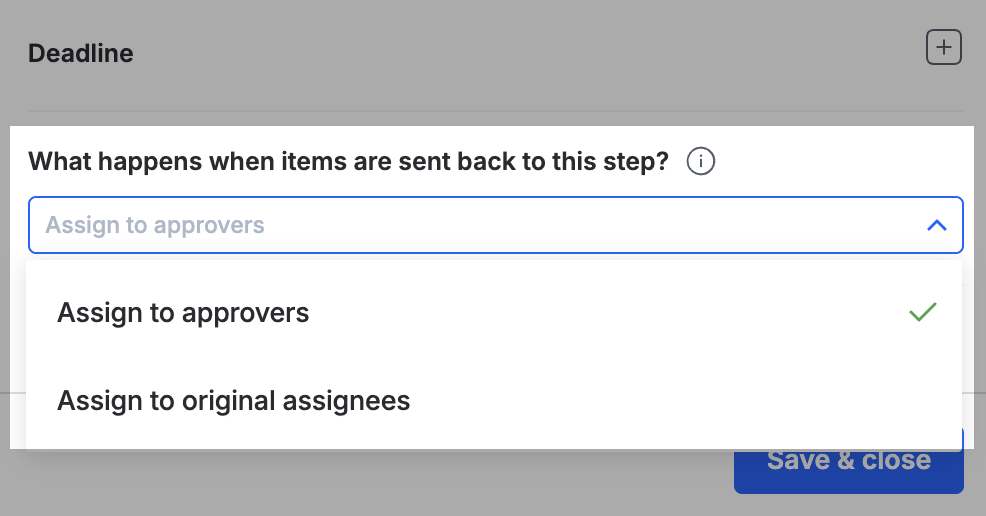
- Assign to approvers sends it only to the person who approved it at that step.
- Assign to original assignees sends it to every user and group originally assigned.
If the item is already completed or rejected, a Process Admin can use Reopen & send back in Administration instead. See admin actions in a process.
Tip
After a send-back, the assignee gets the standard assignment notification. You can customize that email in the process's notification settings.