
Short answer: Child table imports fail when the file breaks the import rules: wrong encoding, special characters in headers, too many rows, or values that don't match the field type. Fix the file, and check the table is enabled for import and editable at that step.
Why it happens
- The file must be a
.csvsaved with UTF-8 encoding, using commas as the delimiter. - Column headers can contain letters, numbers, spaces, hyphens and underscores only.
- A file can hold up to 1,000 rows, and a child table can hold 5,000 rows in total.
- Each column must match its field's data type. Values for list-based fields must match the field's options exactly.
- Only these field types can take imported values: Text, Text area, Number, Rating, Date, Date-time, Currency, Yes/no, User, Dropdown, Multi-select dropdown, Slider and Checkbox. If the table has mandatory fields, map a column to them.
- Field permissions win. If the table is read-only at the current step, the import can't finish.
How to fix it
-
In the form editor, click the settings icon on the child table section and turn on Enable table import (shown as Enable CSV import in newer builders). See Configuring CSV data import.
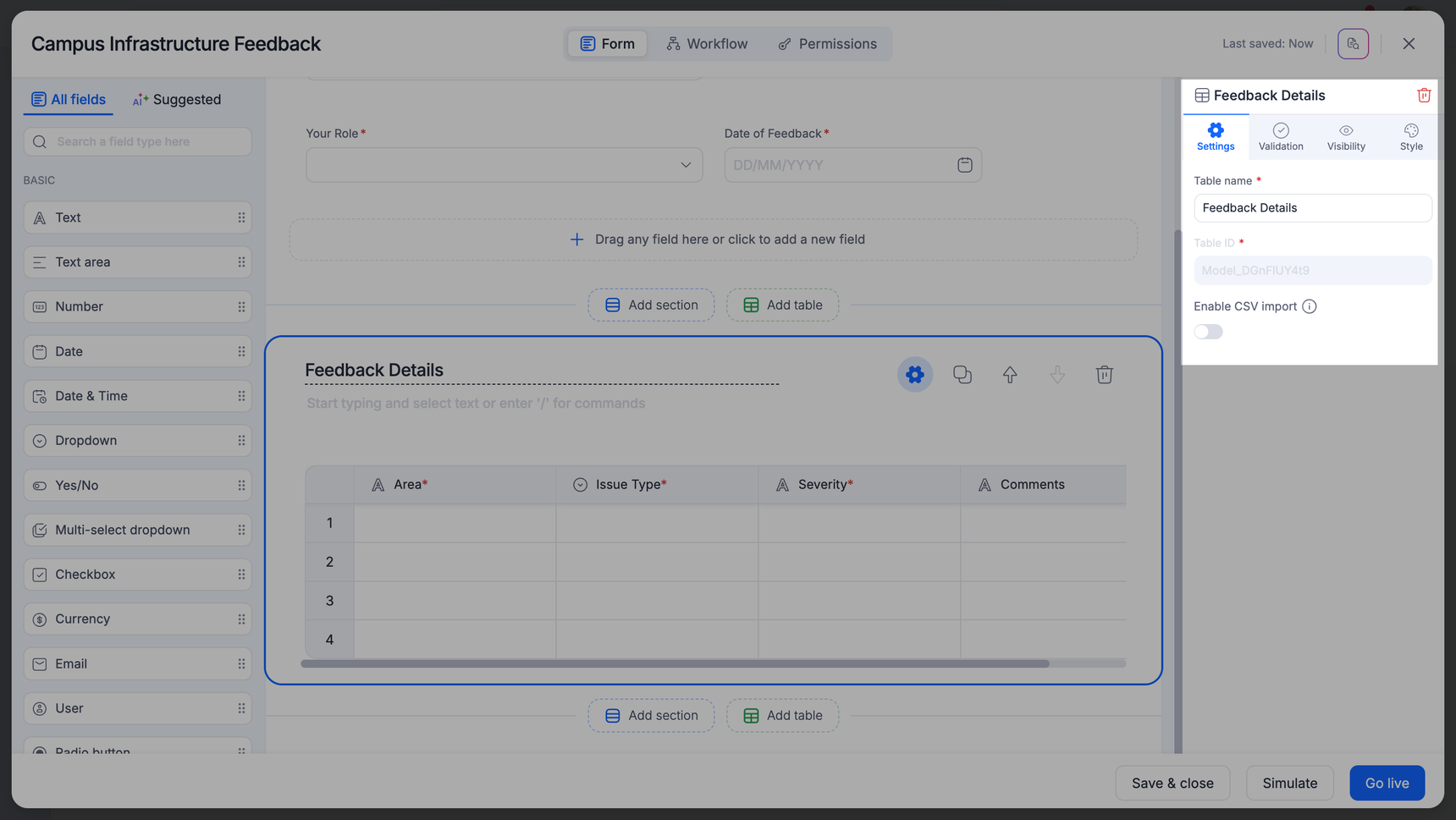
-
Save the file as CSV UTF-8 and rename any header with special characters.
-
Split files over 1,000 rows.
-
On the item, click Import CSV, upload the file, and map each column to a field.
-
Choose to keep or delete existing rows. If rows have errors, choose Skip specific rows to import the valid ones.
If values for fields like country or currency won't match, import those columns into Text fields instead.
To fill a child table from a dataset:
- Create an integration with a Kissflow Process trigger such as When an item is created.
- Get the dataset records, then use Update an item to write them into the table.
- Refresh the item to see the new rows.
Important