
Short answer: Boards don't have a public form. Use a process as the public form, then build an integration that creates a board item each time someone submits it.
When to use this
Use this when people outside your account need to send you work that you track on a board, such as job applications, support tickets, feedback or event registrations.
Set it up
-
Make sure your board has fields for everything you want to capture.
-
Create a process to act as the form. Add fields that match the board fields; similar names make mapping easier. It doesn't need extra workflow steps.
-
Publish the process.
-
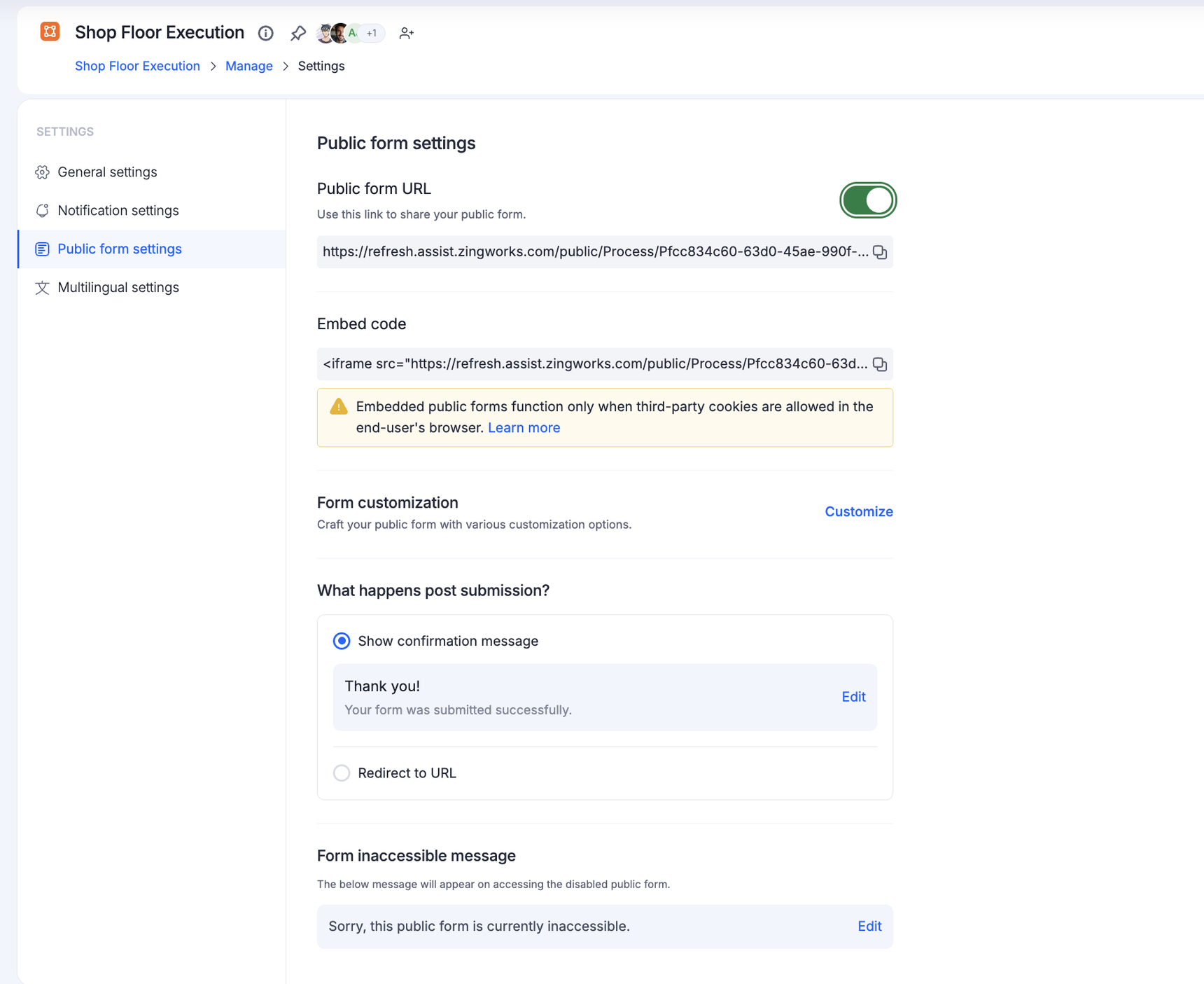
Click Manage > Settings > Public form settings, turn on Public form URL, and copy the link. See public forms.
-
Submit a test entry through the public form.
-
Create an integration. For the trigger, select Kissflow Process > When a draft item is submitted, choose your process and test the trigger. See Kissflow Process connector.
-
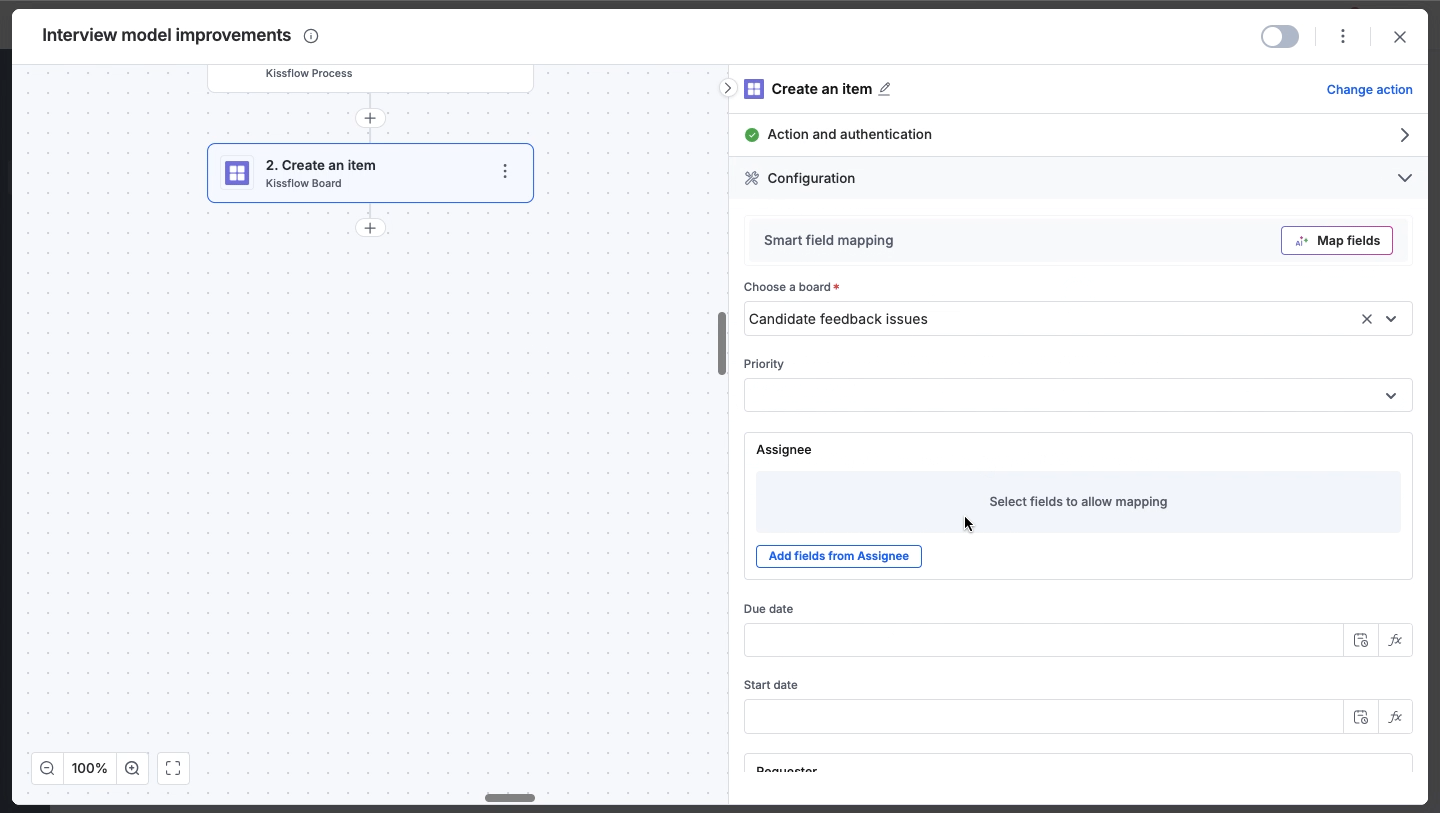
Add an action: select Kissflow Board > Create an item and choose your board. See Kissflow Board connector.
-
Map the process fields to the board fields, test the action, and turn on the integration.
-
Submit the public form again and check that a new item appears on the board.
Tip