
Short answer: Click More options > Duplicate. The copy gets the fields, sections, tables, workflow and permissions, and the reports if you choose. Items, data and integrations don't come across, and you can't copy a process to another Kissflow account.
Why it happens
- Duplicating copies configuration only. Each process keeps its own items.
- Processes, datasets and integrations belong to one account. There's no export or import between accounts.
How to fix it
To duplicate a process in the same account:
-
Open the process and click More options > Duplicate.
-
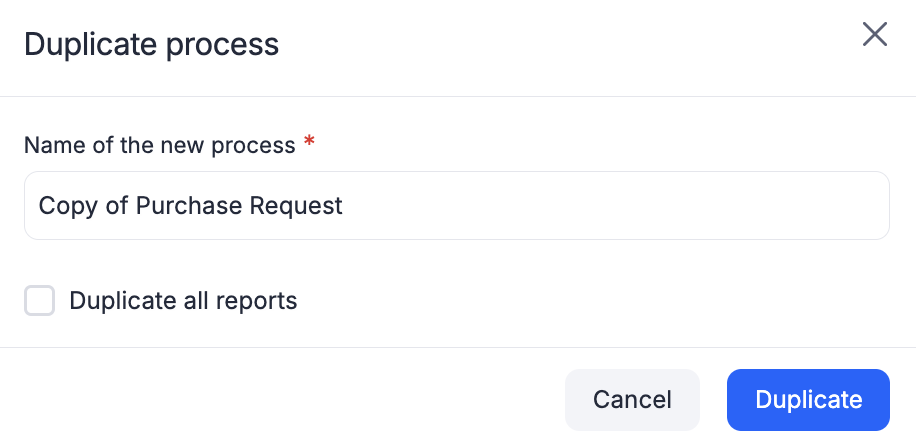
Enter a name. It defaults to Copy of plus the original name.
-
Choose whether to duplicate the reports, then click Duplicate.
-
Check every lookup field's data source and the process settings.
-
The copy is locked for submissions. When it's ready, a Process Admin clears Do not allow new submissions in Manage > Settings > General and clicks Save.
-
Duplicate any integrations separately and point them at the new process.
To use the old process's data, add a lookup field to it, or report on it in Analytics.
To move a process to another account, rebuild it by hand in the target account. For datasets, export the data to CSV and import it into a new dataset there.
Important