
How-to
Short answer: Build one navigation per role, then link each role to its navigation and home page. A user sees a navigation only if they belong to a role it's assigned to.
Why it happens
- Each app role has its own home page and navigation. Both start as the default.
- Menu items can also be limited to specific roles. Other roles don't see them.
- When a user has several roles, only the role that comes first alphabetically decides which navigation and home page load.
How to fix it
-
In the app builder, go to Interface > Navigation and create a navigation for each role. See creating and managing navigation.
-
Go to Roles, click the Edit icon near each role's name, and set its home page and navigation. See application roles.
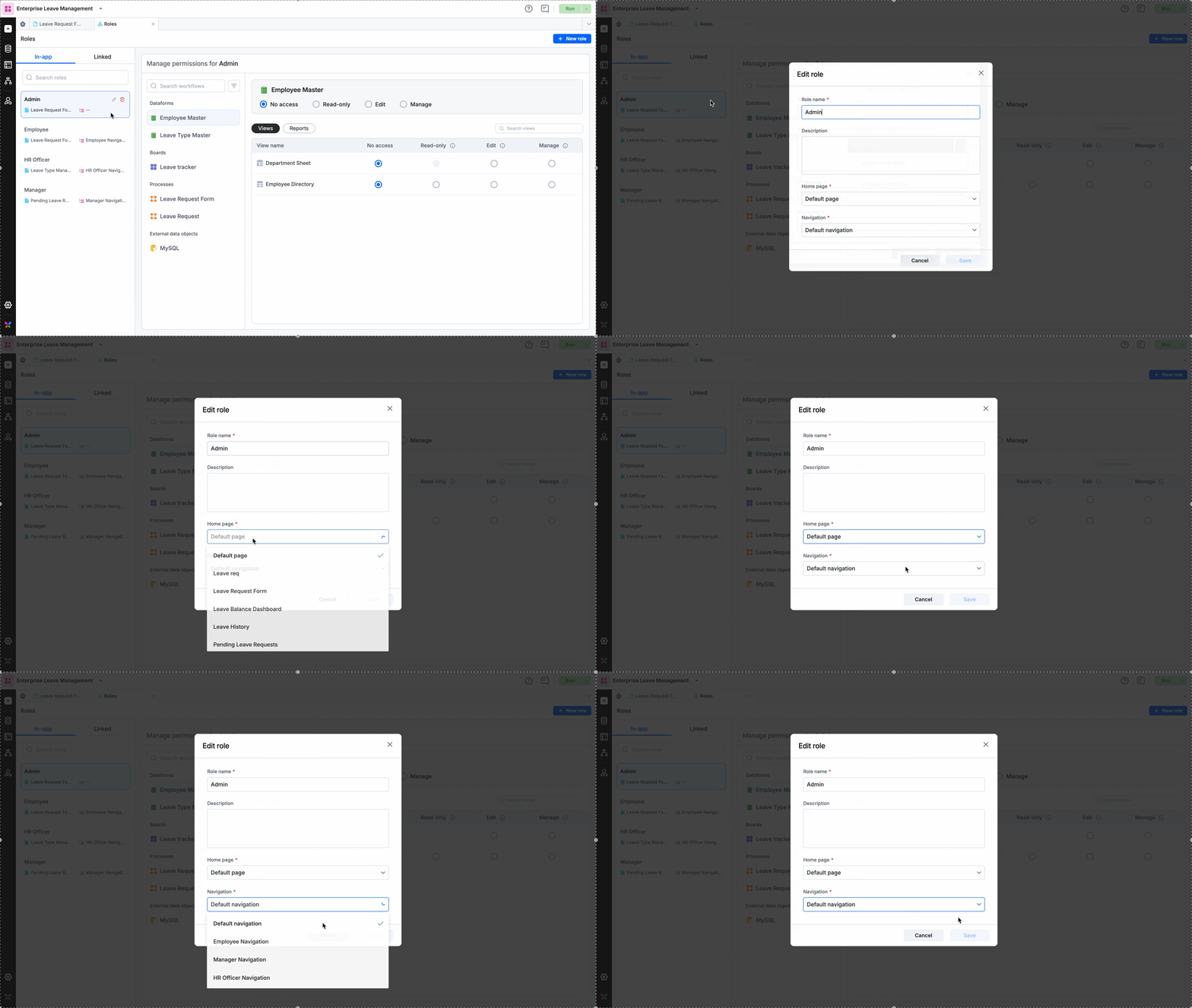
-
Add users to the roles under Manage > Roles > Manage members.
-
In the development environment, test each role with role switching. Role switching isn't available in testing or production. See switching roles at runtime.
-
Deploy the app.
If users see "Page is not found":
- Check the default navigation in Interface > Navigation. It may still point to a page you deleted.
- Check the app's default Home page under Settings > App settings > General settings. See settings in apps.
- Update the menu item or home page, or set a different navigation as default.
Important
A user in several roles can open the pages of all their roles, but only the alphabetically first role's navigation and home page load. Name or assign roles with that in mind, and test with users who hold more than one role.