
Short answer: Add Generate a PDF document and map the item's instance ID from the trigger, not the process ID. Then map the generated document into the email's Attachments or into your storage action.
Why it happens
- The PDF action needs the ID of the specific item. A process ID generates nothing.
- The template list shows only what the connection's account can access.
- The email step can't see the generated document until the PDF step has produced output in a test.
How to fix it
-
Add the Kissflow Process action Generate a PDF document. It shows as Generate PDF in the flow.
-
Under Select process instance ID, map the
_idfrom the trigger step. See associating a document template.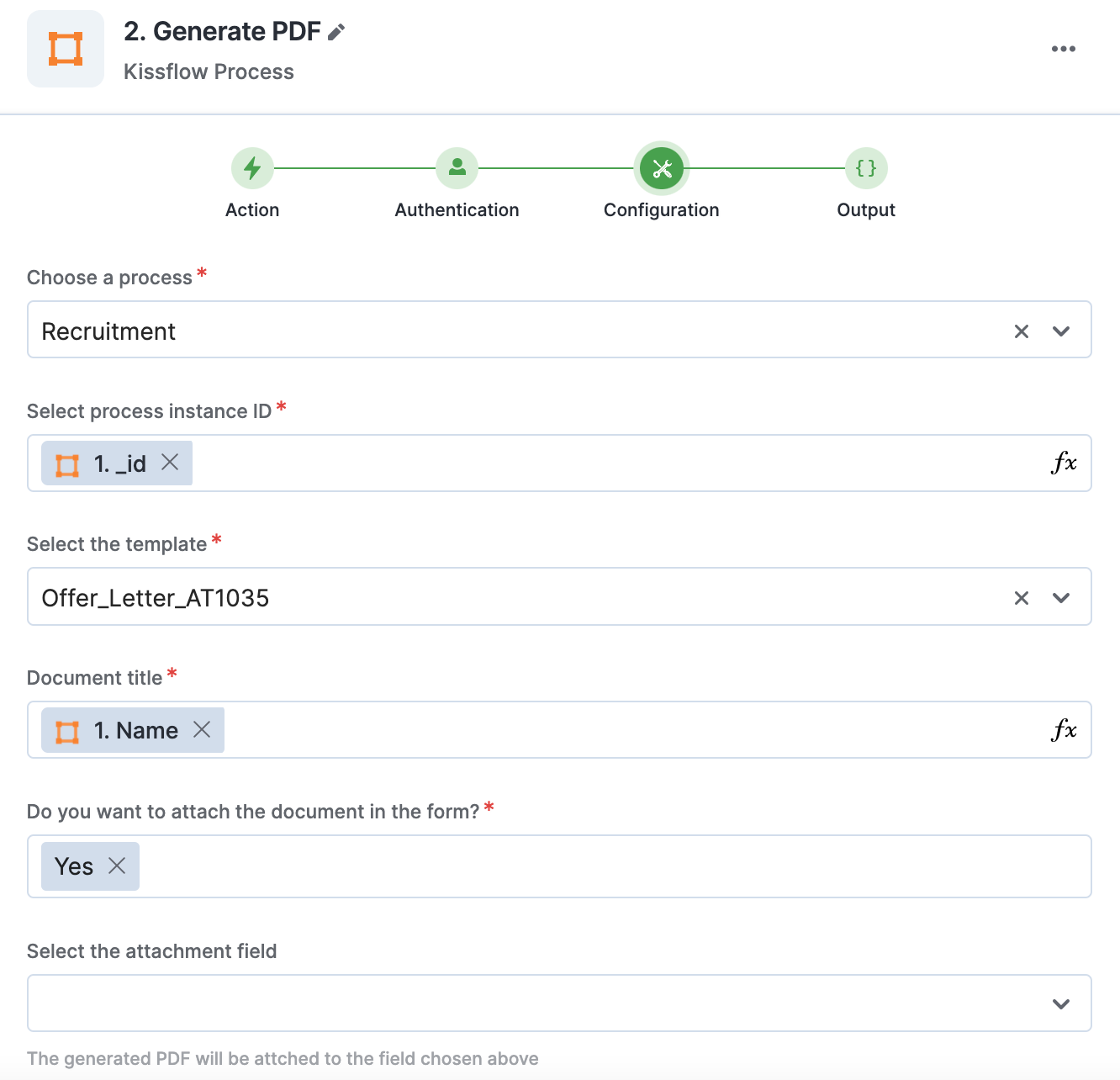
-
If the template list is empty and you use a service account, make that account an admin of the process. Member access isn't enough.
-
To store the PDF on the item, set Do you want to attach the document in the form? to Yes and pick the attachment field.
-
Test the PDF step so the
documentappears in its output. Then add Send an email and, under Attachments > Fields > Generate PDF, select document. -
To upload the PDF to storage such as Dropbox, choose the document's key under Select All, not the first document.
If dates in the PDF differ from the form, set the date order in the template with Format > Time zone. See date and time zone.
Important