
Short answer: Delegation redirects new process tasks to another user for a date range. Users set it up themselves, or a Super Admin sets it up for them. Tasks already in the queue stay put, so reassign those.
Why it happens
- Delegation applies only to tasks assigned after it starts. Existing items stay with the original user.
- A Super Admin's delegation overrides one the user set up. When the override ends, the user's own delegation resumes for its remaining days.
How to fix it
To delegate your own tasks:
-
Go to My settings > Task Delegation and click Add delegation.
-
Pick a Start date, and an End date if you want it to stop on its own. You can pick future dates before you go on leave.
-
Under Delegate for, choose All processes and pick one delegate, or Specific processes and pick a delegate for each. The list includes processes inside apps.
-
Click Add.
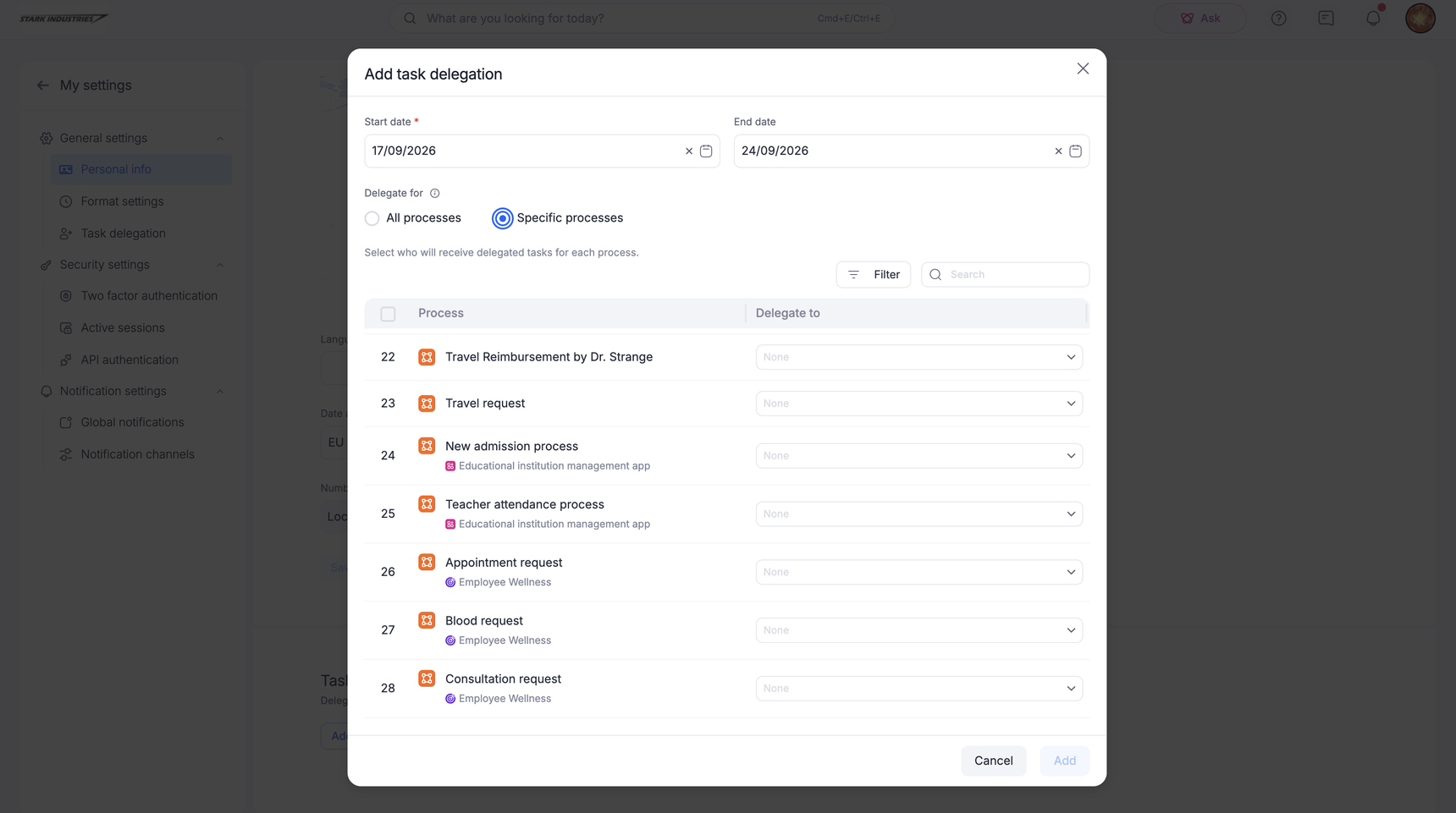
To change or stop it later, click Edit or Delete on the delegation card.
See personal settings and task delegation.
To delegate for someone else as a Super Admin:
- Click your profile picture > Account administration > Task delegation > + New.
- Select the user, the dates, the processes, and the delegate, then click Create.
- To change a user's own delegation, open the Set by users tab and click Override.
See task delegation.
Things to check:
- To move tasks that were already pending, reassign them.
- If live routing differs from Simulate for one user, check whether that user has an active delegation.
- To see what the delegate did, build a report filtered to the delegation period.
Important