
How-to
Short answer: Add the Currently assigned to system field to a process report, then filter on it to list what's waiting on one person.
Why it happens
- The default report columns don't always show the current assignee.
- Currently assigned to is a system field you can add to any tabular report. It's empty once the workflow is complete.
How to fix it
-
Open the process report and edit its configuration.
-
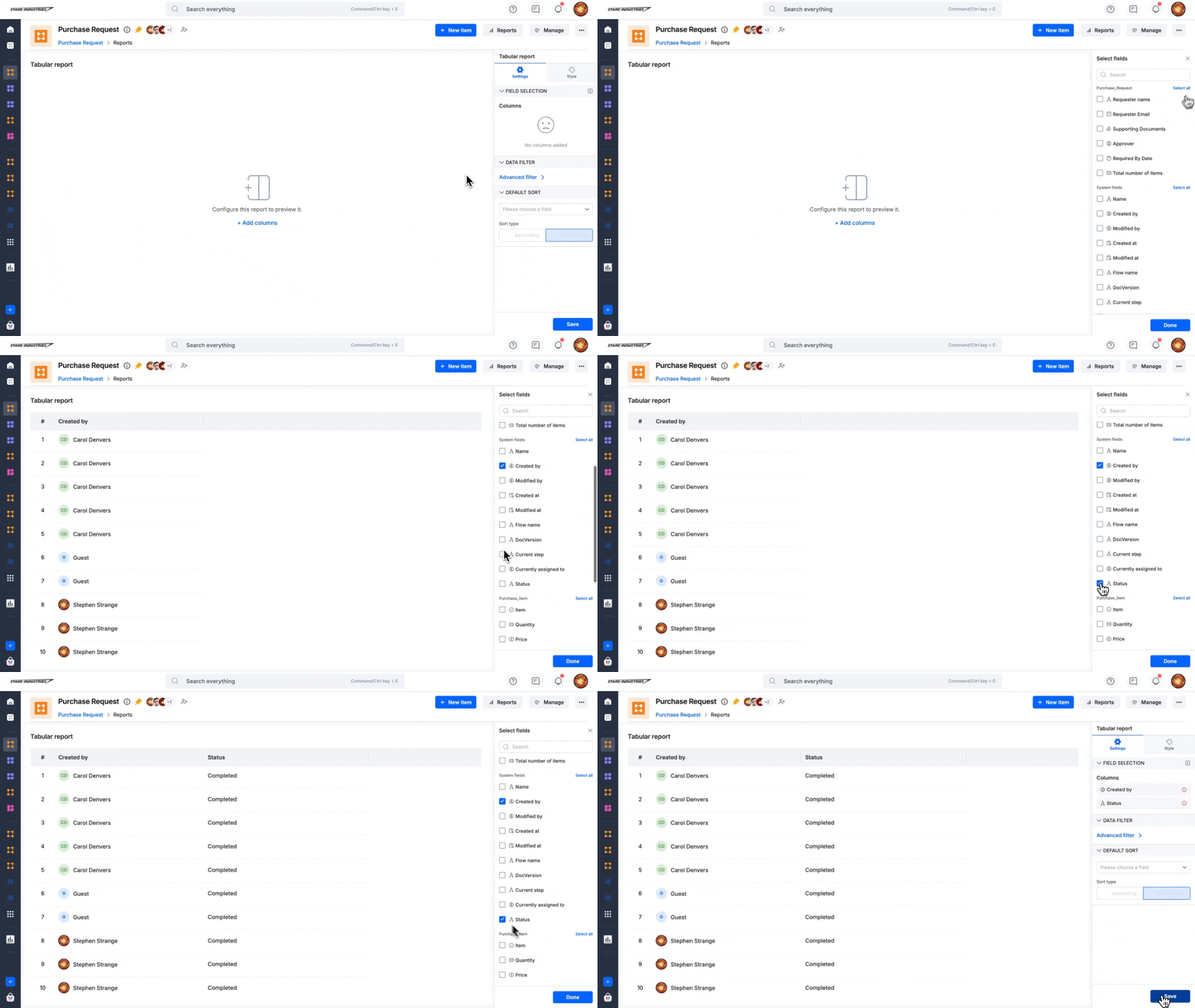
Under Columns, add the system field Currently assigned to. Adding Current step helps too.
-
Under Data filter, click Add advanced filter > Add a filter, select Currently assigned to, pick an operator, and enter the user.
-
Click Apply, then save the report.
See tabular reports.
For counts per person:
- Open the process Metrics report and go to User performance.
- Click a number to see the items assigned to that user in that status.
See Metrics report. For a view across several processes, use the user workload report in Analytics.