
How-to
Short answer: Every action runs with the credentials of the connection owner, usually the person who built the integration. Use a service account with impersonation so items are created on behalf of the real user.
Why it happens
- An integration authenticates with the access key behind its connection. Items it creates show that account as the initiator, and failure emails go to it.
- If Update an item finds no item to update, the new item can land in the connection owner's drafts.
How to fix it
To create items as the real user:
- Ask a Super Admin or IAM Admin to create a service account and an access key for it.
- On the target flow, go to Manage > Security > Access controls > Impersonation, click Configure, and add the service account. See impersonation in service accounts.
- In the integration, authenticate the action with a connection that uses the service account's access key.
- In the action, for example Create and submit a new item, set Impersonate to Yes and map Impersonate User to the trigger's
_created_by._id. See impersonating users using a service account.
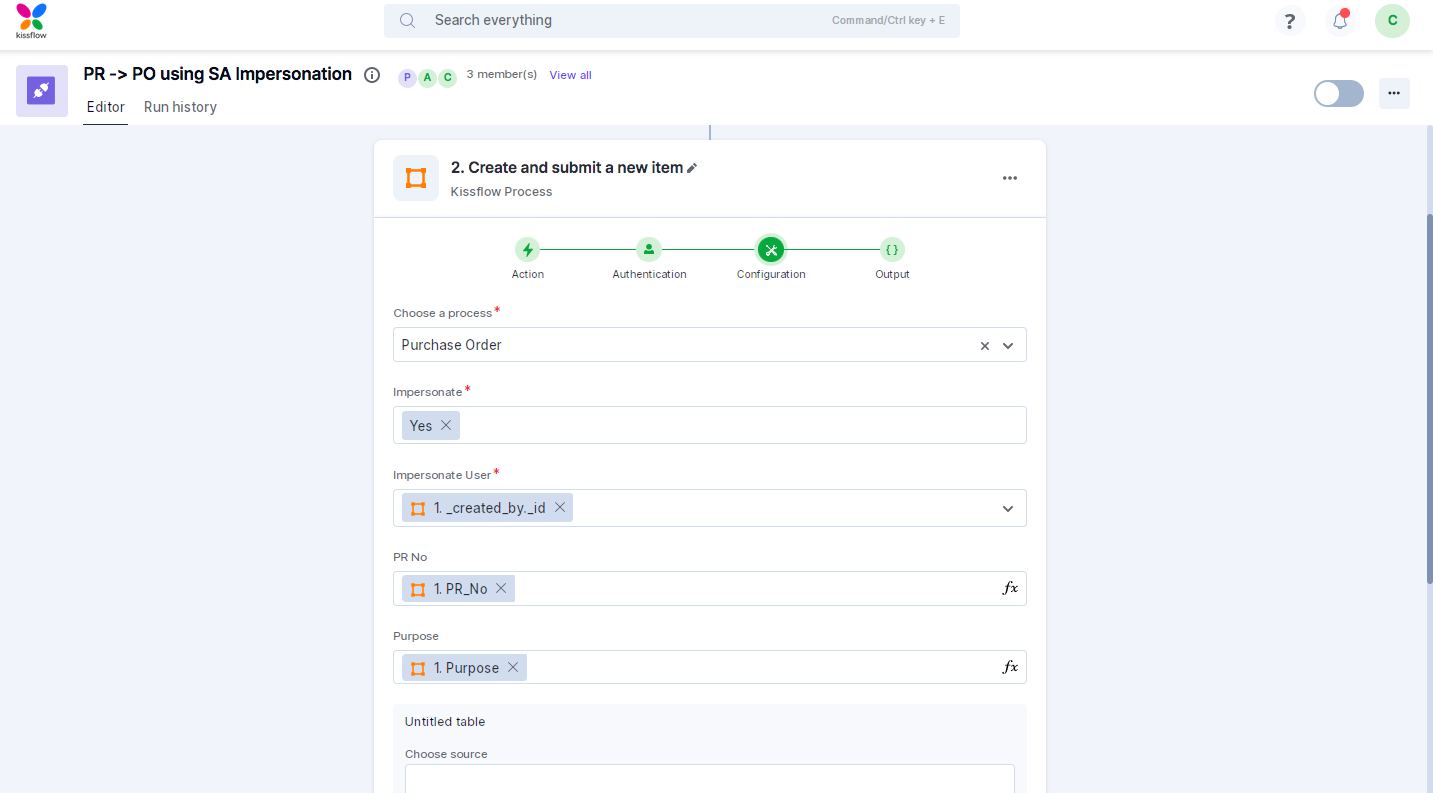
The impersonated user must be a member of both flows. If not, the integration fails.
If you can't use impersonation:
- Add a field such as "Requested by" to the target flow.
- Map the source item's initiator into it.
- Use that field in the form title so notifications show the right person.
To stop items landing in drafts:
- Use Create and submit a new item when there's no existing item to update.
- Use Update an item only when you have the target item's instance ID.
Important
Impersonation is available on the Enterprise plan. Keep connections on a service account rather than a personal account, so integrations keep working when people leave.