
Fix
Short answer: Most SSO failures come from the identity provider's setup. Update Kissflow's SAML settings after any certificate or IdP change, and have your Microsoft or Google admin grant Kissflow access.
Why it happens
- The SAML signing certificate was renewed, so the fingerprint Kissflow holds no longer matches.
- Settings changed in Microsoft Entra ID (Azure) or Google.
- The Kissflow app hasn't been granted the permissions it needs in your tenant.
- Sign in with Kissflow was turned off, and the remaining sign-in option doesn't work.
How to fix it
- After renewing a certificate or changing your IdP, go to Account administration > Account security > Sign in preferences and click Configure SAML.
- Update the Security key with the SHA2 fingerprint of the new certificate, and check the Identity provider (IdP) URL. Click Save. See sign in with SAML.
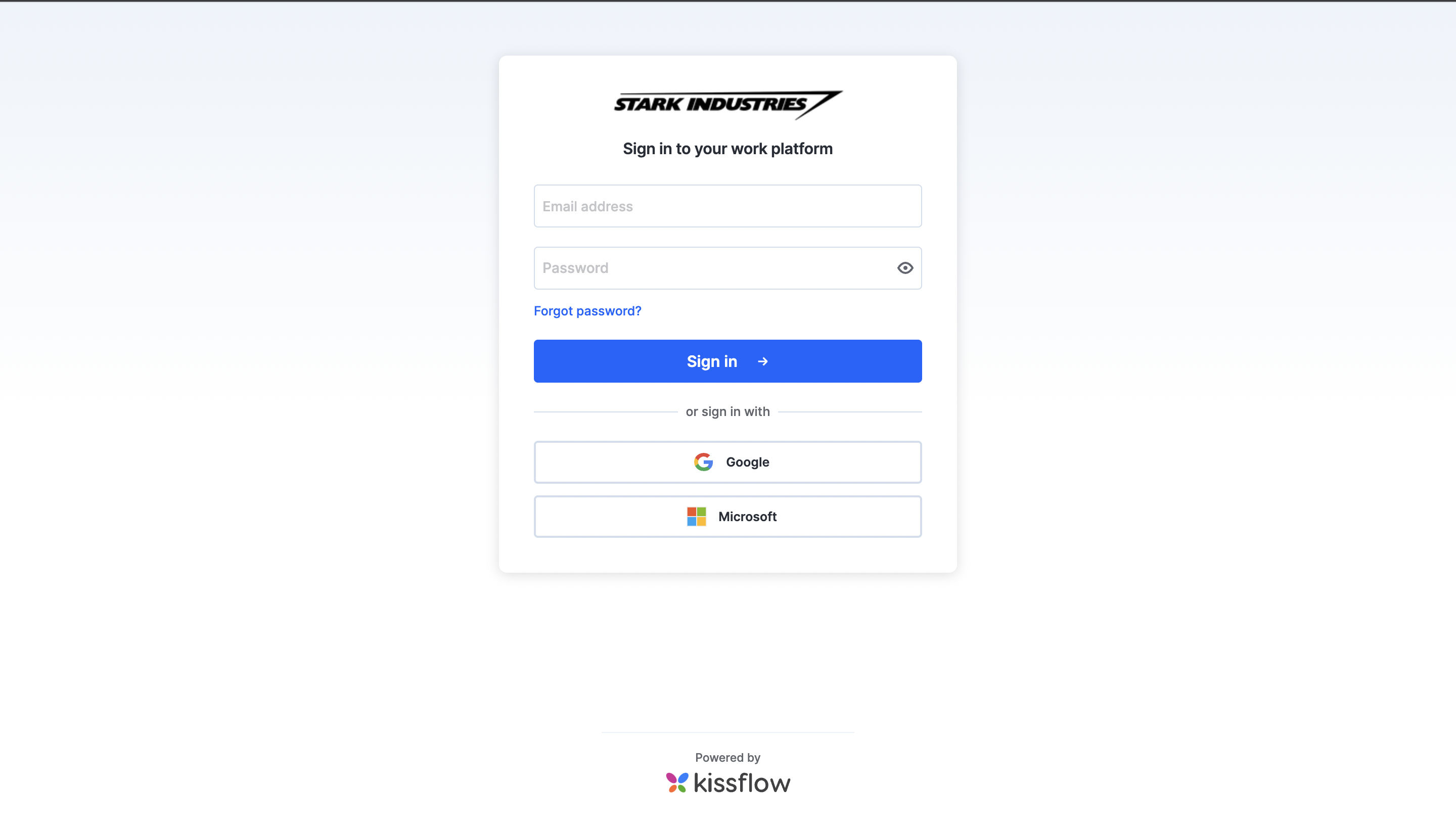
- For Microsoft errors such as AADSTS50076, or messages that access is blocked, ask your Azure admin to grant the Kissflow application the required permissions. See SAML single sign-on for Microsoft Entra ID.
- For Google errors such as "access not configured", ask your Google Workspace admin to allow Kissflow for those accounts. For Google or Microsoft sign-in, also check that the option is turned on in Sign in preferences.
- If Sign in with Kissflow was turned off and no one can sign in, a Super Admin or IAM Admin has to turn it back on. Kissflow support can't change it for you.
Important
When users sign in only through SSO, Kissflow's password policy doesn't apply. Your identity provider's policies govern passwords.