
How-to
Short answer: Yes, for a fixed time. The Delay connector pauses an integration for a duration or until a date and time. It can't wait for something to happen in another system, so for that, split the work into two integrations.
Why it happens
- The Delay connector is time-based. It doesn't check whether an external record exists before it continues.
- Some third-party triggers are general. For example, the DocuSign "envelope completed" trigger fires for any envelope, not only the one Kissflow sent.
How to fix it
To pause for a set time:
- Add the Delay connector between the two actions.
- In Choose delay type, select Delay for and set Time delayed for in days, hours or minutes. Use a whole number. The minimum is 1 hour and the maximum is 90 days.
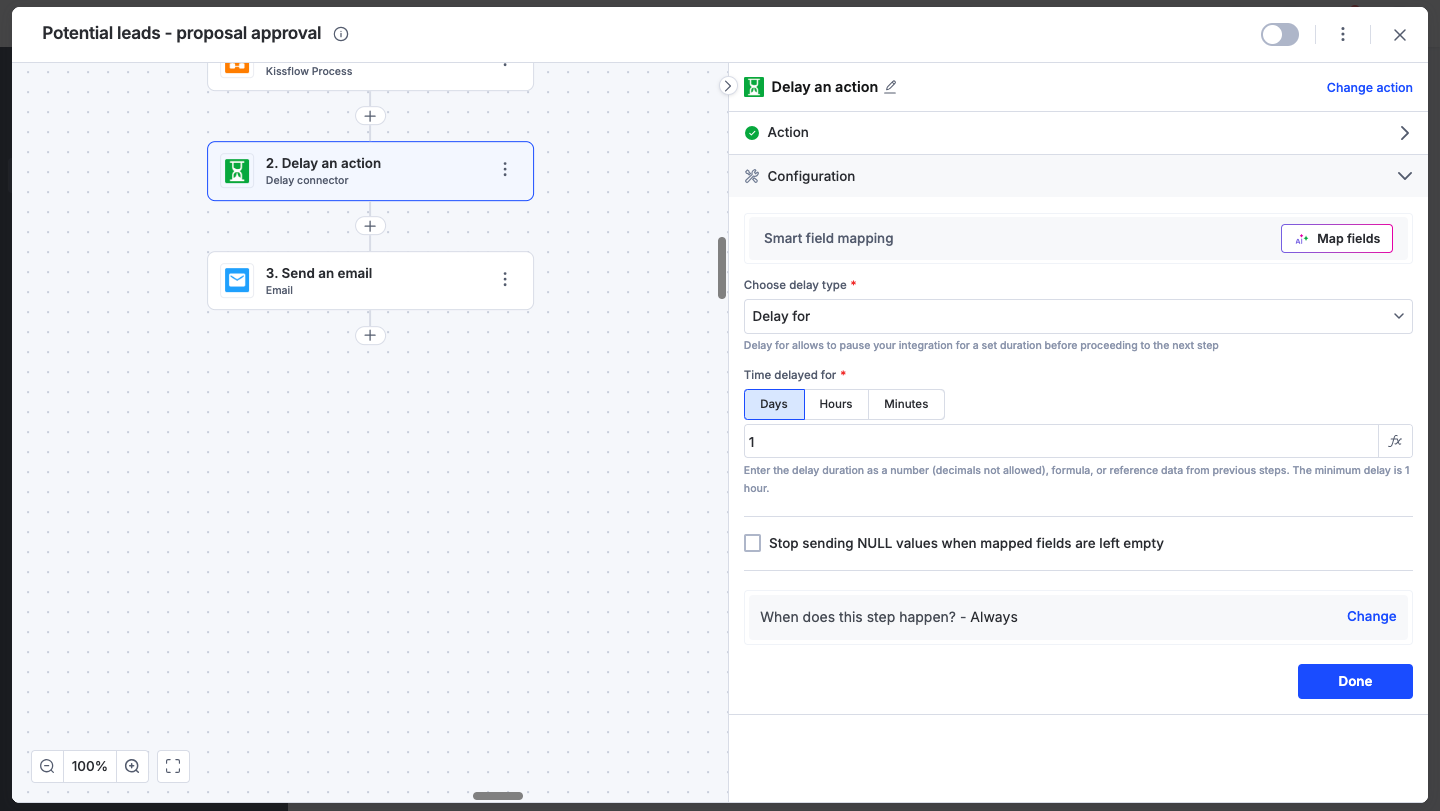
- Or select Delay until to pause until a specific date, time and time zone. If that time has already passed when the step runs, the delay is skipped.
- Or select Delay on occurrence to pause until set days of the week at a set time, such as Monday at 9 AM.
To end a delay early and move to the next step, click Execute now.
To wait until an external record exists:
- Add a workflow step to the process.
- In the first integration, send the data (for example with an HTTP POST) when the item reaches that step.
- Create a second integration with a later trigger, such as When an item completes its workflow.
- In it, use Search an item, then an HTTP GET to fetch the external record, then Update an item.
Important
If a run fails because it hit a rate limit or called a record that didn't exist yet, rerun it from Run history.