
How-to
Short answer: Keep the options in a dataset (or a dataform in an app). Source the dropdown or lookup from it and add a filter that compares a column with the controlling field.
Why it happens
- A dropdown sourced from a static list can't filter. Dependent dropdowns need a dataset or dataform source.
- A single lookup points at one dataset. It can't switch datasets based on a field.
How to fix it
To build a dependent dropdown:
- Keep the options in a dataset with a column for each level, for example Country, State and City.
- In the dependent dropdown, set the data source to Dataset and pick the column to show, for example State.
- Click Add filter and compare the dataset column with a form field, for example Country is equal to the Country field.
- Repeat for the next level, filtering City by both Country and State.
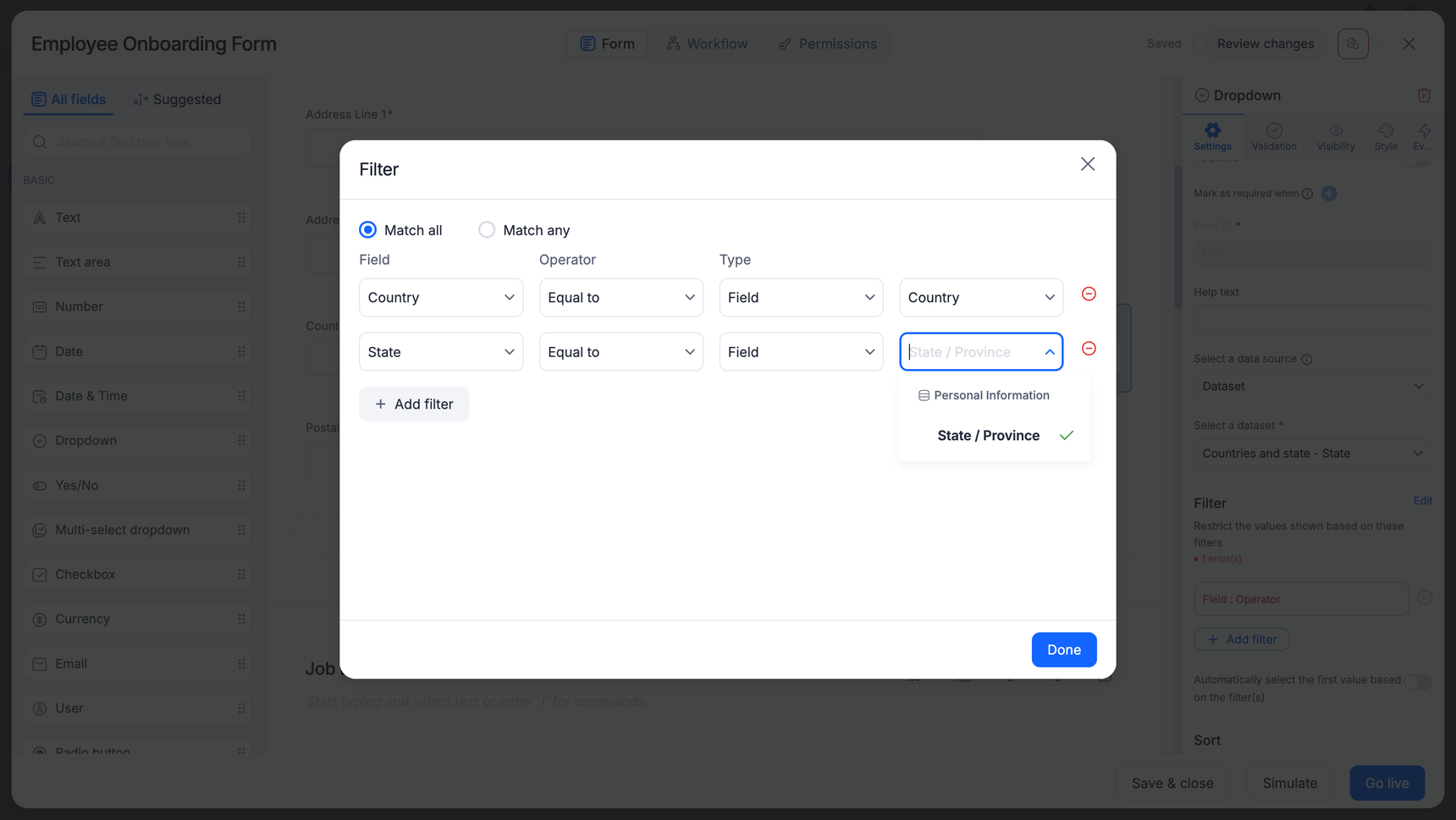
To filter a lookup:
- Open the lookup field settings and click Add filter.
- Pick the Field, Operator, Type and Value, and set the value to the controlling form field. See filtering lookup field results.
To pull from different datasets based on a field, add one lookup per dataset and show each with a visibility rule.
To filter a user picker, add a filter on the user field. If only some cases need the filter, add two user fields, one filtered and one open, and show one at a time with visibility rules.
Important
Dependent behavior works on Dropdown and Radio button fields, not Multi-select or Checkbox. In apps, use dataforms as the source; load them by CSV import or the New item button.