
Short answer: You don't need JavaScript. Add a report or view to the page and give it an advanced filter, such as Created by equal to the current user.
Why it happens
- Advanced filters on process, board and dataform reports, and on board and dataform views, can compare a field with a value, another field, or a parameter. Each user then sees only the matching records.
How to fix it
-
In the app builder, create a report on the process, board or dataform, or a board or dataform view.
-
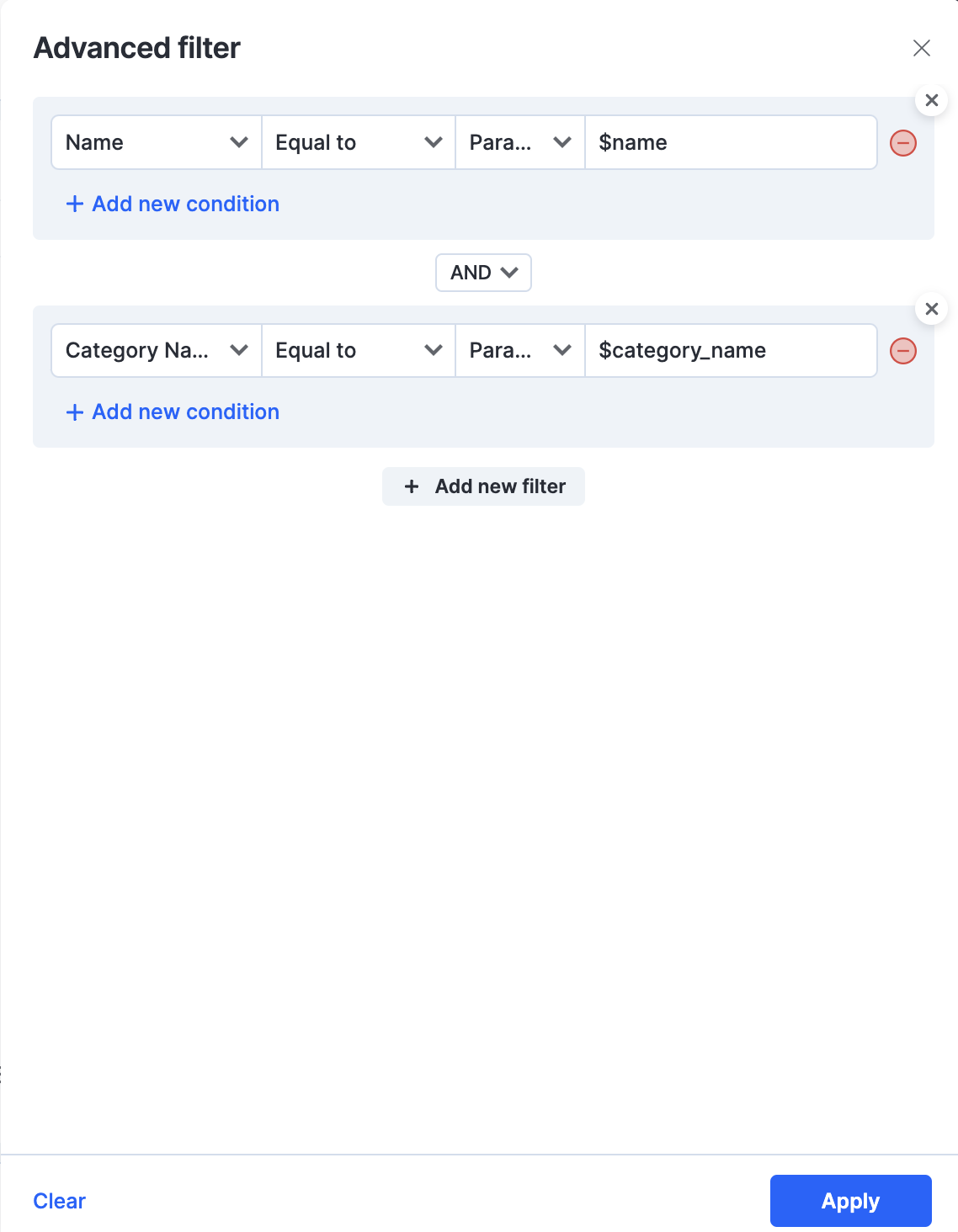
Under Data filter, click Add > Add a filter.
-
Under Advanced filter, pick the field, for example Created by, then the operator and the value for the current user. Click Apply and save the report or view.
-
Add the report or view to the page as a component.
-
For a department view, filter on the department field and choose a parameter as the value, such as
$department. Parameter names are lowercase, start with$, use underscores and stay under 32 characters. -
On the page, select the component and assign the parameter a value under Filter parameters, such as a page variable or input parameter. A parameter left empty is ignored, so the filter isn't applied.
For a total on a dashboard, such as hours logged this month, add a card report on that field with a filter instead of computing it in a script.
For portal users who should see only their own data, such as vendors, use a filtered report on the page, or a lookup filtered on their ID.