
How-to
Short answer: Total the column with an aggregation field, then add a validation on the Submit action. For unique values in one column, turn on Mark as unique.
Why it happens
Table validations check one cell or the row count. A rule across all rows, like a total, needs an aggregation field outside the table.
How to fix it
To require a column total of 100:
- Add an aggregation field with Aggregate table data in the context of a single item of the process turned on, and SUM the column.
- In the process editor, open Permissions, select the step, and click Configure actions.
- Hover over Submit, click Advanced, and add a validation that the aggregation field equals 100. See configuring actions.
To require unique values in a column:
-
Select the column and turn on Mark as unique. See unique fields in child tables.
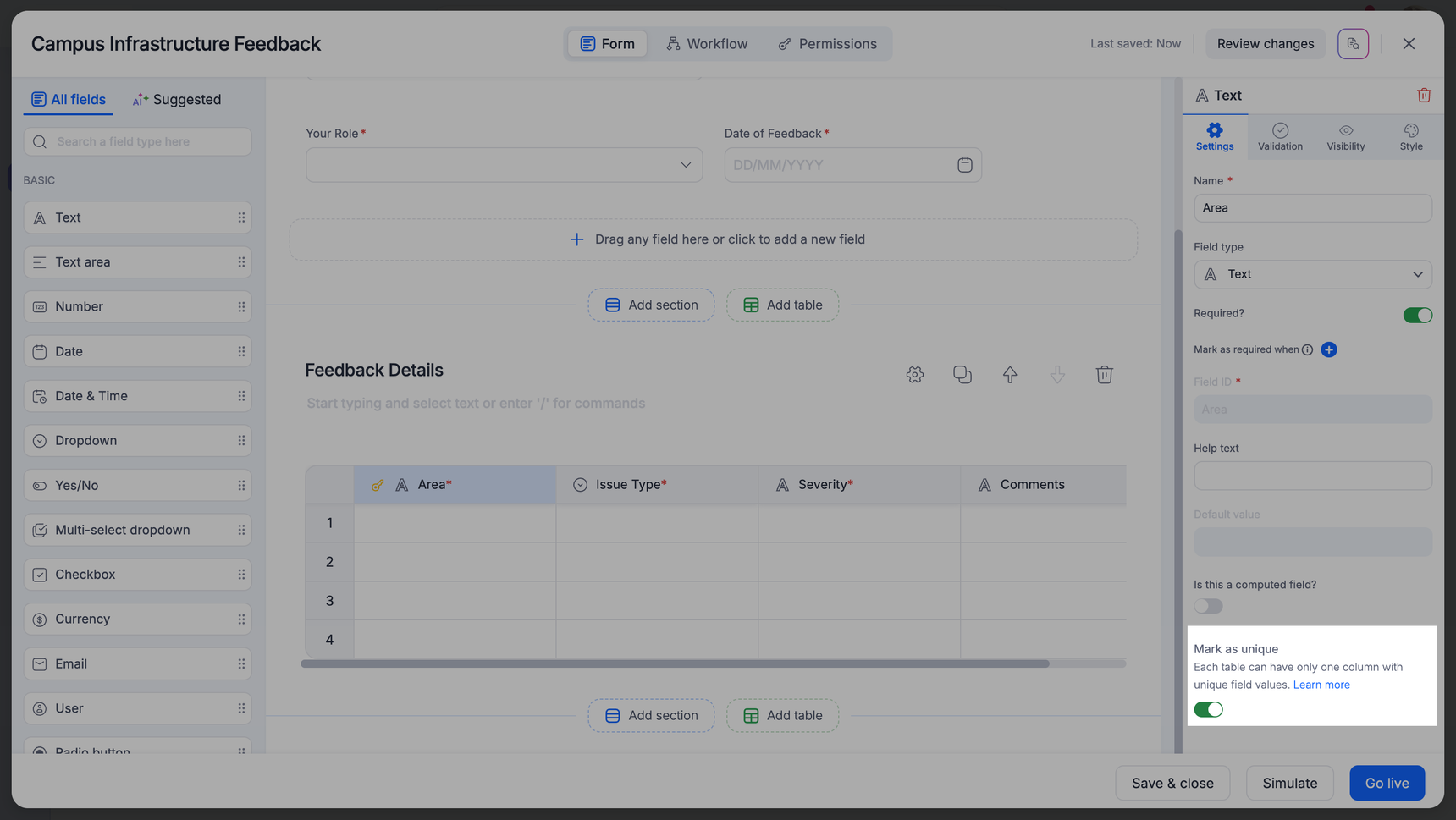
-
Each table can have one unique column, of type Text, Number, Date, Dropdown, Email, Radio or Scanner. Optionally, enter a custom error message.
Important
Unique checks run within one item only, not across items. Validations on the Submit action run when the user clicks Submit, not on drafts.