
Short answer: Set up the worksheet with column headers before you configure the action, use the Control connector's Loop action to write one row per child-table row, and update rows by the sheet's row number, not by an ID field.
Why it happens
Row actions can only map columns that already exist. An Excel workbook made by Create a workbook in the same run has no columns yet. (In Google Sheets, Create a spreadsheet and Create a worksheet can add headers for you.) For updates, the row number is the sheet's own row index, so mapping a Kissflow ID changes the wrong row or none.
How to fix it
-
Create the worksheet and type the column headers in row 1.
-
Add the Microsoft Excel Add a row action or the Google Sheets Create a row action, and map each column.
-
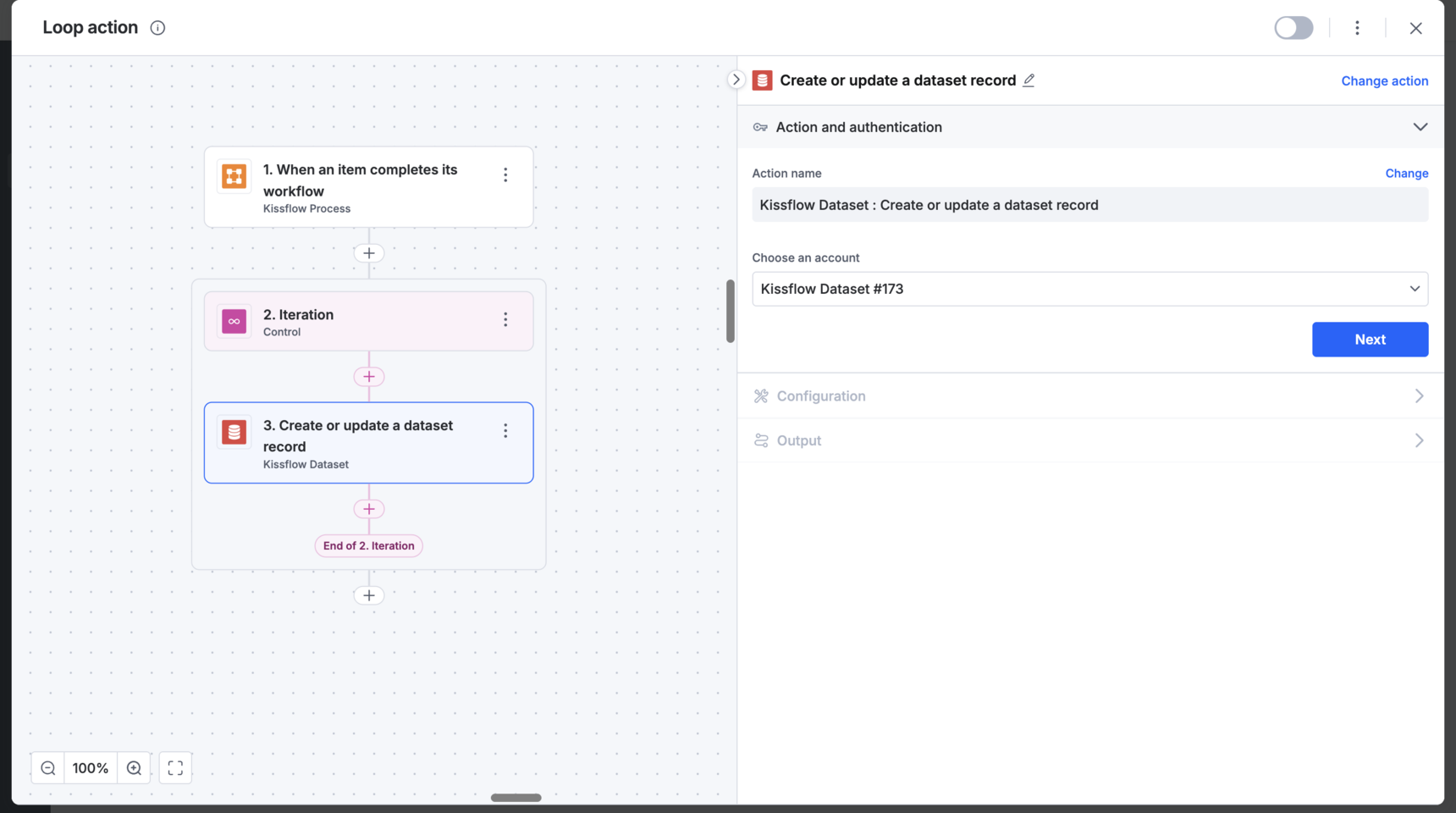
To write a child table, add the Control connector's Loop action with the table as the source. It shows on the canvas as an Iteration step. Put the row action inside it and map the iteration fields. The loop reads only the first 100 rows.
-
To update a row later, capture the row number from the add-row action's output.
-
In Google Sheets, you can instead use Lookup spreadsheet row, then Update a row, mapping the lookup's
row_idto the row number field. If the lookup returns nothing in testing, test with a static value, then map the field.
If every new row overwrites row 1 in Excel
Create a new worksheet, type the column names in row 1 and add borders to them. Select the new worksheet in the action, remap the columns and click Retest.
Other fixes
- Google Sheets Create rows in bulk writes many rows in one request. Keep the payload under 2 MB.
- A
<!DOCTYPE html>error: remove the/from the worksheet (tab) name. - Rows mixed up across several iterations: write to one master sheet and use lookups in the other tabs.
- To keep a Google Sheets formula column, leave that field blank in the action.
- Failures on the Microsoft 365 or Google side: check the connected account's permissions.
Important
Neither connector has a trigger, so a sheet change can't start an integration; call a webhook from the sheet instead. You can't pick the spreadsheet from a form field: add a condition before separate row actions. You can't put an image in a cell; upload it to Google Drive instead.