
How-to
Short answer: Rename an app from its general settings in the app builder. To remove it, archive it first in the production environment, then delete it.
Why it happens
- An app can be deleted only after it's archived.
- Archiving and deleting happen only in the production environment, and only for apps you own or that are shared with you.
How to fix it
To rename an app:
- Open the app in the app builder.
- Click the Settings icon in the bottom-left corner and go to App settings > General settings.
- Change the name, description, or logo, and click Save.
You can also click the app name in the top-left corner and type a new one. See renaming an app and settings in apps.
To archive an app:
-
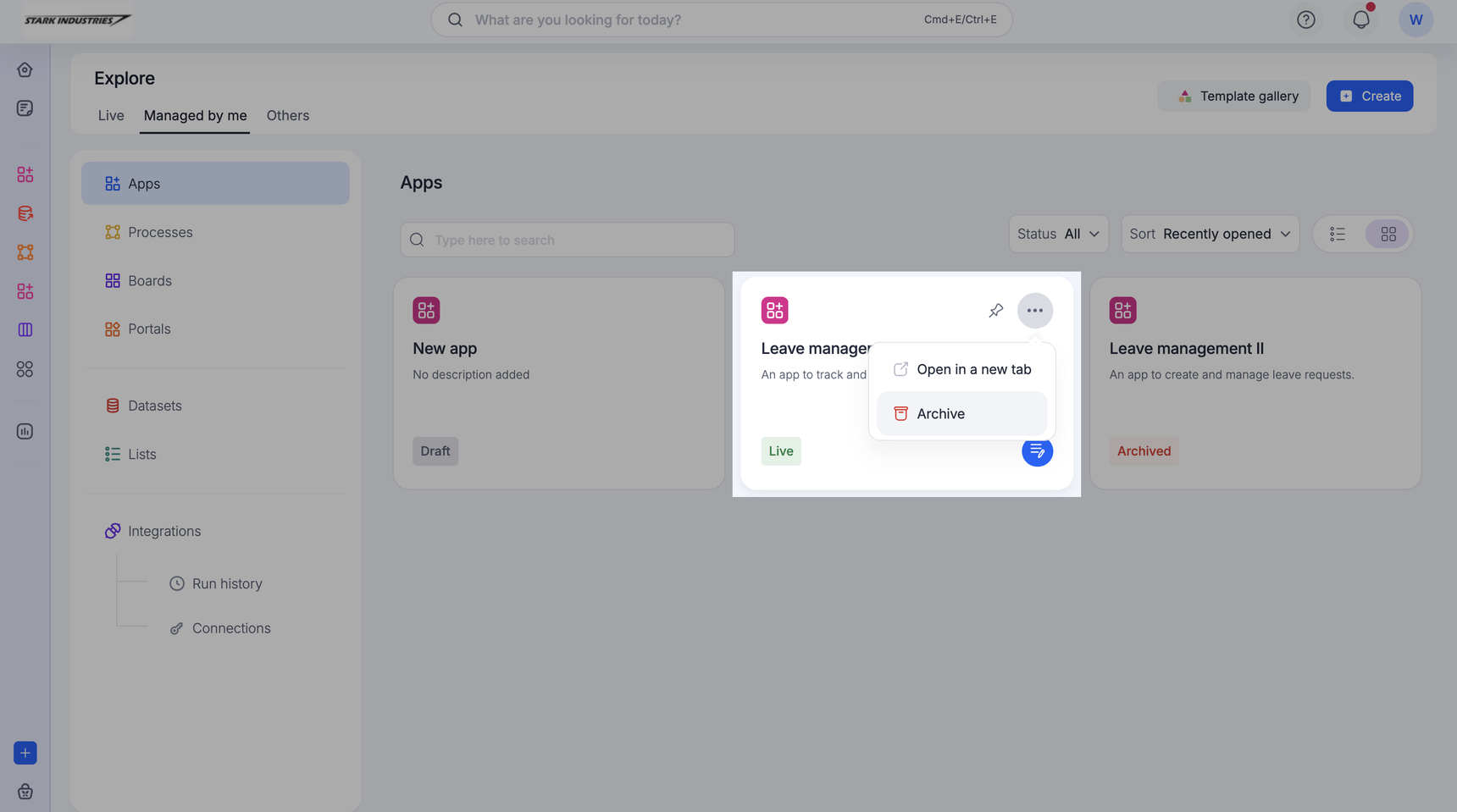
In the production environment, go to Explore.
-
Click Apps in the left panel, then Managed by me.
-
Click the more options icon on the app card and click Archive. The app's status changes to Archived.
To delete or restore an archived app:
- In Explore > Apps > Managed by me, click the more options icon on the archived app card and click Delete.
- Or open the archived app and click Delete app to remove it, or Unarchive app to restore it to its previous status.
See archiving and deleting an app.
Important
Deleted apps can't be recovered. Before you delete, check who the app is shared with and which other apps link to it. You can archive or delete only one app at a time.