
Short answer: Kissflow won't deactivate an account admin directly. Change their role to User first, then deactivate them. This also avoids errors when you try to deactivate yourself or a user who is already inactive.
When to use this
Use this when deactivating fails for someone who holds an admin role, such as a Super Admin who is leaving. It also helps when you select a mix of users and admins for a bulk deactivation.
Set it up
-
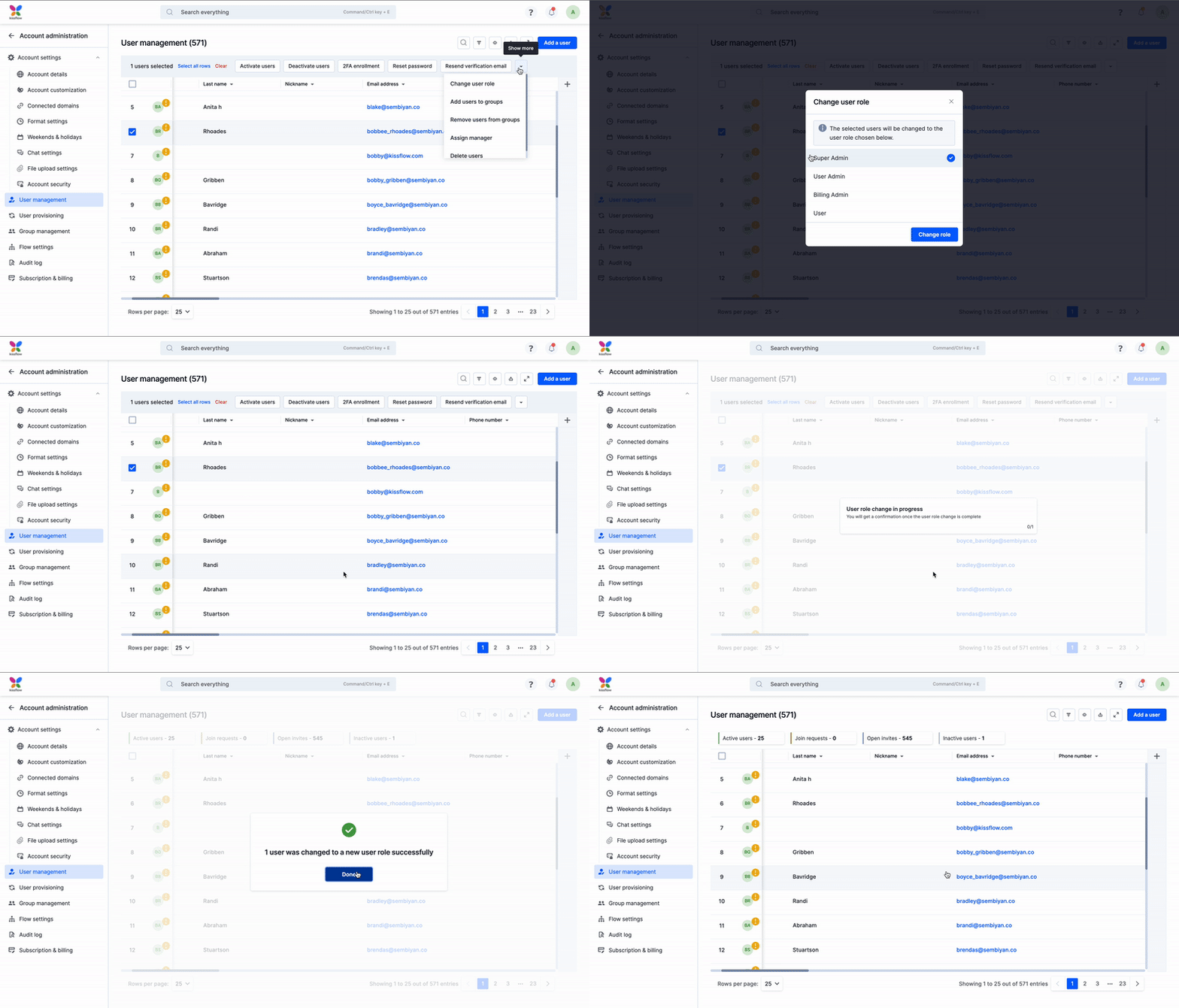
Click your profile picture > Account administration > User management.
-
Select the checkbox beside the user.
-
Click the More options button and select Change user role.
-
Choose User and click Change role.
-
Select the user again and click Deactivate.
-
If you reactivate the user later, give them back the admin role they had.
See deactivating and activating users and user roles and permissions.
Tip