
Short answer: You don't have to track references by hand. When you try to delete a flow or field that other flows or fields use, Kissflow shows a popup listing those dependencies. Remove them first, then delete.
When to use this
Use this before you delete a dataset, a form field or another flow that might be looked up or referenced elsewhere. For example, you want to delete a vendor name dataset but aren't sure which processes still use it. Deleting a field that's still referenced can break forms, views and boards.
Set it up
-
Start deleting the flow or field as usual.
-
Read the List of dependencies popup. It says the item can be deleted only after you remove the listed dependencies, and shows each dependent flow with Where is it used? (for example, a lookup field) and What is dependent?
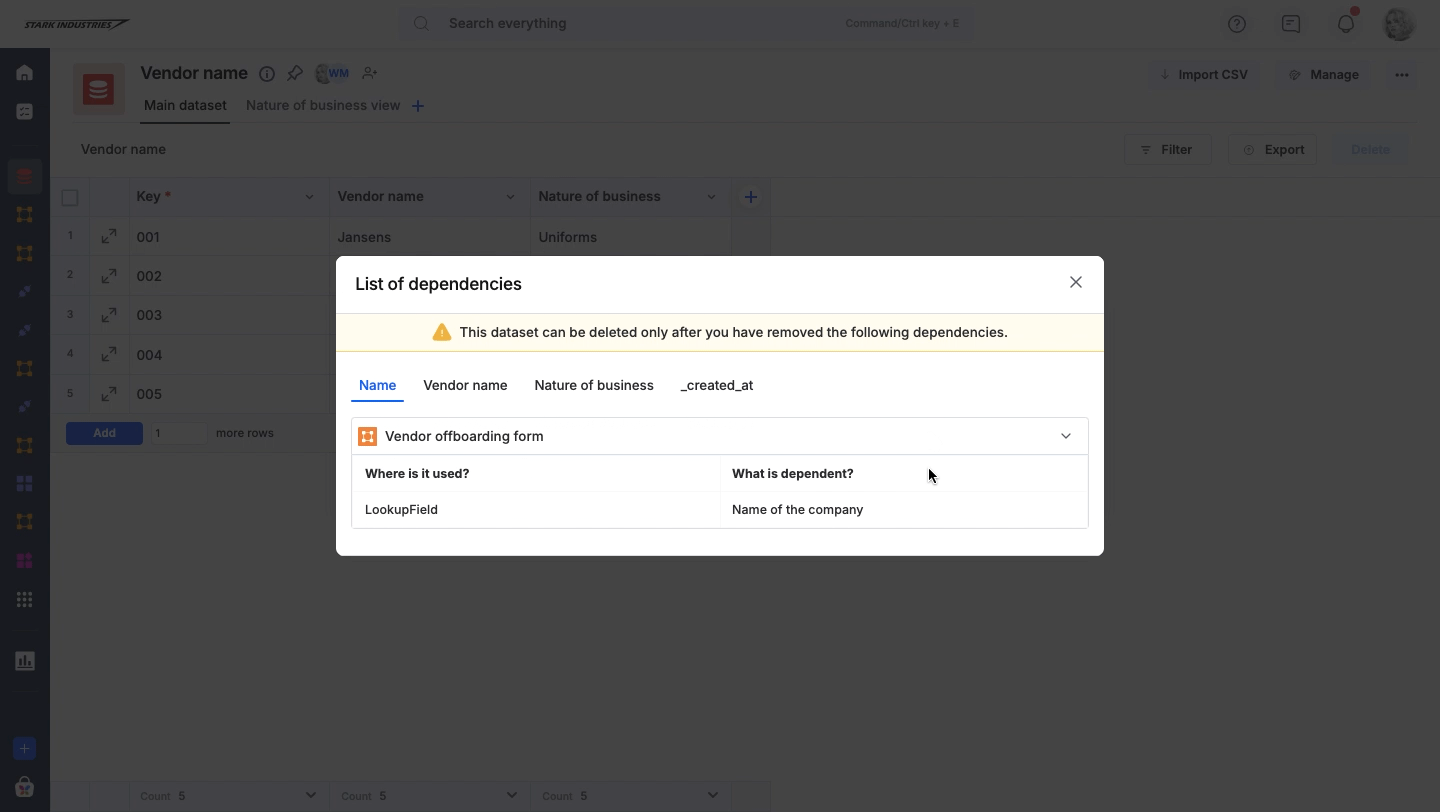
-
Open each listed flow and remove the reference, for example the lookup or the formula that uses the field.
-
Go back and delete the flow or field.
You can also check whether a field is used in formulas or workflow steps. For dataset fields, see deleting a field. Lists work the same way: see creating and administering a list.
Tip