
How-to
Short answer: Turn off the failure notification for all collaborators in the integration's settings. Failure notices go to the people the integration is shared with, so share it only with those who need them.
Why it happens
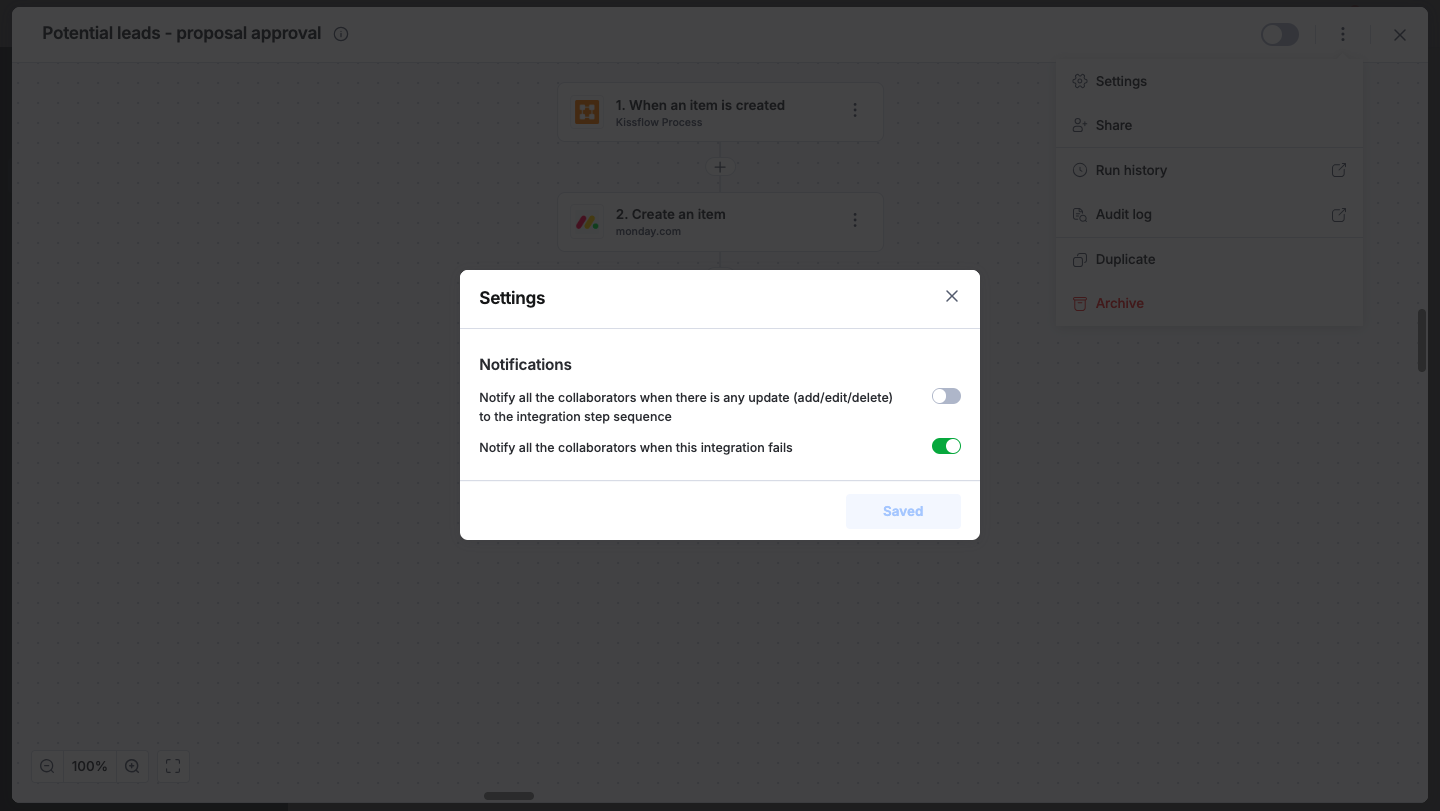
- The integration setting Notify all the collaborators when this integration fails sends every failure to every member.
- Everyone you add through Share becomes a collaborator.
How to fix it
- Open the integration and click More options > Settings. For an integration inside an app, open Logic > Integration, select it, and click the Settings icon. See integration settings and app integration settings.
- Turn off Notify all the collaborators when this integration fails.
- To control who gets failure notices, review the members under More options > Share and remove anyone who doesn't need them. See collaborating with other members.
To check whether an integration was really turned off when it ran:
- Open the integration's More options > Audit log.
- Look for status updates. The audit log records turning the integration on or off.
Important
Status changes made by the system appear under a system user, not a person. Item-level integration audit logs are empty by design; run details are in Run history.