
How-to
Short answer: Report exports contain field data only, not the attached files. For files, use Data backup, or build an integration that sends attachments as items complete.
Why it happens
- Exports list attachment fields as references, not as the files themselves.
- There's no bulk PDF export of items.
How to fix it
For a full export that includes files:
-
Ask Kissflow support to enable Data backup. It's an Enterprise feature.
-
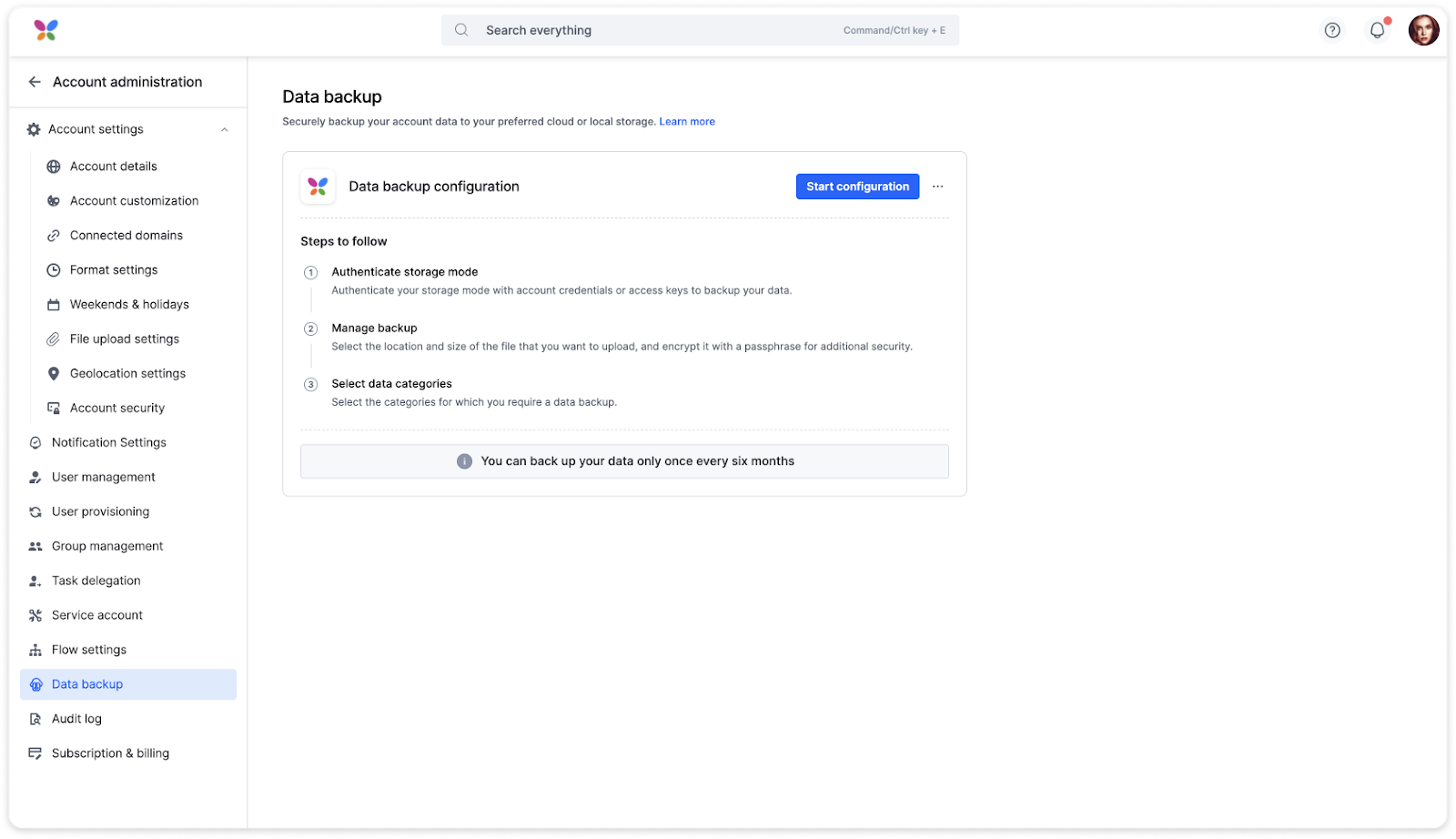
As a Super Admin, go to Account administration > Data backup > Start configuration. Choose Google Drive, Amazon S3, Google Cloud Storage, or a Kissflow download link, and include Attachments.
-
Expect JSON files in ZIP packages, with attachments in their original formats. The backup is for reading and archiving; you can't import it back into Kissflow.
To receive attachments for new items:
- Create an integration with the Kissflow Process trigger When an item completes its workflow or When a draft item is submitted.
- Add an Email action and map the attachment fields into its Attachments field. Each file can be up to 10 MB.
- Test the action, then turn on the integration.
If you're retiring a workflow but want to keep its history in Kissflow:
- Click Manage > Settings, then on the General settings tab select Do not allow new submissions and click Save. Users can still open old items and reports, but nobody can start new ones. See lock submission.
Important
A Super Admin can run a data backup only once every six months. To get PDFs of many existing items, you have to print them one at a time.