
Short answer: Step deadlines skip the weekends and holidays set in Weekends and holidays. Add the deadline and its alerts on each step. A breached deadline sends alerts but doesn't stop or reassign the item, so use an integration if you need more.
Why it happens
- No weekend days are selected by default, so deadlines can land on a Saturday until a Super Admin sets the weekend.
- Holidays don't recur. Each year's list has to be added again.
- Each step has its own deadline, which starts when the item reaches that step.
- Deadlines can't be changed for an item that's already submitted.
How to fix it
Set non-working days:
- Go to Account administration > Account settings > Weekends and holidays.
- Select your weekend days and add holidays. See Weekends and holidays.
Add a deadline and alerts to a step:
- In the process editor, click the step and click Add (+) in the Deadline section.
- Under Allotted time, enter the duration in minutes, hours or days.
- Click + Add an action, choose Notify or Escalate, pick the recipient (a user or a formula, such as the assignee's manager), and set a time between 30 minutes and 1 month, before or after the deadline. See Configuring deadline.
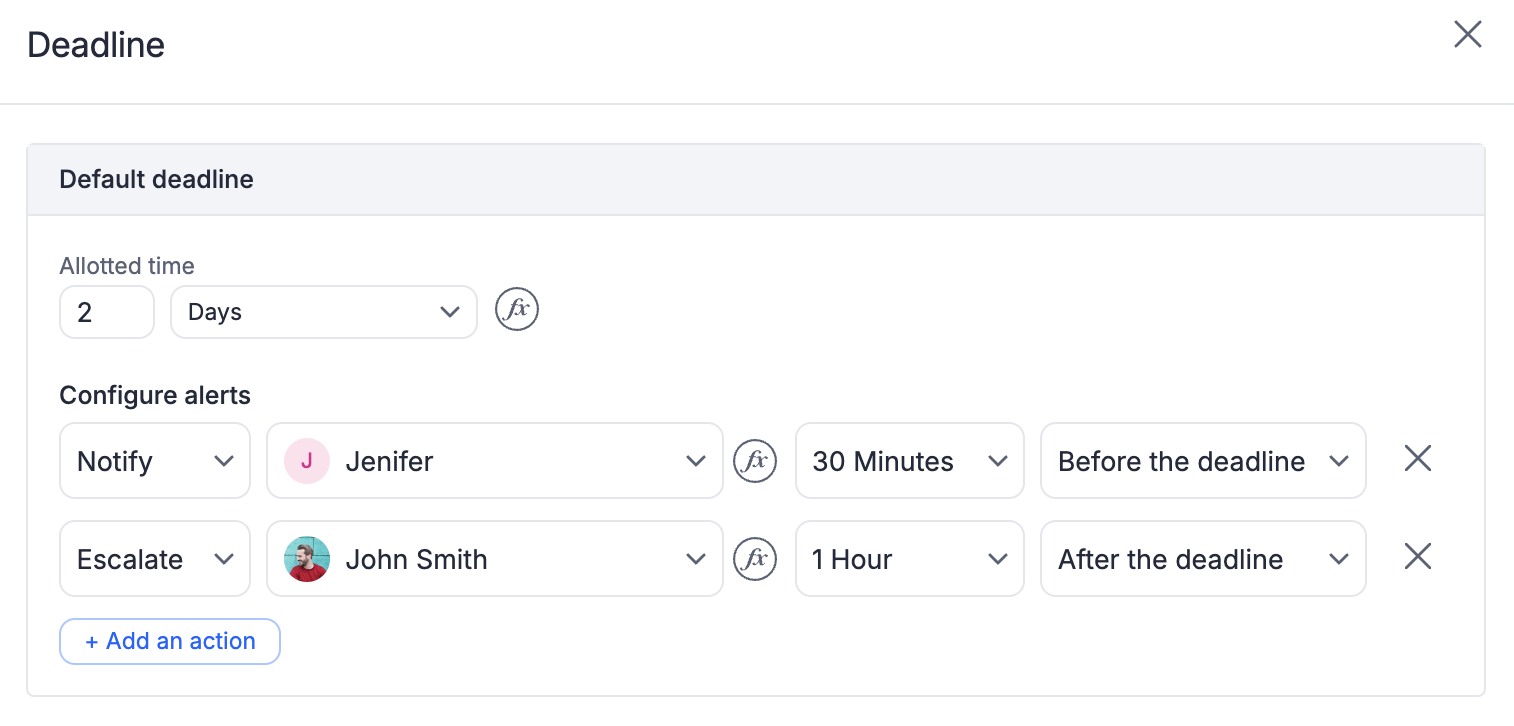
The assignee is notified by default as soon as the deadline is crossed.
For one deadline across several steps, add a Date-time field such as _submitted_at + 30 and use it for those steps.
To count working days in a formula, use dateDiff(date1, date2, "Day"). It skips weekends by default. To skip holidays too, add true() and a date list: dateDiff(date1, date2, "Day", true(), ["2026-12-25"]).
For custom emails or actions after a breach:
- Create an integration with the trigger When an item crosses its deadline or When an item crosses its deadline at this step.
- Add Send an email, or Approve an item to move the item on. The connection owner must be an assignee of that step.
For a reminder some days after a form date, use the Delay connector (up to 90 days), or a daily Scheduler that emails items whose date is today.
Important
IF formula instead. Deadline formulas are always in minutes.