
Tip
Short answer: Give the process form an expiry date with a few conditions, then build an integration on the Scheduler by Kissflow trigger that notifies users when their item expires.
When to use this
Use this for anything that expires on a fixed cycle and needs a fresh request to renew, such as software licenses or memberships that last six months. Instead of tracking expiry dates by hand, the form works out when an item expires and the integration tells the user, so they can submit a new request.
Set it up
- In the process form, add the fields and conditions that set and check the expiry date.
- Click + Create in the left navigation panel and select Integration.
- Search for the Scheduler by Kissflow connector and choose how often to check: Schedule daily, Schedule weekly, Schedule monthly or Schedule yearly.
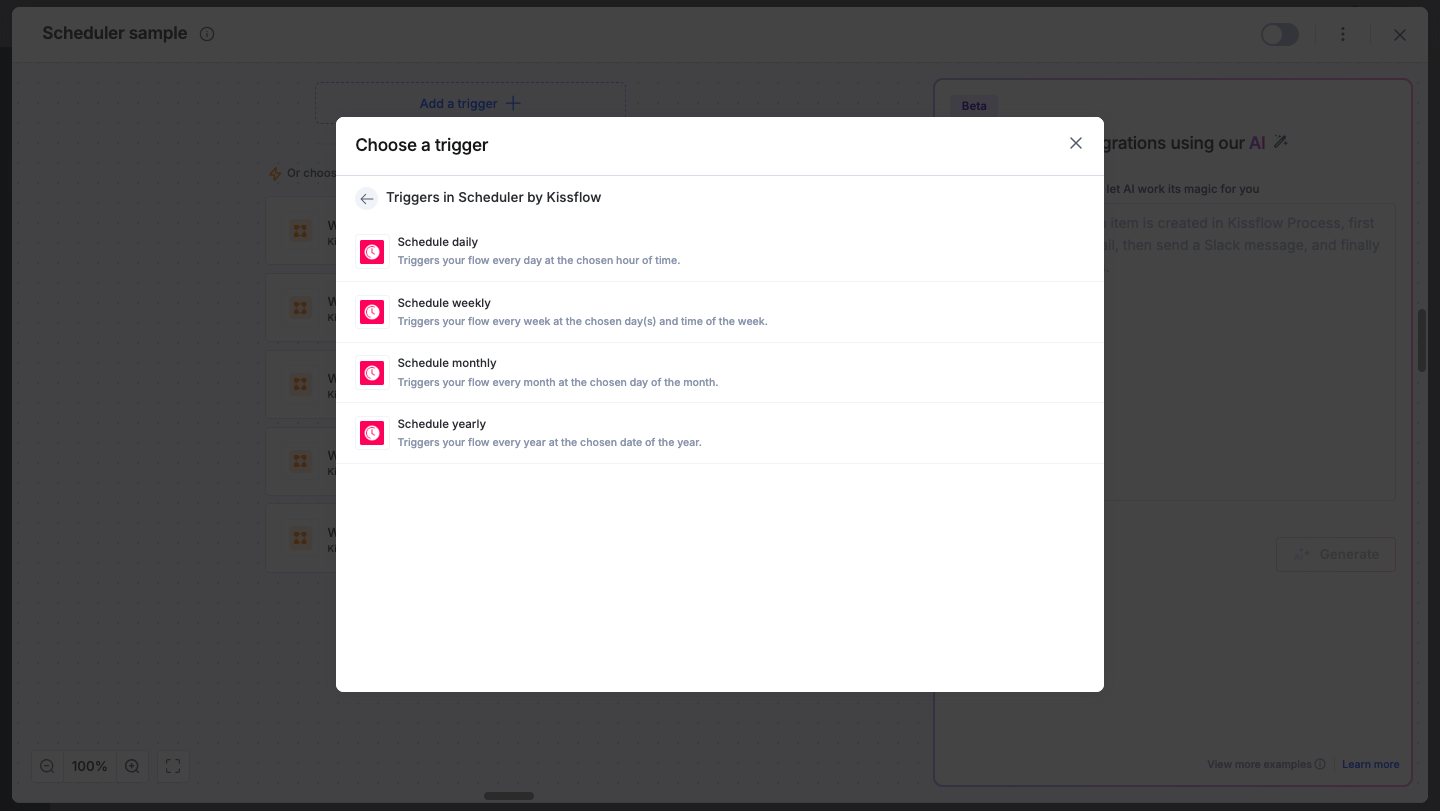
- Set the time and when the schedule should stop (a specific end date or a number of occurrences), then click Next, test the trigger and click Done.
- Add the action that notifies users whose item has expired, for example the Email connector's Send an email.
- Turn on the integration.
The schedule runs in the time zone set in My settings > Format settings, or the admin time zone if you haven't set one.
See Scheduler by Kissflow for every schedule option.
Tip
Set the notification frequency in the scheduler to suit your renewal cycle: daily, weekly, monthly or yearly.