
Short answer: Process Admins can see flow-level and item-level events in the process audit log, including Process published and Item deleted. For older step history, query the Analytics ActivityInstance table.
Why it happens
- The audit log shows a limited window. You filter by an Audit period, such as Last 30 days or a custom date range, and exports cover the last 90 days.
- Publishing is logged, but you don't get an old-versus-new list for every field or formula edit in the process design.
- Reassignment details aren't available in process reports by default.
How to fix it
To see who published a process or deleted an item:
-
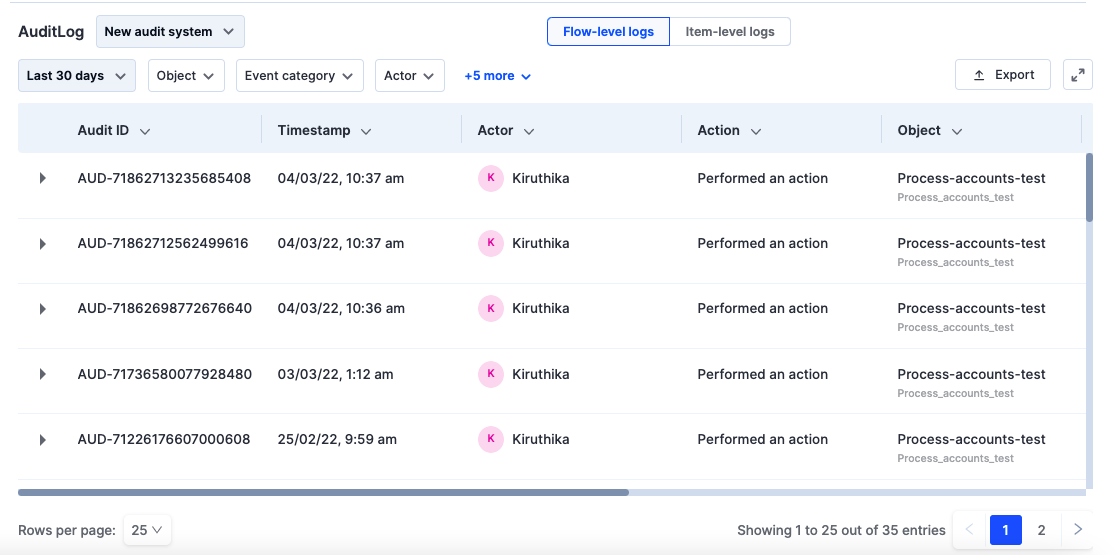
Open the process and click Manage > Audit log.
-
Go to Flow-level logs for process changes such as publishing, or Item-level logs for item changes.
-
Filter by Action, for example Process published or Item deleted, and check the Actor and Timestamp columns. See Process audit log.
A deleted item can be restored within 30 days from the Deleted items tab in More options > Administration. See admin actions in a process.
To see what will change before you publish, use Review changes in the process editor. See Reviewing publish changes.
For step history older than the log window, query the ActivityInstance table in Analytics. It holds every step of every item, with who acted and when. See Process table in Analytics.
To track reassignments in reports:
- Add fields for the reassigned user and date to the form.
- Create an integration with the trigger When an item is reassigned at this step, and add Update an item to fill those fields.
- Repeat for each step, then add the fields to your report.
For user sign-ins, export user data and check the Last logged in column. See Exporting user data.
Datasets have their own audit log under Manage > Audit log. For long-term retention, ask Kissflow support to enable data backup (Enterprise).
Important