
Short answer: Send two headers, X-Access-Key-Id and X-Access-Key-Secret, to your own account domain. Find the account ID under API authentication and the process and item IDs in the item's URL.
Why it happens
- Kissflow authenticates API calls with an access key, which is an ID and secret pair. Older API keys sent as
X-Api-Keywere phased out, so they return an authentication error. - Every call is made against your account's own domain, with your account ID in the path.
How to fix it
-
Click your profile picture > My settings > API authentication.
-
Copy the Account ID and Account domain.
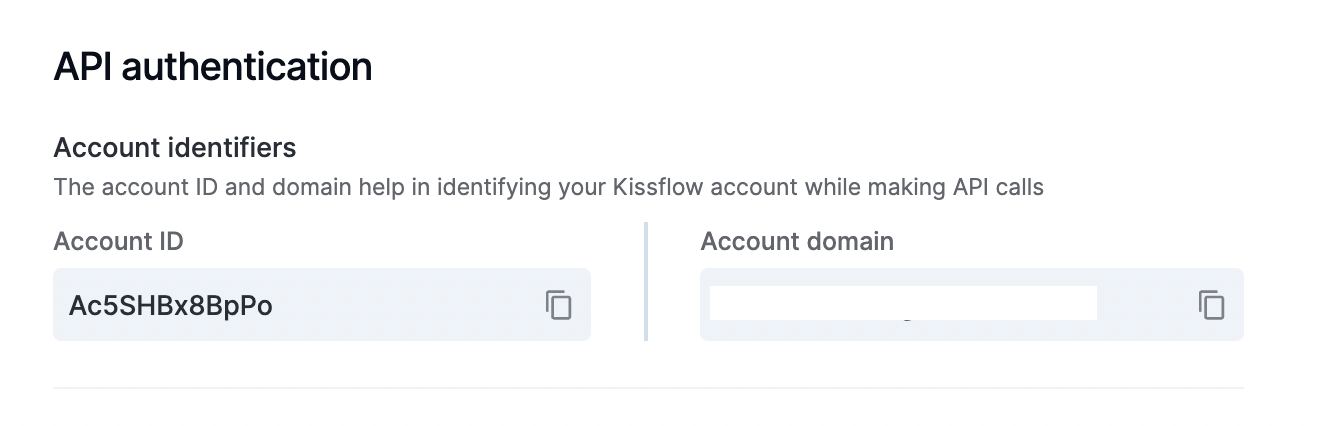
-
Under Access keys, click Create access key and copy the ID and secret. See API authentication.
-
Send both headers on every request:
X-Access-Key-Id: <id>andX-Access-Key-Secret: <secret>. -
Use your domain as the base URL, for example
https://<subdomain>.kissflow.com/dataset/2/{account_id}/{dataset_id}/list. Don't drop the/2version segment or the/listsuffix.
To find IDs from an item's URL, such as .../view/process/Purchase_Request/form/Pk8gkqOWMGnc/Pk8gkqOWoc94:
- The process ID follows
/process/(Purchase_Request). - The instance ID is the first value after
/form/(Pk8gkqOWMGnc). - The activity instance ID is the last value (
Pk8gkqOWoc94). It changes at every workflow step.
If a call returns "item could not be located", remove extra headers and send only the two access key headers.
To get only certain fields from process items, call List all process items (Admin) with apply_preference=true. It then follows the shown fields, filters and page size set in process administration.
Important