
How-to
Short answer: Use When the status of an item is updated and add a condition that lets only your target status through. For dates, use When an item starts.
Why it happens
Board triggers don't filter by status on their own. The status trigger fires on every status change, so you always need a condition step to pick out the status you want.
How to fix it
To run when an item reaches one status (for example "Done"):
- Create an integration with the Kissflow Board trigger When the status of an item is updated.
- In your action, click Change next to When does this step happen? and add a condition that checks for the target status. For several statuses with different actions, use conditional paths instead.
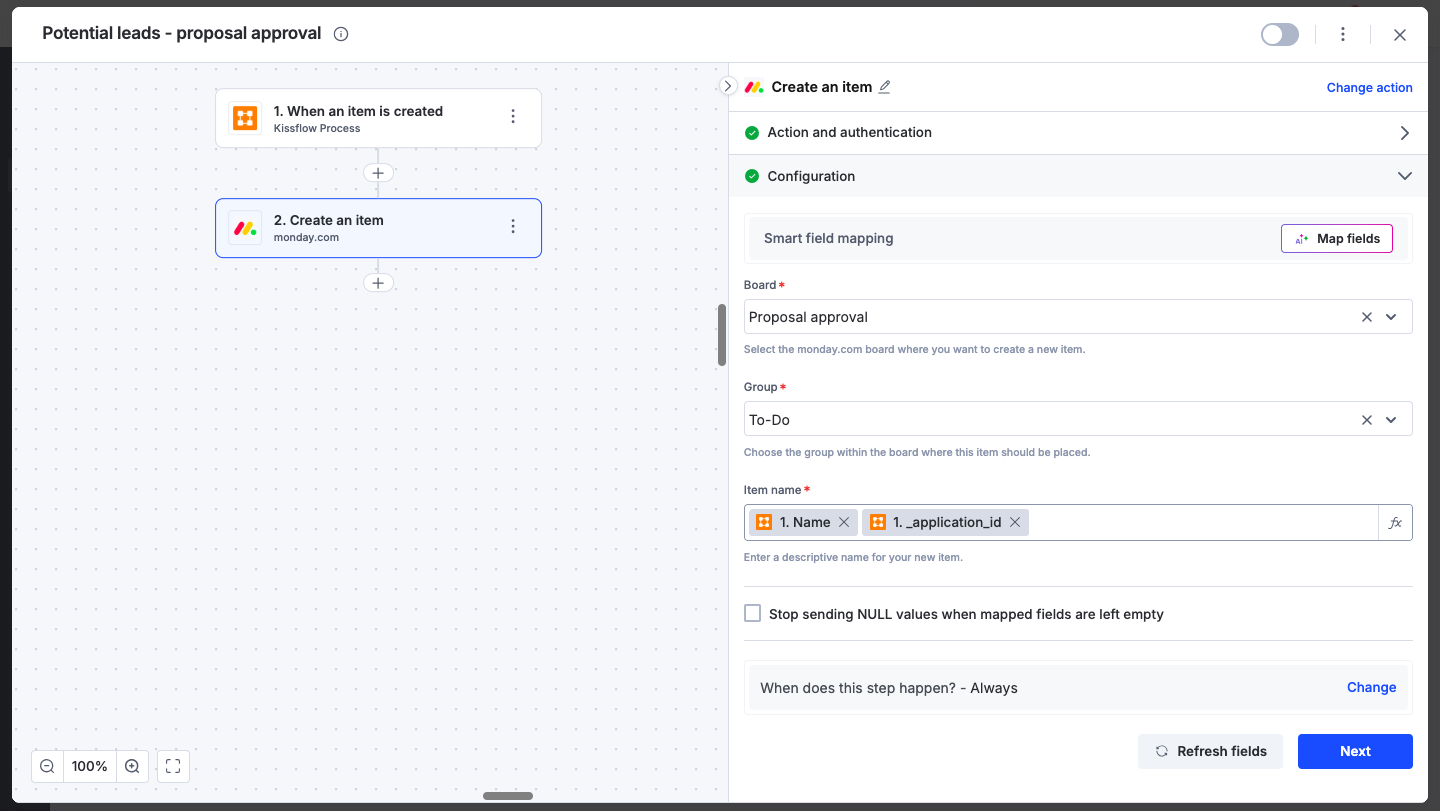
- Open Run history to confirm that runs for other statuses show the action as skipped.
To create a process item from a board date:
- Use the Kissflow Board trigger When an item starts. It fires when the item's start date matches the current date.
- Add the Kissflow Process action Create and submit a new item.
To go the other way, from a process step to a board:
- Use the Kissflow Process trigger When an item enters this step.
- Add the Kissflow Board action Create an item.
To avoid duplicates when users move an item back and forth between statuses:
- Before the create step, look for an existing item: use Search an item when you create process items, or Retrieve data from a board when you create board items.
- Add a condition to the create step so it runs only when the search finds nothing.
- Check that you search with the correct ID. A common mistake is mapping the board item's
_idinto a search that expects a different ID.
See the Kissflow Board connector for the full list of board triggers and actions.