
How-to
Short answer: Create a user workload report in Analytics. It lists every pending item with its assignee across processes, and you filter it to the people on the team.
Why it happens
- My items shows only your own tasks. There's no built-in "my team's tasks" view.
- Analytics reads the process item data, including who each item is assigned to, so you can report on it.
How to fix it
-
Go to Analytics > Data Explorer and click Create dataview. In an app, go to the app builder > Data > Analytics > Dataviews > Create dataview.
-
Use the query from the user workload report guide. It reads the
ProcessInstancetable and splits out the assignee name. -
Run the query and publish the dataview.
-
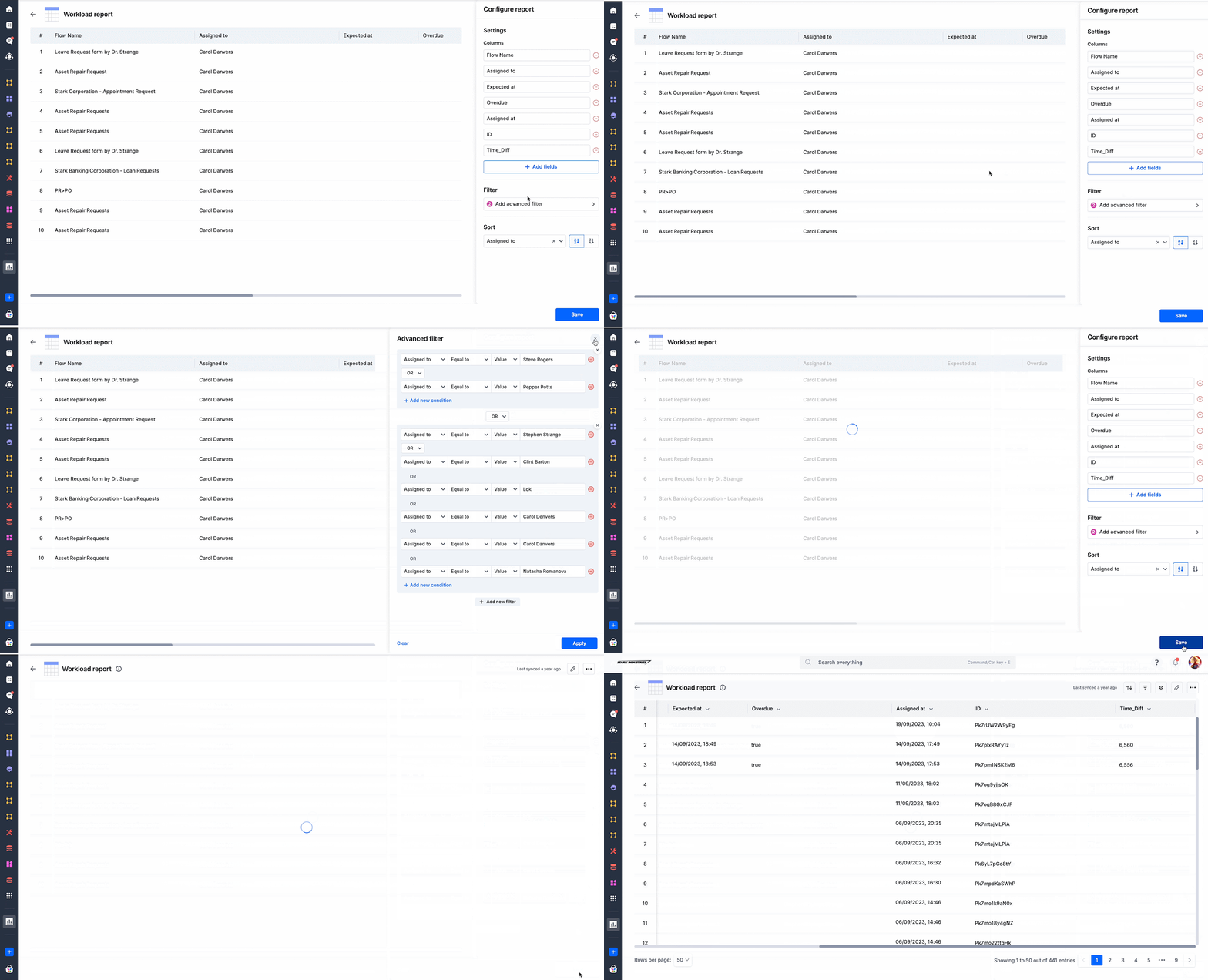
Create a Tabular report on the dataview.
-
Under Columns, add AssignedTo, Flow name, Created by, and Status.
-
Add a Filter on the assignee for the team's users, and save.
-
Share the report with the manager.
See Analytics in apps for the app version.
For a single process:
- Open the process Metrics report and go to User performance. See Metrics report.
Important
Analytics is on Enterprise plans, and its data is updated within an hour, so very recent assignments may not show yet.