
How-to
Short answer: Reassign the items from the process's Administration section, in bulk if needed. Then update the step's assignee so new items stop going to that person.
Why it happens
- Items stay with their assignee until someone moves them. When a user is deactivated, their items wait for an admin to reassign them.
- Task delegation only redirects new tasks. Items already in the person's queue stay there.
How to fix it
-
Open the process, click the More options button, and select Administration.
-
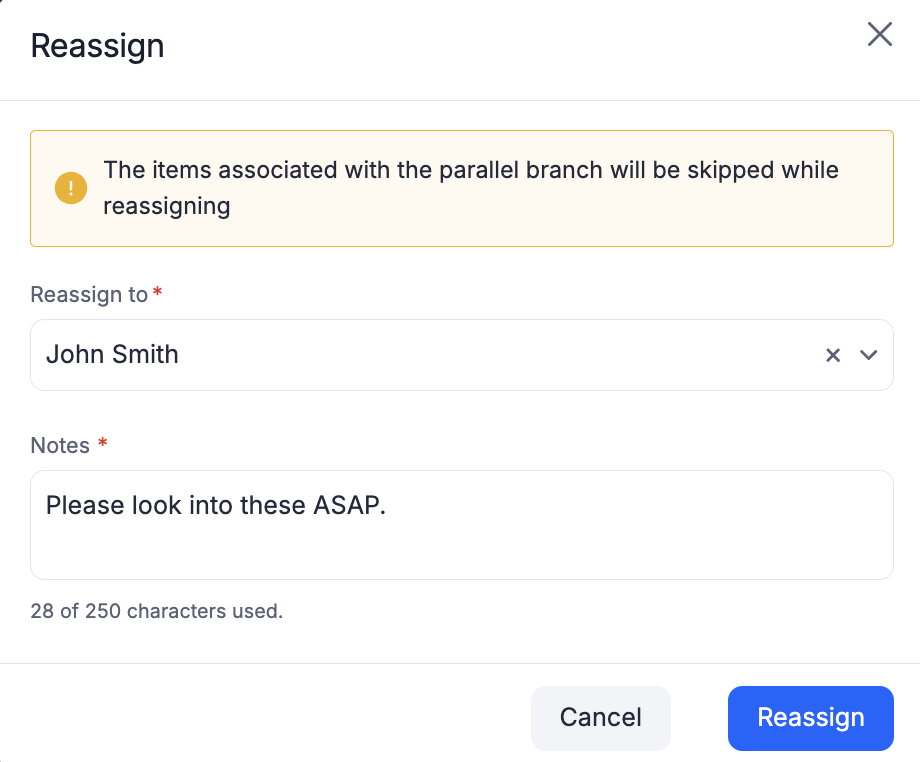
Filter the list to the user's items, select them, and click Reassign. You can reassign up to 100 items at once. See admin actions in a process.
-
Open Edit process, change the step's assignee to an active user, and publish.
Other ways to find and move stuck items:
- Account Admins and Flow Admins can use My items > Admin actions > Item reassignment for items assigned to deactivated or deleted users. See My items. This works one item at a time.
- The process Metrics report shows how many items are assigned to deactivated or deleted users. See Metrics report.
- To close an item raised by someone who left, use Mark as completed in Administration.
For planned absences:
- The user sets up their own delegation in My settings, or a Super Admin sets one up for them. See task delegation.
- If the step is assigned to a group, add the stand-in to the group until the original approver returns.
Important
Reassigning an item that has several assignees replaces all of them with the new assignee. Items inside parallel branches can't be reassigned, and you reassign one process at a time.